# Security training
Your company runs phishing simulations and assigns security courses through Noon. This page explains what to expect, what to do, and where to find your training.
## Phishing simulations
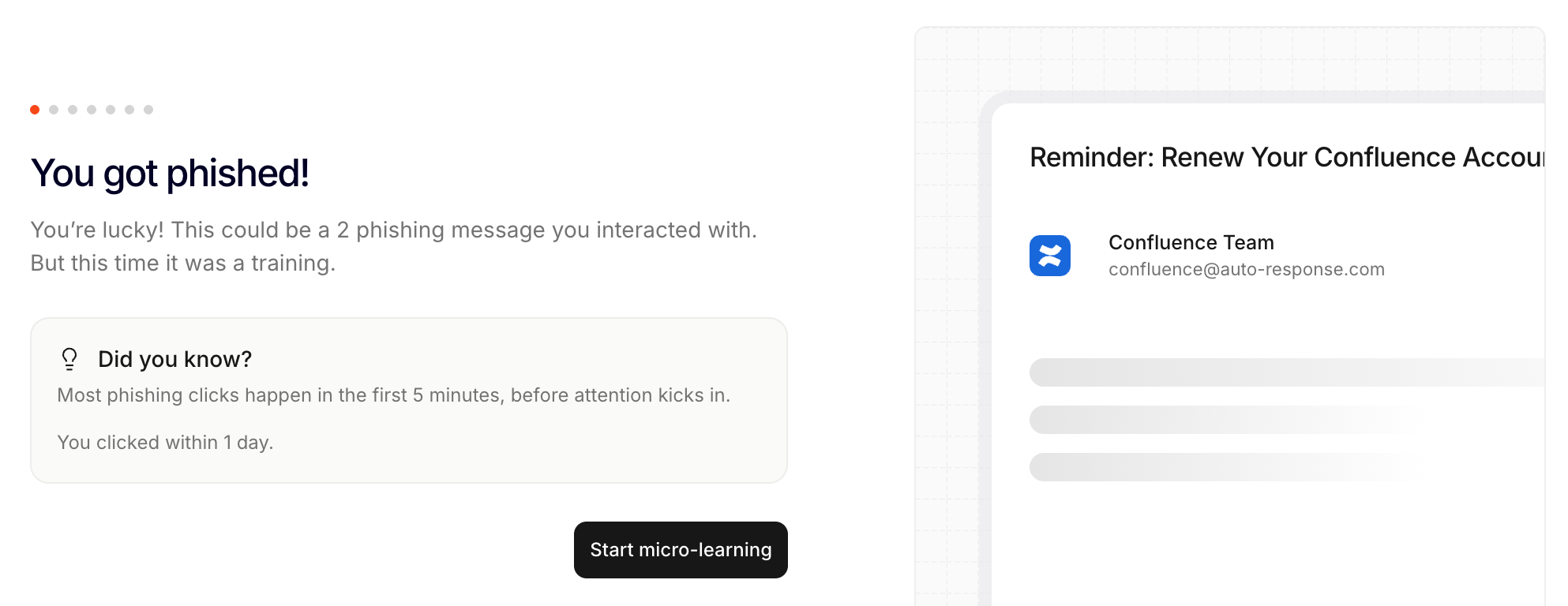
Your company will send simulated phishing emails to your work inbox as a training exercise. They are designed to look convincing. Don't click links, open attachments, or enter your password if one takes you to a sign-in page.
**If you fall for a simulation**, you will land on a page that tells you the email was a training exercise. A short lesson walks you through what gave it away. There is no penalty.
## Courses
Your company may assign you security courses. When a course is assigned, you will receive an email from notifications@noon.security with a link to open it. The link takes you to app.noon.security.
### Take a course
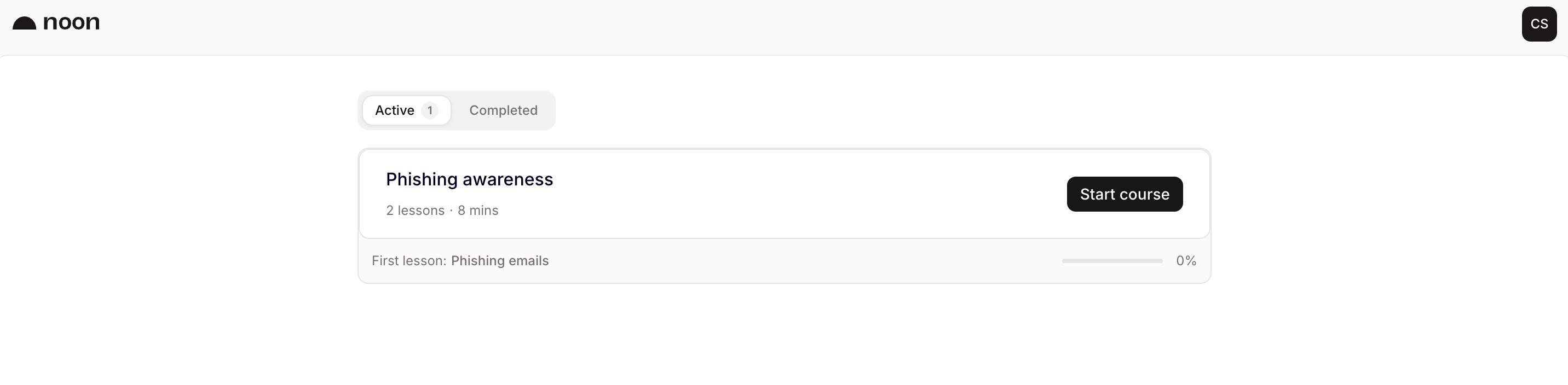
Open **My Courses** to find every course assigned to you. The admin who shared this page can send you the link.
- **Active** shows courses still to do. A course you haven't started shows **Start course**. One already in progress shows **Continue course**.
- Each course lists its name, how many lessons it has, and how long it takes.
- A lesson is made up of steps: reading and quizzes. The lesson shows which step you are on, such as **1/5**. Answer the quiz before moving on.
- When you finish a lesson, it confirms **Lesson passed** or **Lesson not passed**.
- **Completed** lists every course you have finished, marked *Passed* or *Failed*.