# Google Workspace onboarding
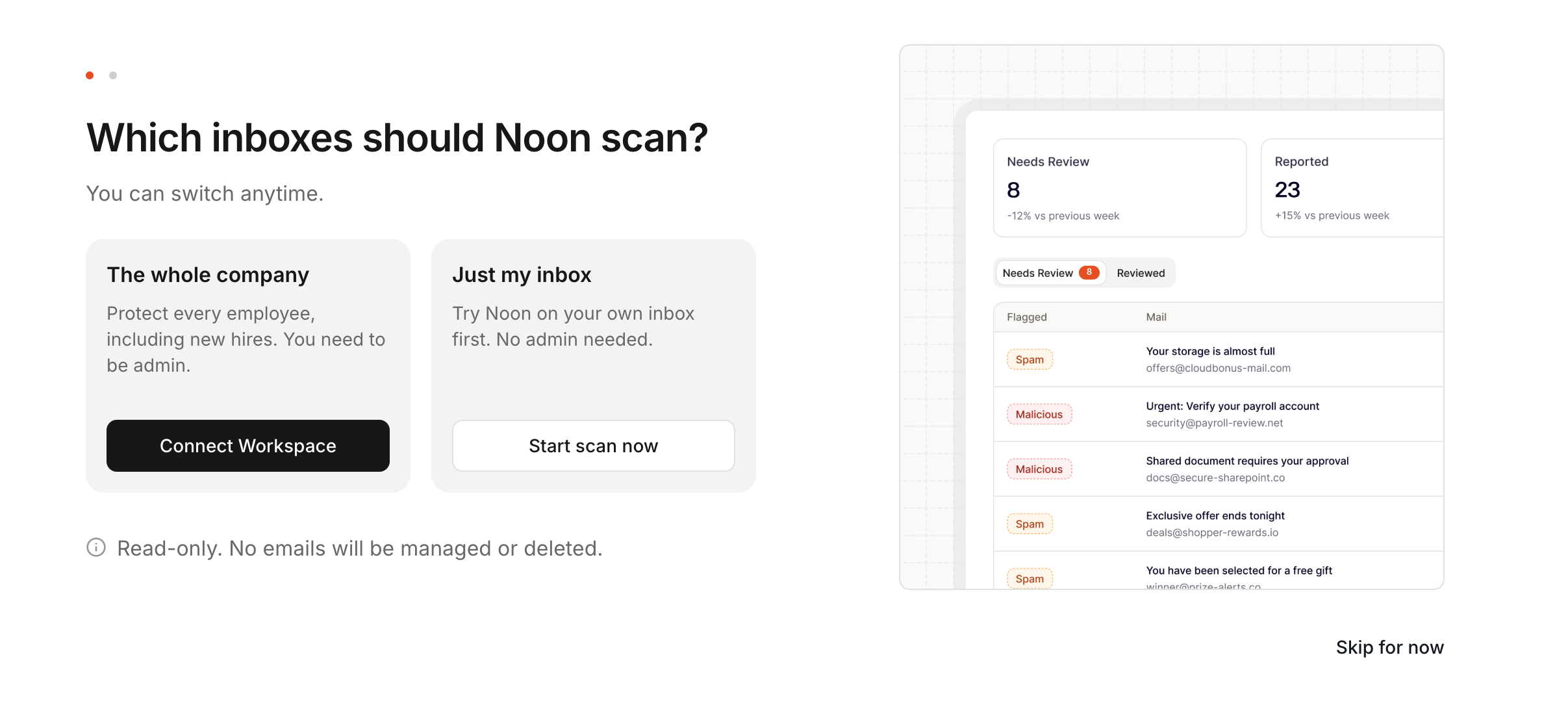
Google Workspace onboarding connects Noon to your email and starts an initial scan. After you sign in with Google, Noon asks how much you want to connect: your entire Google Workspace organization, or only your own Gmail inbox. You can also skip the connection and come back to it later.
Signing in creates your own workspace, and you are its admin. Once you connect the whole organization, colleagues on your domain who sign in later join it as members.
{% hint style="info" %}
Connecting your workspace gives Noon permission to read and move mail, so it can act on threats. See [Google permissions](https://help.noon.security/getting-started/connect-your-workspace/google-workspace-onboarding/google-permissions) for what each permission is for.
{% endhint %}
## Prerequisites
To connect your entire workspace, you need:
* A Google Workspace account
* A Noon admin account
* Permission to manage domain-wide delegation in Google Admin Console
## Choose what to connect
{% hint style="success" %}
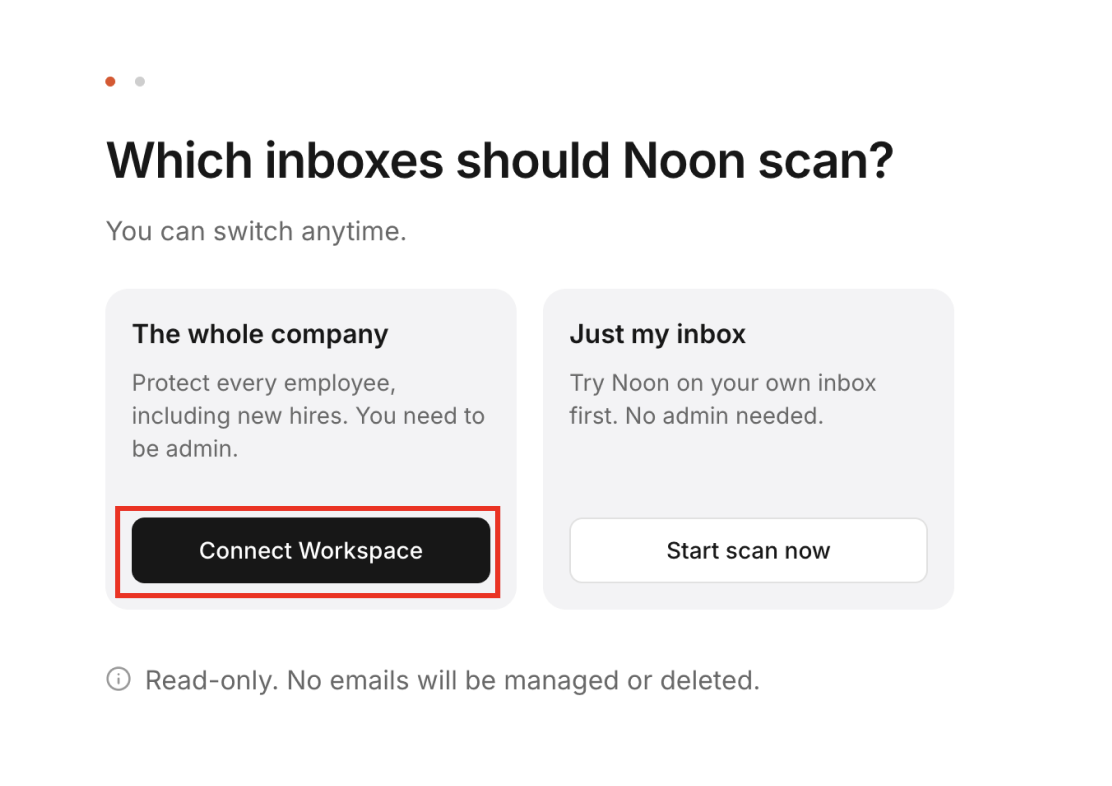
Recommended: click **Connect Workspace** to connect every mailbox.
{% endhint %}
* **Connect Workspace**: connects every mailbox through domain-wide delegation in Google Admin Console. This needs permission to manage domain-wide delegation.
* **Start scan now**: connects only your own Gmail inbox. Google Admin permissions are not needed.
* **Skip**: enters Noon without connecting anything. Choose this to look at devices or phishing simulations first. You can set up the email connection later.
## Connect your workspace
{% stepper %}
{% step %}
### Sign in with Google
On the Noon sign-in page, click **Continue with Gmail** and sign in with your work account.
{% endstep %}
{% step %}
### Choose Connect Workspace
On the onboarding page, click **Connect Workspace**. This option connects every mailbox in your Google Workspace organization.
{% endstep %}
{% step %}
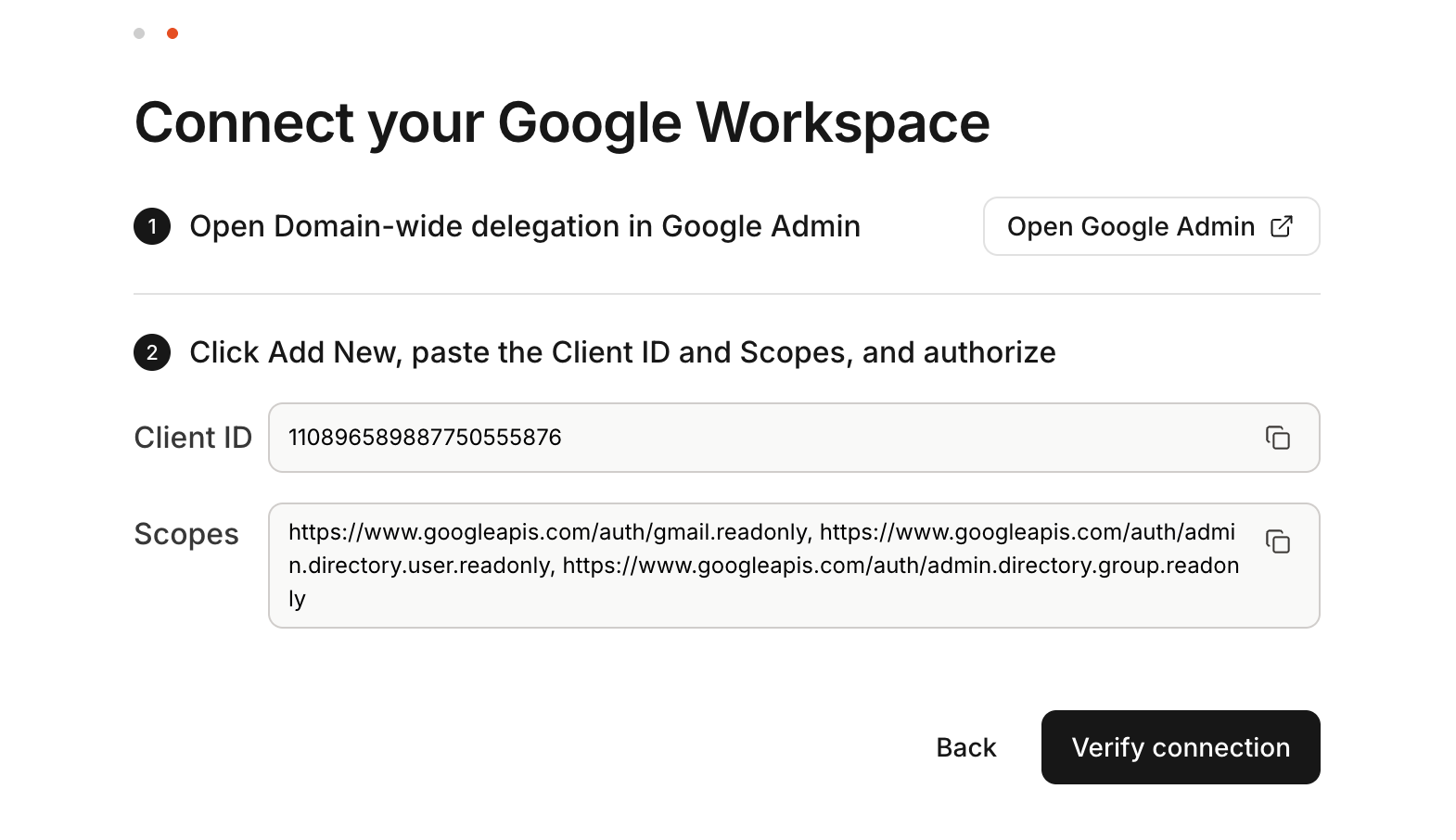
### Open domain-wide delegation in Google Admin Console
In Noon, click the link to open Google Admin Console. The link opens the right page in Google Admin Console.
{% columns %}
{% column %}
Google Admin Console navigation can vary. If needed, search for **Domain-wide delegation** in the Admin Console.
{% endcolumn %}
{% column %}
{% endcolumn %}
{% endcolumns %}
{% endstep %}
{% step %}
### Add Noon as an API client
Click **Add new**, then copy the following values from Noon into Google Admin Console:
* **Client ID**
* **OAuth scopes**
Enter the values exactly as shown in Noon, then authorize the client.
{% endstep %}
{% step %}
### Verify the connection
Return to Noon and click **Verify connection**.
If verification does not succeed immediately, wait briefly and try again.
{% endstep %}
{% step %}
### Noon starts scanning
After verification, Noon opens the Emails page and begins scanning the connected mailboxes. The scan continues in the background. Its duration depends on the size of your organization and its mailboxes.
{% endstep %}
{% endstepper %}
## Sync only specific groups
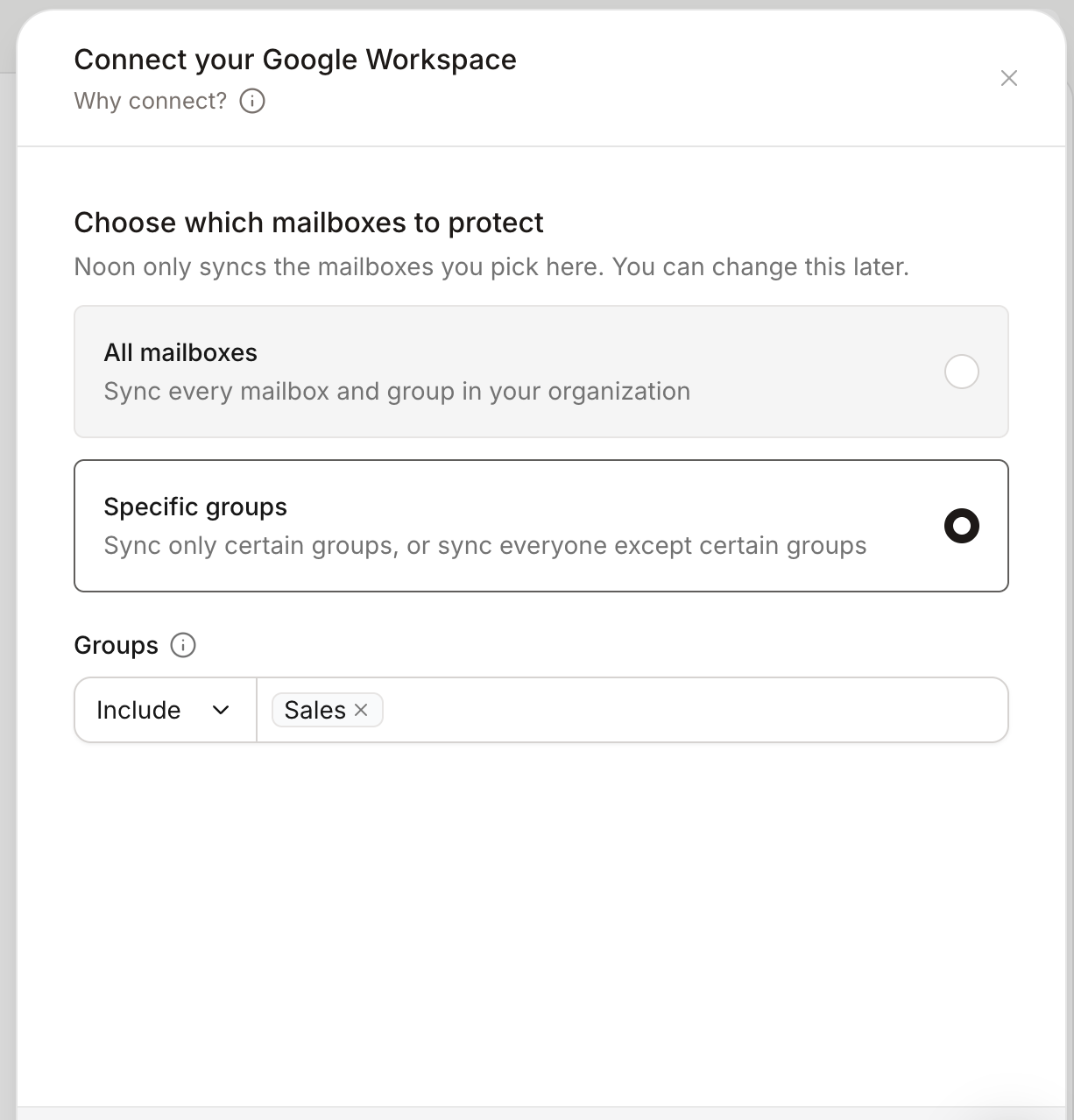
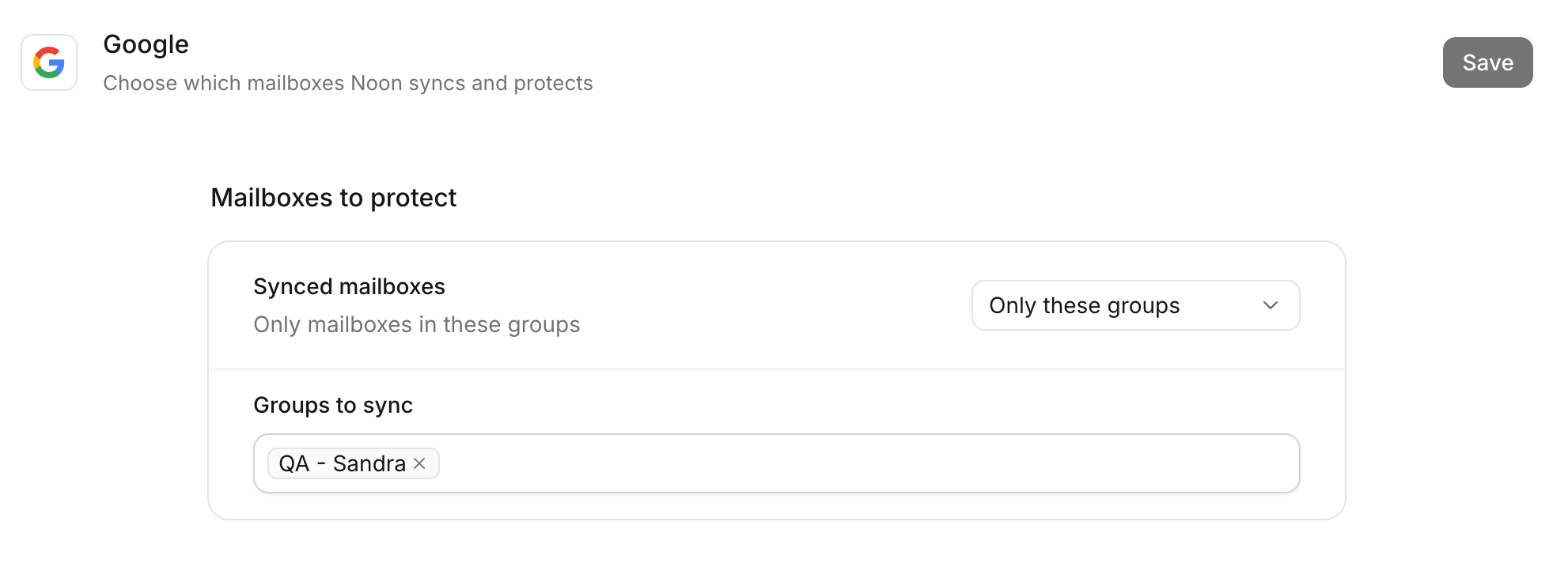
You don't have to bring in the complete company. When Noon asks which mailboxes to protect, choose **Specific groups**, then add the groups from your Google Workspace. Noon only syncs the mailboxes you pick, and you can change this later.
Type each group name exactly as it appears in Google and press Enter. Next to the group name, choose how Noon uses the group:
* **Include**: Noon syncs only the people in the groups you add.
* **Exclude**: Noon syncs everyone except the people in the groups you add. A person in an excluded group is never synced, even if they belong to other groups.
The groups you sync appear in the **Groups** tab on [**People**](https://help.noon.security/more/people-and-groups#assign-a-simulation-or-a-course). Use them to choose who receives a [phishing simulation](https://help.noon.security/train/phishing-simulations) or a [course](https://help.noon.security/train/courses/launch-a-course).
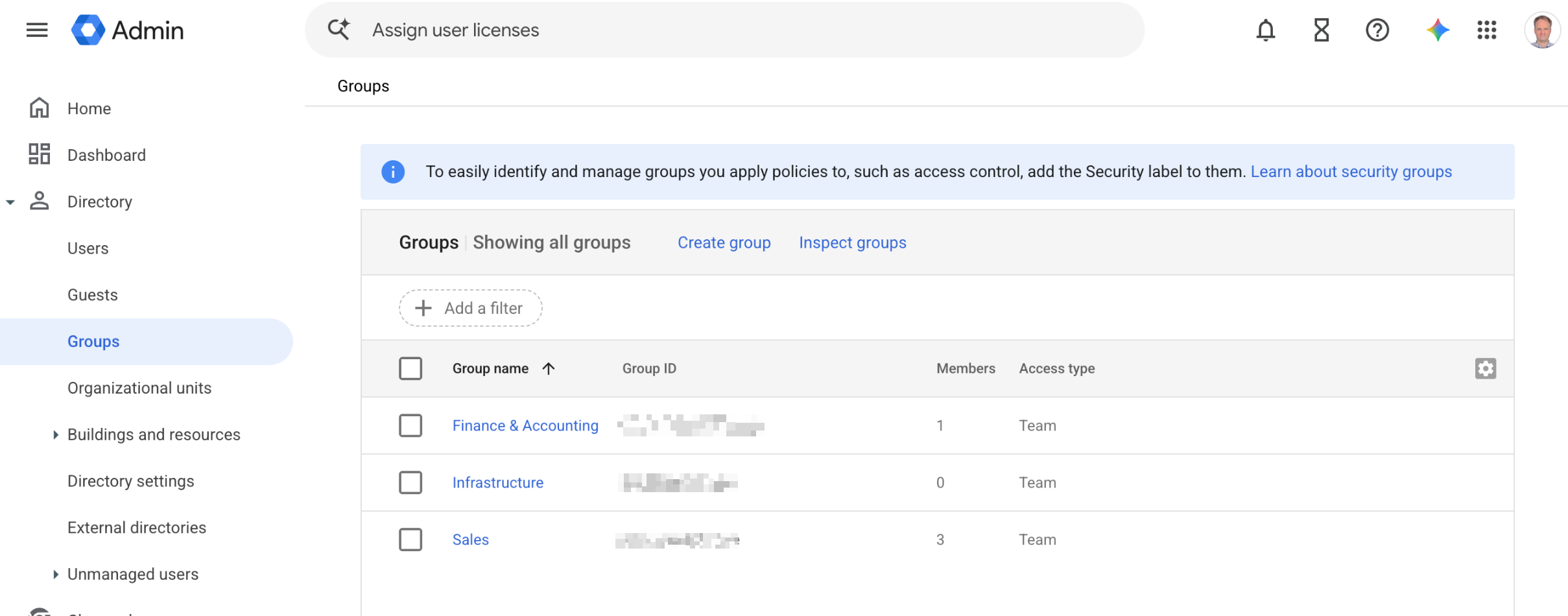
To see the groups in your organization, use the Google Admin Console:
1. Go to the [Google Admin Console](https://admin.google.com/).
2. In the left menu, click **Directory**.
3. Click **Groups**.
## Connect only your inbox
Use this option when you want to try Noon on your own mail, or when you do not have the Google Admin permissions required for the workspace connection.
1. Sign in to Noon with **Continue with Gmail**.
2. On the onboarding page, click **Start scan now**.
3. Approve the read-only Gmail access that Google requests.
Noon opens the Emails page and starts scanning your inbox. This option does not connect other mailboxes in your organization. A Noon admin can connect the full workspace later from Noon.
## Change synced groups after onboarding
To change which groups Noon syncs after onboarding, go to **Integrations**:
1. In the left menu, click **Integrations**.
2. On the integrations page, click **Google**.
3. Adjust the groups you want to include or exclude, then click **Save**.
Type each group name exactly as it appears in Google and press Enter. In the dropdown, choose how Noon uses the group:
* **Include**: Noon syncs only the people in the groups you add.
* **Exclude**: Noon syncs everyone except the people in the groups you add. A person in an excluded group is never synced, even if they belong to other groups.
To see the groups in your organization, use the Google Admin Console:
1. Go to the [Google Admin Console](https://admin.google.com/).
2. In the left menu, click **Directory**.
3. Click **Groups**.
## Permissions used during onboarding
For a workspace-wide connection, Noon uses domain-wide delegation to request access to:
* Gmail messages, to read them and move them to trash, to spam, or back to the inbox
* People in the Google Workspace directory
* Groups in the Google Workspace directory
* Organizational units in the Google Workspace directory
For the full list of permissions and what stops working without each one, see [Google permissions](https://help.noon.security/getting-started/connect-your-workspace/google-workspace-onboarding/google-permissions). To move flagged mail, see [Review flagged email](https://help.noon.security/protect/email-protection/review-flagged-email).
## Troubleshooting
Noon cannot verify domain-wide delegation
Confirm that:
* The Client ID matches the value shown in Noon
* Every OAuth scope shown in Noon was copied without changes
* The delegation entry was authorized in the correct Google Workspace organization
New delegation settings can take up to 30 seconds to propagate. Wait briefly, then click **Verify connection** again.
If the entry is correct and the connection still fails, see [Gmail isn't enabled for this account](https://help.noon.security/getting-started/connect-your-workspace/faq/gmail-isnt-enabled-for-this-account).
Google APIs are not enabled
If Noon reports that required Google APIs are unavailable, contact [support@noon.security](mailto:support@noon.security). The Gmail API and Admin SDK must be enabled for the Google Cloud project used by the connection.
You cannot access domain-wide delegation
Ask a Google Workspace admin with the required security permissions to complete the setup. Alternatively, return to onboarding and [connect only your own inbox](#connect-only-your-inbox).