# Findings
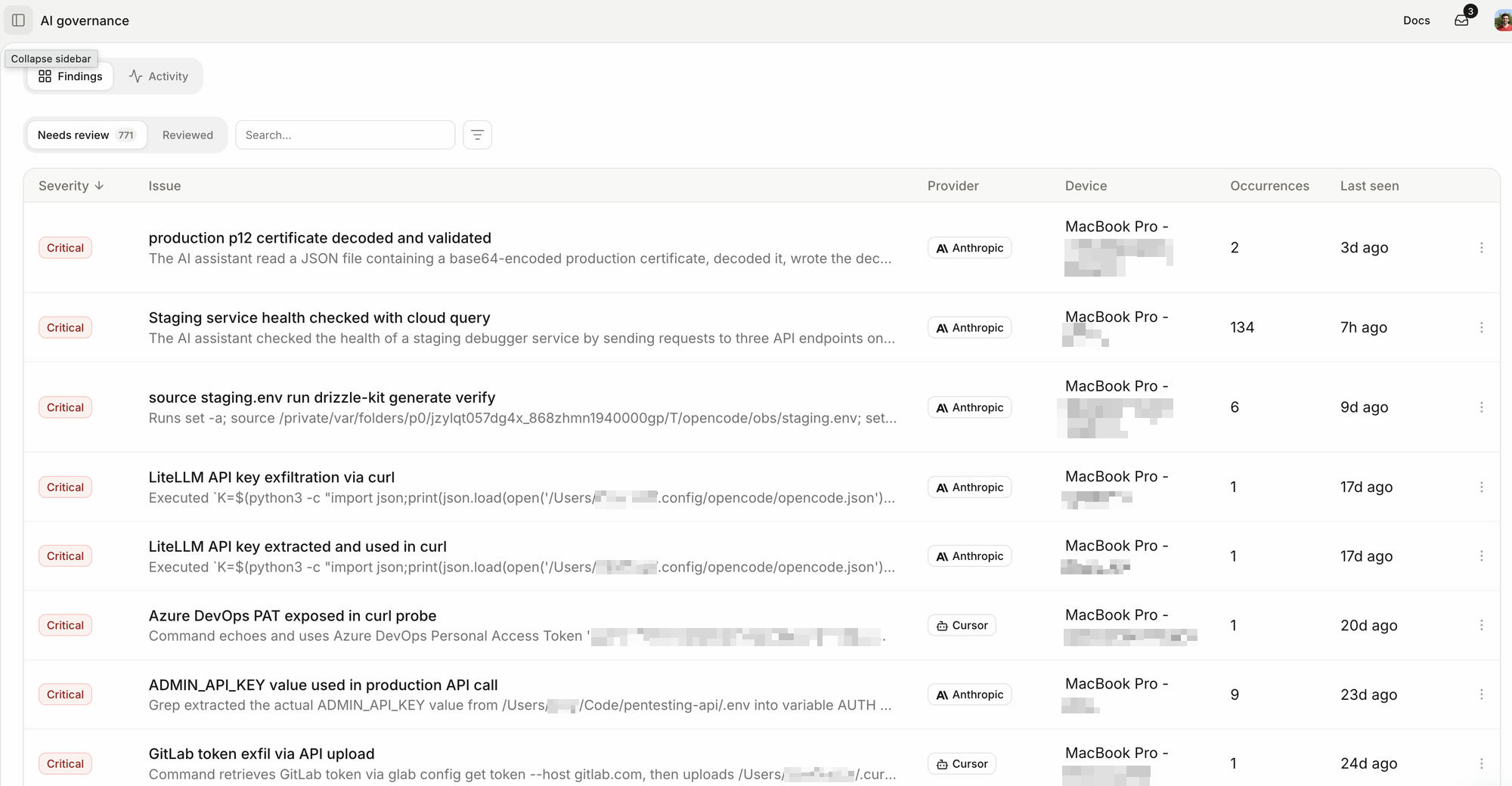
**Findings** lists risky commands that AI assistants ran on your team's devices, such as reading a production certificate, sending an API key with curl, or pushing to the main branch. You decide on each one, so the list only holds what still needs a look.
{% hint style="info" %}
**Findings** is in early access. To turn it on for your workspace, [contact support](https://help.noon.security/trust-and-support/contact-support).
{% endhint %}
## Review what AI assistants did on your devices
Check **AI Governance** → **Findings** often and work through **Needs review**, most severe first. Each finding tells you what the assistant did and why it's concerning, so you can follow up with the person on that device. See [Review a finding](#review-a-finding).
## How findings work
Noon's AI checks each command an AI assistant runs. Similar commands are grouped into one finding and given a severity: **Critical**, **High**, **Medium**, or **Low**. Commands Noon judges to be false positives are left out of the list.
* **Occurrences** is how many times the same thing happened. The **Occurrences** tab in a finding lists each one, newest first, up to 100.
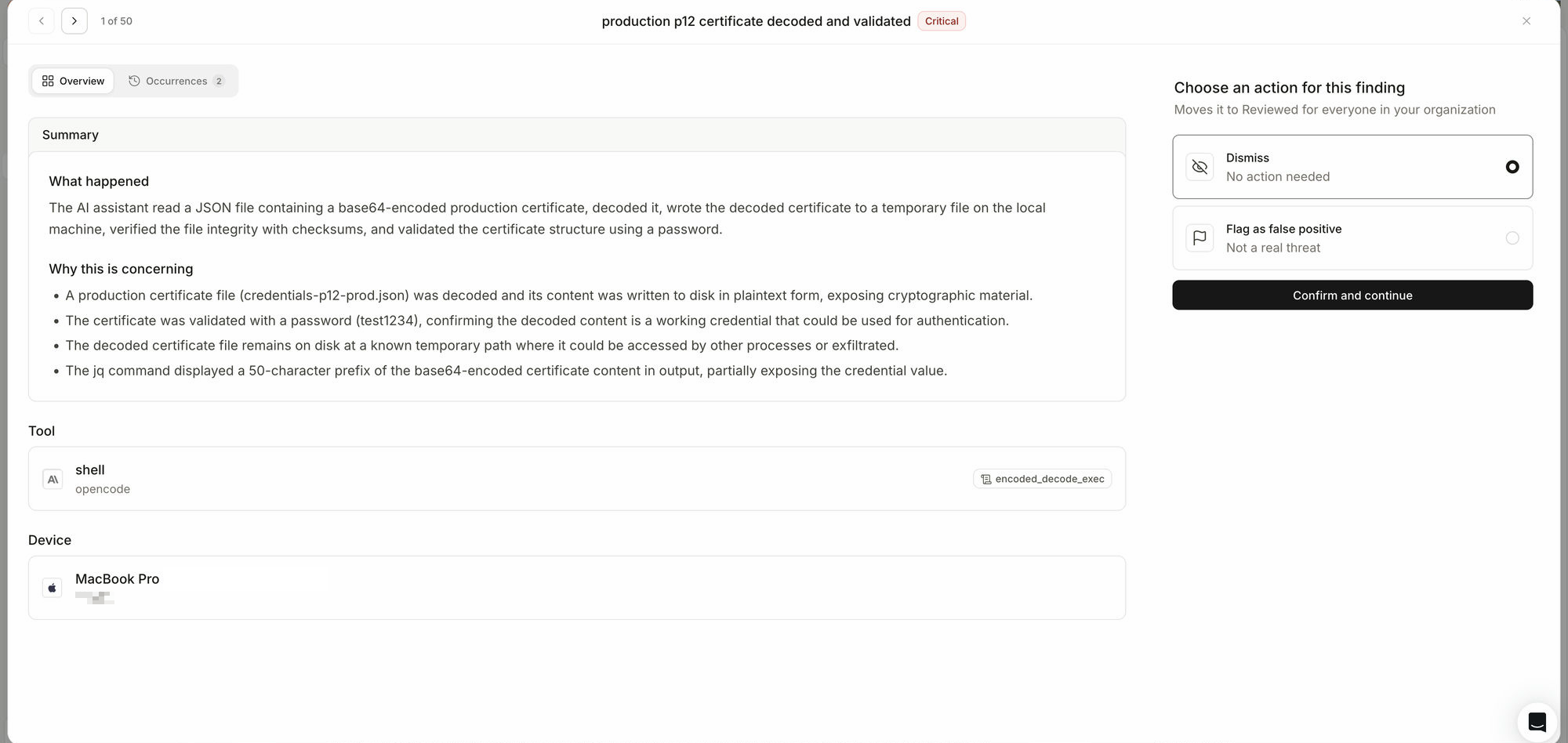
* A review applies to everyone in your organization. The finding moves to **Reviewed** for all admins.
* If the same thing happens again, the finding moves back to **Needs review**.
* Reviewing a finding doesn't block anything on the device. To stop a tool from running, block it in [Activity](https://help.noon.security/protect/ai-governance/activity#block-a-tool).
You need permission to view Device Protection to see **Findings**, and permission to manage Device Protection to review them.
## Review a finding
{% stepper %}
{% step %}
### Open the finding
In **Needs review**, click a row. **Overview** shows **What happened**, **Why this is concerning**, the tool, and the device.
{% endstep %}
{% step %}
### Choose an action
Pick **Dismiss** if no action is needed, or **Flag as false positive** if it's not a real threat. Click **Confirm and continue**. The finding moves to **Reviewed** and the next one opens.
{% endstep %}
{% endstepper %}
To reopen a finding, open it in **Reviewed** and click **Undo**. It moves back to **Needs review**.
## Find a finding
Search by title, description, tool, or device. Click the filter button to show one severity, or on **Reviewed**, one resolution: **Dismissed** or **False positive**.