# Apps
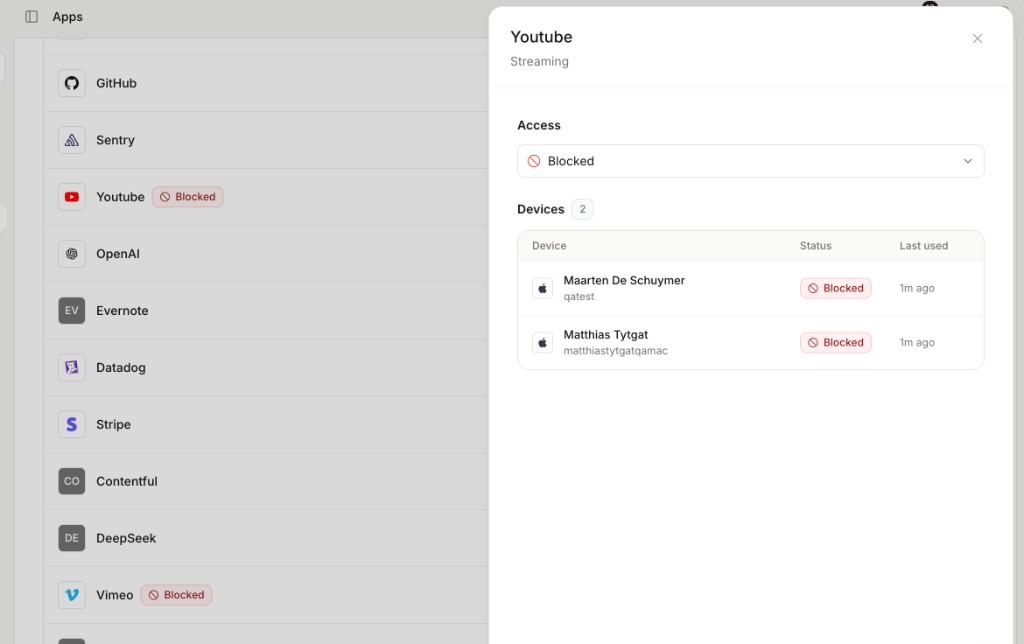
**Apps** lists the SaaS apps that people used from their devices in the last 30 days, busiest first.
{% hint style="info" %}
You need Device Protection on your devices and permission to manage Device Protection to change access. The list stays empty until the SaaS apps category is set to **Monitoring**. See [Device firewall](https://help.noon.security/protect/device-protection/settings/device-firewall).
{% endhint %}
## Use cases
### Find apps your team uses that you didn't know about
When you don't know which apps people use at work, open **Apps**.
1. Go to [**Apps**](https://app.noon.security/saas).
2. Search for an app by name, or open the **Category** filter and choose one.
3. Click an app to see which devices used it.
### Block an app for everyone
Choose **Blocked** only when nobody should use the app.
1. Go to [**Apps**](https://app.noon.security/saas) and find the app.
2. Click the app to open it.
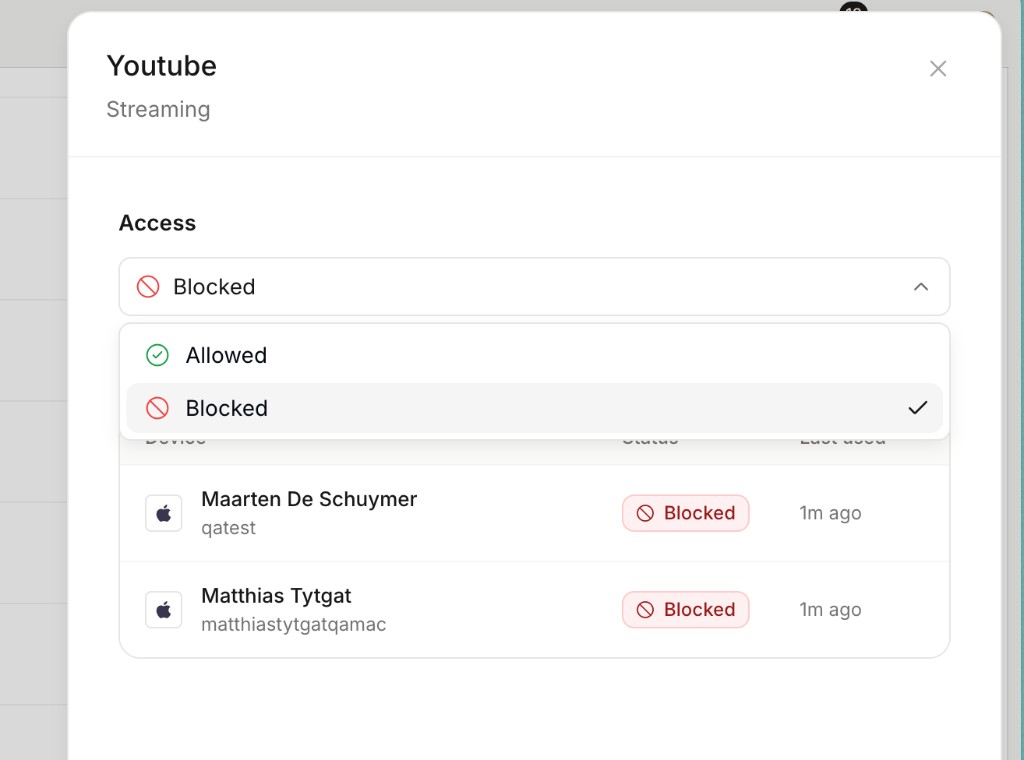
3. Under **Access**, choose **Blocked**.
4. Click **Save**.
Noon shows **Access updated**, and the app is marked **Blocked** in the list. To lift the block, choose **Allowed** and save again.