# Launch a course
A course is one assignment: who takes it, which lessons it includes, and whether those lessons arrive together or on a schedule.
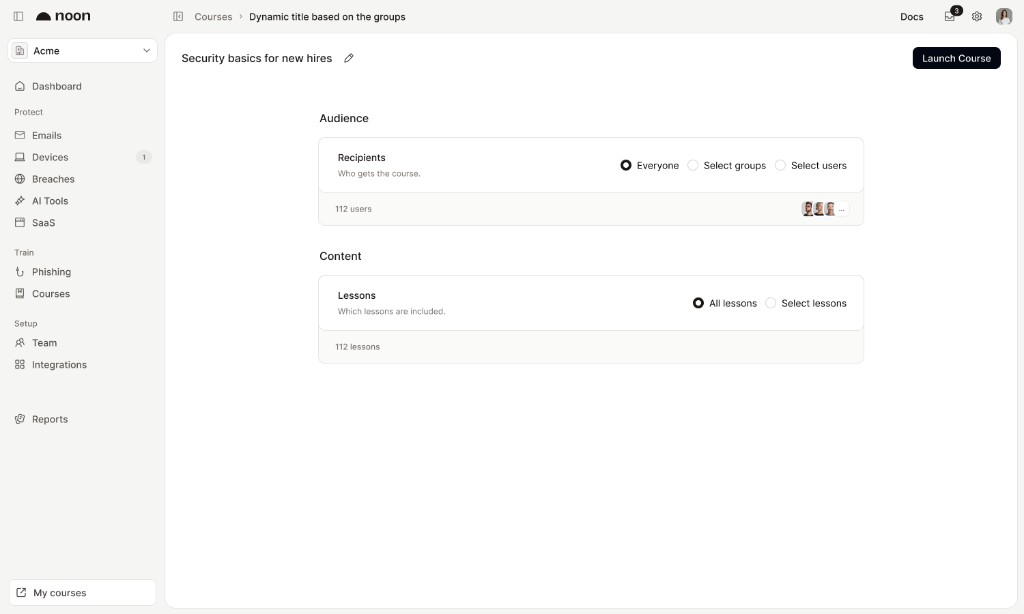
Name the course, choose who takes it, and choose the lessons.
## Set up the course
{% stepper %}
{% step %}
### Name the course
The first time you open **Courses**, click **Schedule courses** to reach the list. Click **Add course** at the top of the page to start a new one.
The name is shown on the course list and in [Courses in the employee portal](https://help.noon.security/employee-portal/my-courses). Each course needs its own name.
You can rename a course after it launches. The other settings stay as they were at launch.
{% endstep %}
{% step %}
### Choose who takes it
Under **Audience**, **Recipients** is who is enrolled.
* **Everyone**: the people in the workspace at the moment you launch.
* **Select groups**: open the picker and choose groups.
* **Select users**: open the picker and choose people.
Groups and people come from the connected workspace.
{% endstep %}
{% step %}
### Choose the lessons
Under **Content**, **Lessons** is which lessons are included.
* **All lessons**: every lesson in the [library](https://help.noon.security/train/courses/lesson-library).
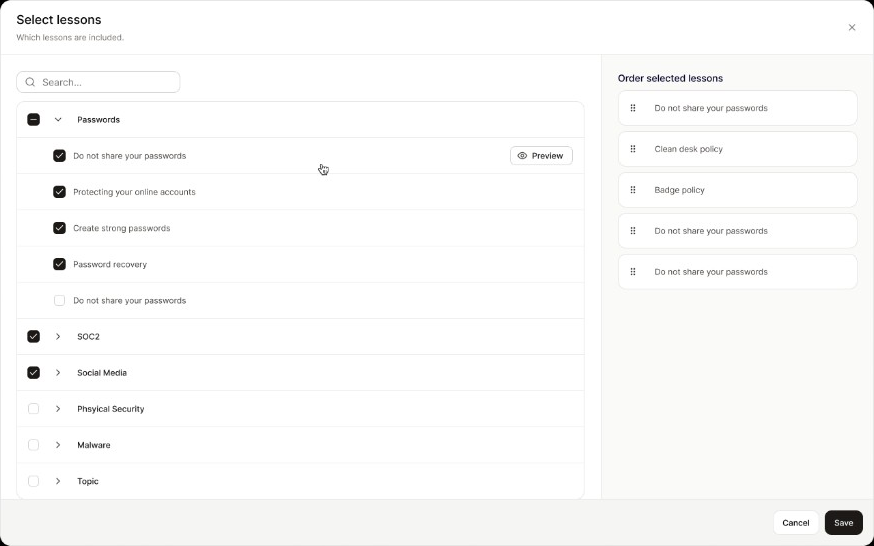
* **Select lessons**: open the list, pick lessons, and drag them into order. **Preview** opens a lesson before you save the selection.
Click **Save** to keep that selection on the course.
{% endstep %}
{% step %}
### Choose the schedule
Under **Schedule**, **Frequency** is how the lessons are released.
* **All at once**: every lesson is available together.
* **Schedule**: lessons open one at a time. **Send lesson every** is **Day**, **Week**, or **Month**. People are notified when the next lesson is available.
Click **Launch course**. The course appears on the list.
{% endstep %}
{% endstepper %}
## After launch
Click **⋯** on the course row.
* **Settings**: change the name and click **Save**. Audience, lessons, and schedule stay as they were at launch, and you can view the lessons but not change them.
* **Pause**: stop a course that is *Planned* or *In progress*.
* **Resume**: continue a course that is *Paused*.
* **Delete**: remove the course from the workspace. Noon asks you to confirm.