# Campaign results
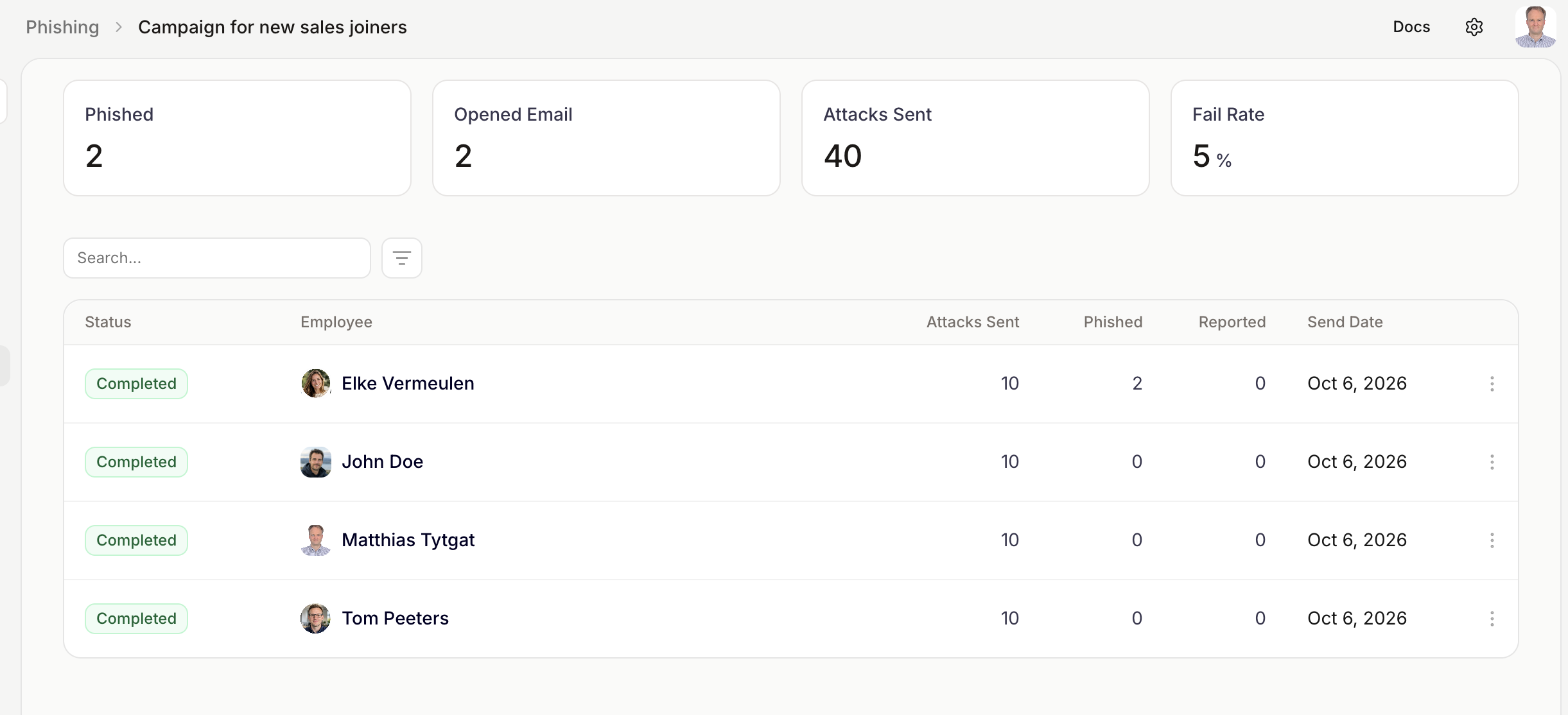
Open a campaign on the **Phishing** tab when you need to follow up with people the simulation caught. The tab shows **Attacks sent**, **Opened**, **Phished**, and **Reported** rates for all campaigns, and lists each campaign with its **Status** (*Launch*, *In progress*, or *Completed*), **People**, and **Phished**.
**Phished** counts simulations that caught someone. Opening a message and being caught are separate counts. A person can open the mail and still report it, or leave it alone.
## Campaign totals
* **Phished**: simulations that caught someone.
* **Opened email**: simulations whose message was opened.
* **Attacks sent**: simulation messages Noon has sent.
* **Reported**: simulations the person reported.
* **Phished rate**: the share of simulations that caught someone.
## Employees
The table lists everyone in the campaign.
* **Latest status**: the person's most recent step, for example *Scheduled*, *Opened*, *Reported*, or *Credentials provided*.
* **Person**: the person the simulation was sent to.
* **Attacks sent**: how many simulations that person has received.
* **Phished**: how many of those simulations caught them.
* **Reported**: how many they reported.
* **Send date**: when the next simulation is scheduled, when one is still due.
Search the table, or filter it by **Latest status** or by **Phished** (*Never* or *At least once*).
## Employee detail
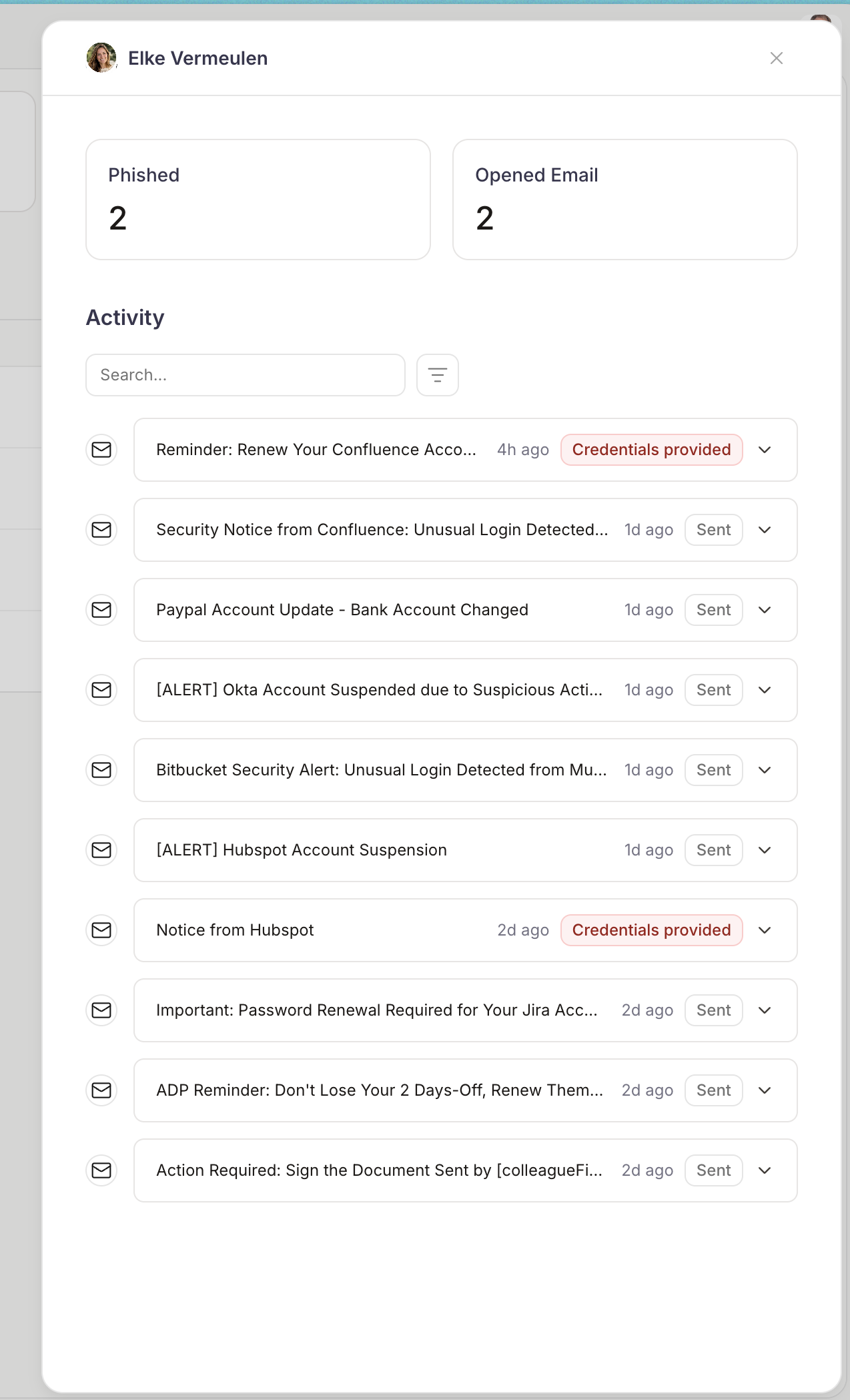
Click an employee to open **Activity**. The drawer shows each simulation sent to them, a preview of the message, and a timeline of what they did.
* **Attack Sent**: Noon sent the simulation.
* **Opened**: they opened the message.
* **Clicked/QR Code**: they followed a link or scanned a QR code.
* **Attachment Opened**: they opened an attachment.
* **Submitted Credentials**: they entered a password on the fake sign-in page.
* **Replied**: they replied to the simulation.
* **Reported**: they reported the message.
Filter the activity list by **Sent**, **Opened**, **Phished**, **Reported**, **Replied**, **Link clicked**, **Attachment link clicked**, **QR code scanned**, **Credentials provided**, or **Course completed**. Reporting uses the same report button as real suspicious mail. See [Employee reports](https://help.noon.security/protect/email-protection/employee-reports). A reported simulation shows up on the campaign.