# Create a custom email template
A custom template is a fake email that Noon writes for you with AI. You pick the brand to imitate, describe what the email is about, and choose how it asks the person to act. Noon builds the email in about 1 minute.
{% hint style="info" %}
Custom templates are behind a feature flag. To turn them on, chat with us using the button at the bottom right of this page.
{% endhint %}
## Create a custom template
{% stepper %}
{% step %}
### Open the custom template dialog
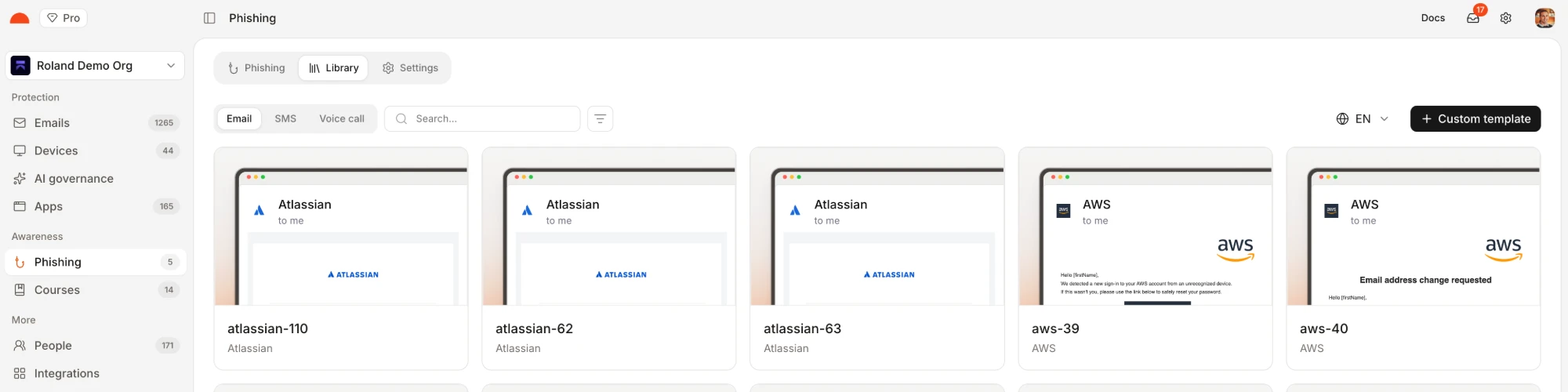
Go to **Phishing** → **Library**, stay on the **Email** tab, and click **Custom template** at the top right.
{% endstep %}
{% step %}
### Choose the brand
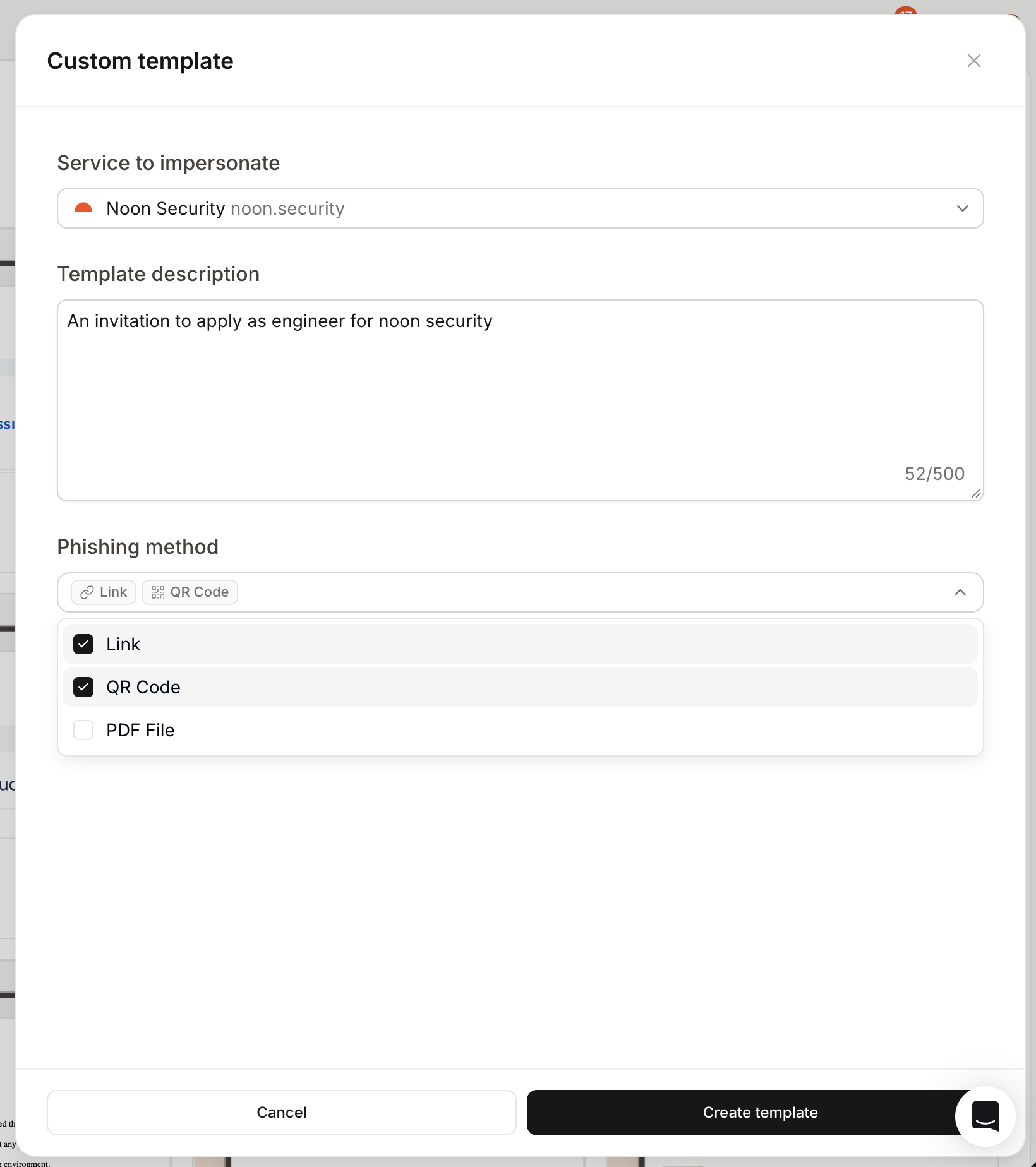
Under **Service to impersonate**, search for a company and choose it.
{% endstep %}
{% step %}
### Describe the email
Type what the email is about under **Template description**, up to 500 characters. For example: "An invitation to apply as engineer for Noon Security."
{% endstep %}
{% step %}
### Choose the phishing method
Under **Phishing method**, turn on **Link**, **QR Code**, **PDF File**, or a mix.
{% endstep %}
{% step %}
### Create the template
Click **Create template**. Noon takes about 1 minute to write the email.
{% endstep %}
{% step %}
### Read the email
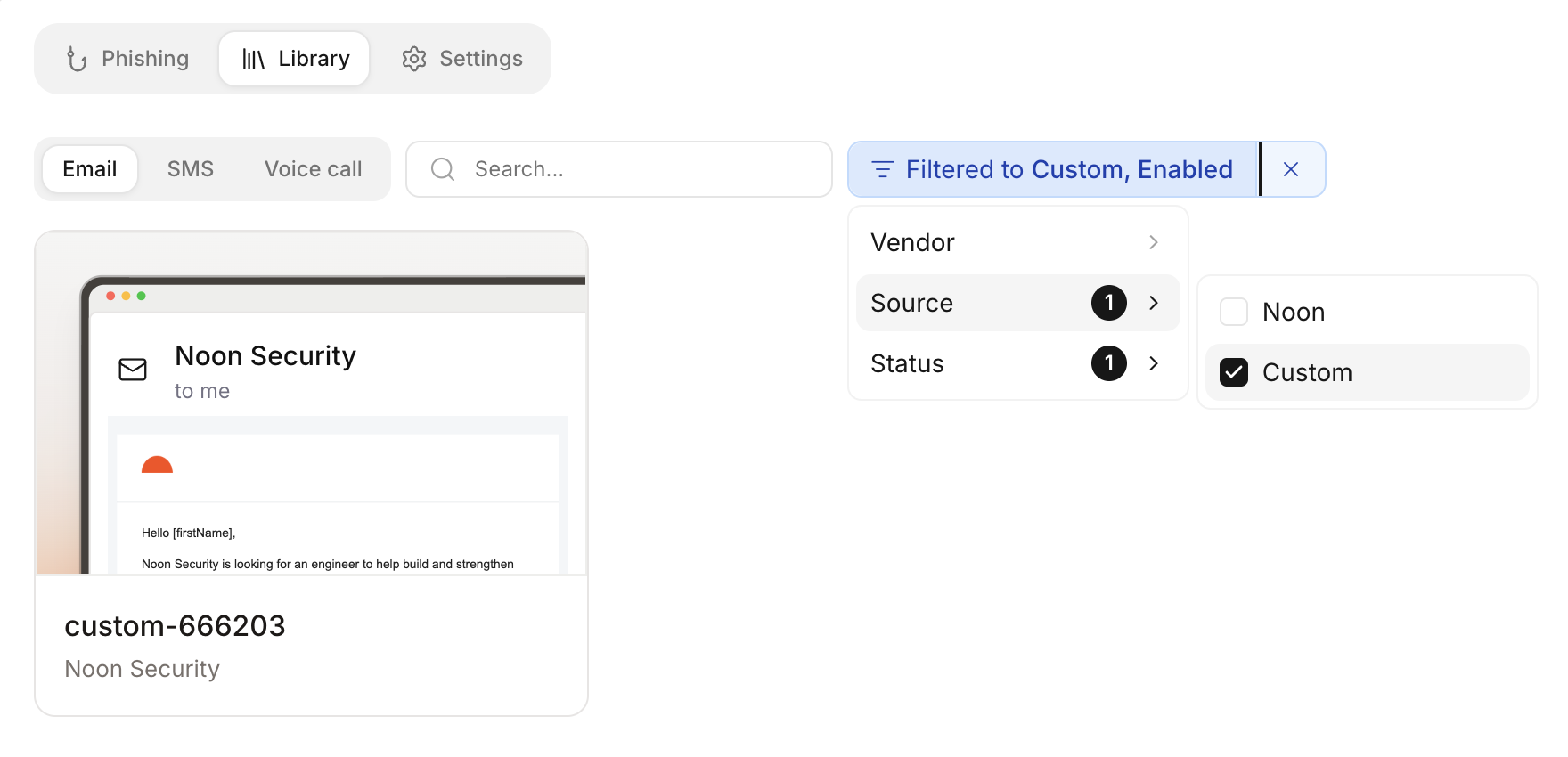
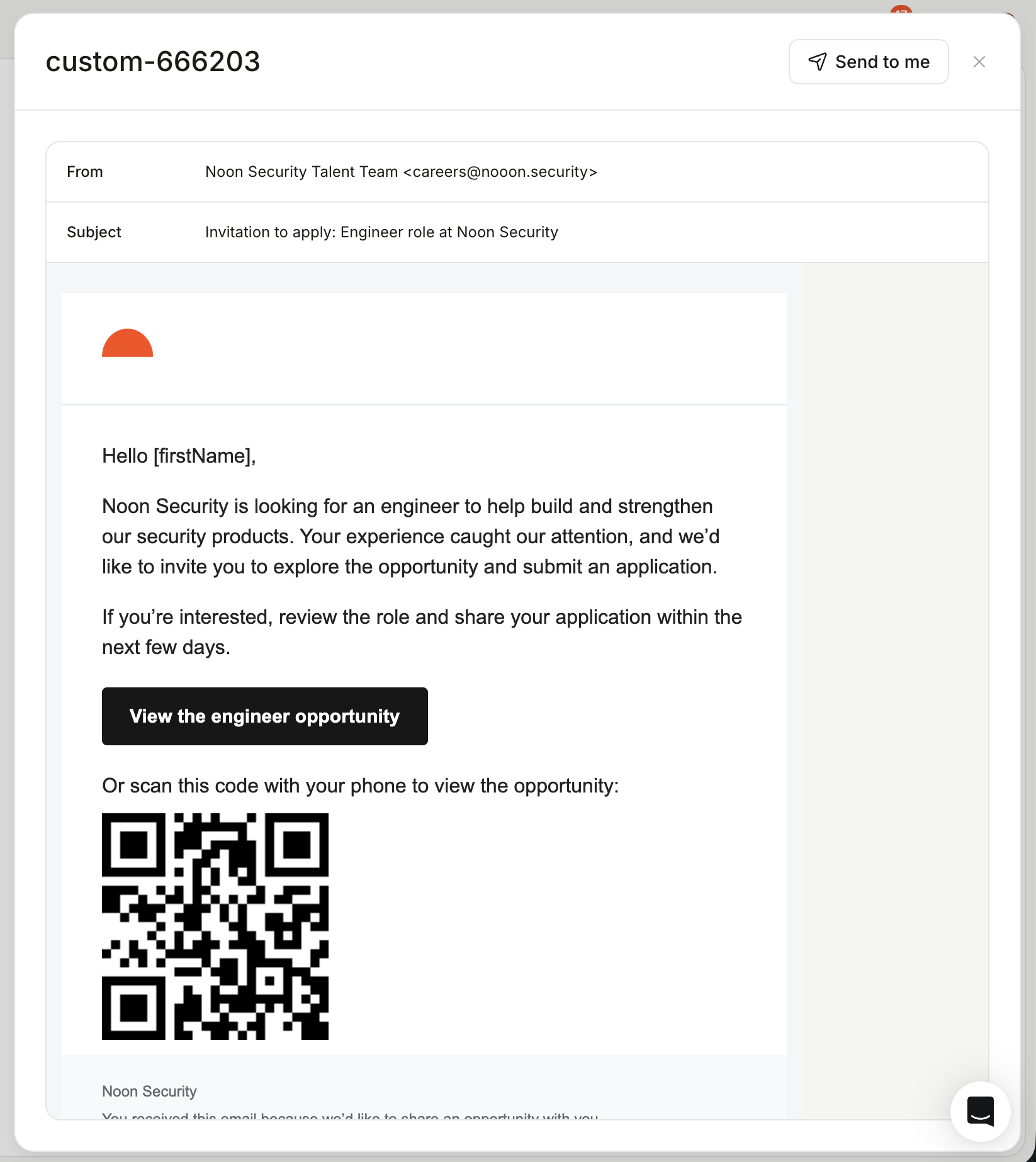
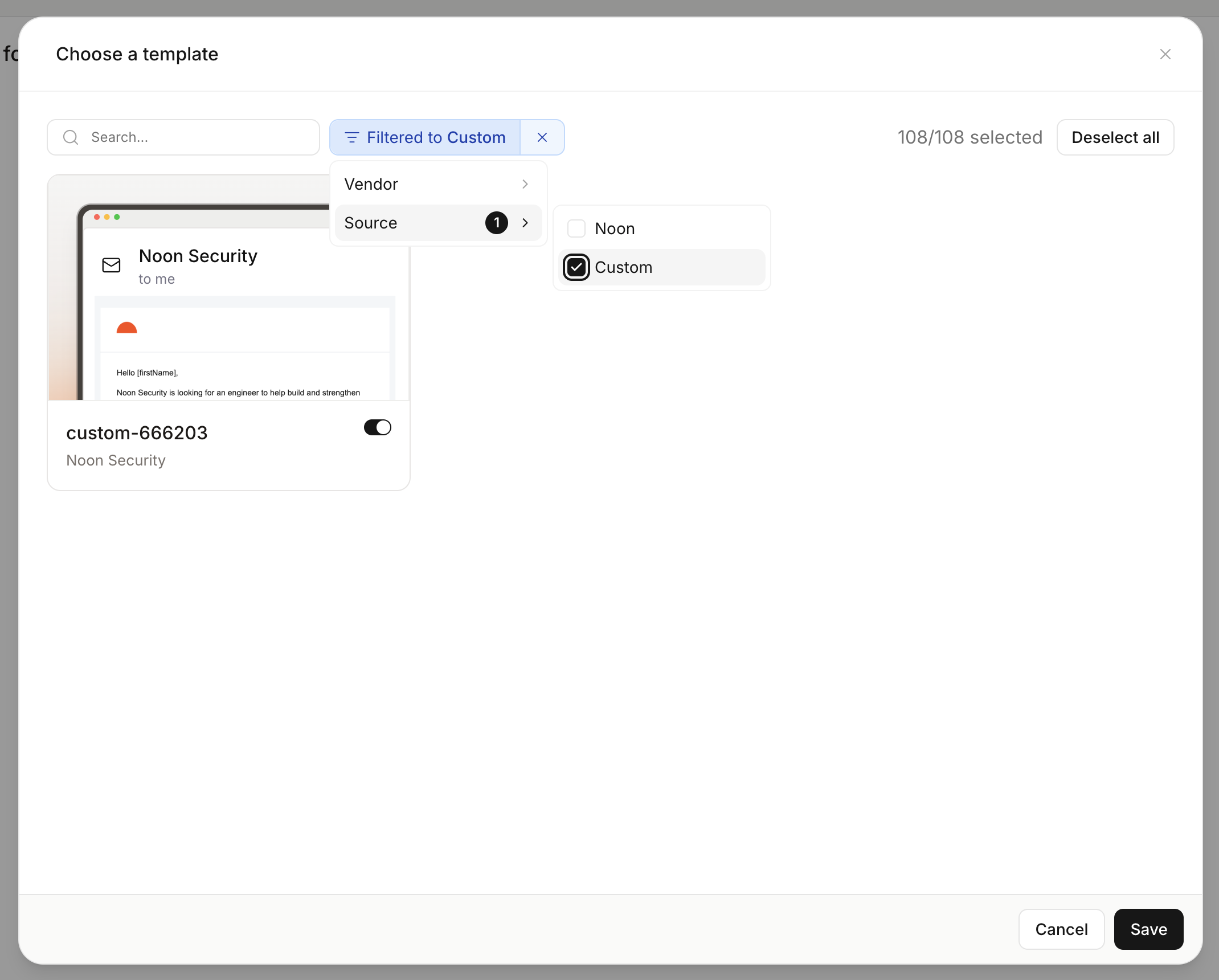
Go to **Phishing** → **Library**, click the filter button, and under **Source** choose **Custom**. Open the template to read it. Click **Send to me** to get a copy in your own inbox.
{% endstep %}
{% endstepper %}
## Pick a custom template for a campaign
When you create an email campaign, click **Select templates** under **Templates to pick from**. Click the filter button, and under **Source** choose **Custom** to see only your own templates. Turn on the ones you want, then click **Save**. See [Email simulations](https://help.noon.security/train/phishing-simulations/email-simulations) for the other campaign steps.