# What employees see
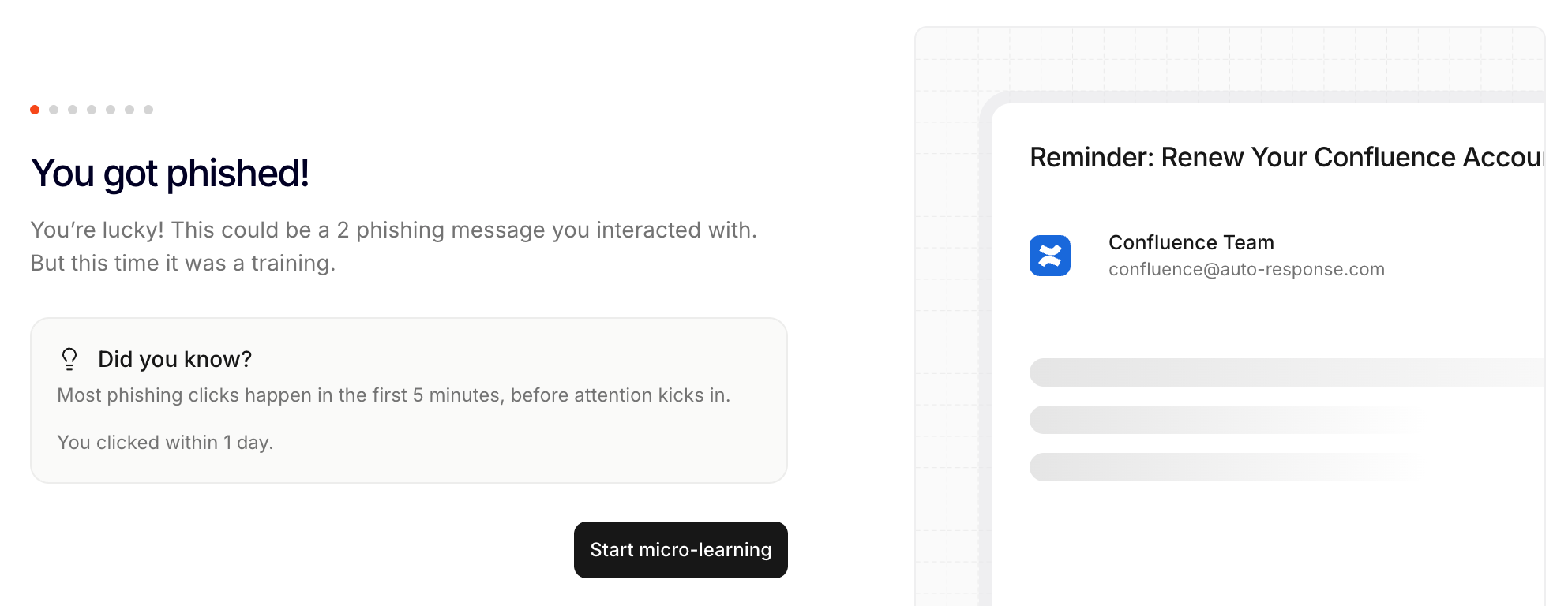
When a simulation catches someone, they land on a page that tells them the message was a training exercise. The page shows the simulated email, including the vendor it imitated, and a short lesson about the clues in that message.
The lesson follows the simulation.
## The lesson
{% stepper %}
{% step %}
### Read the sender address
The lesson can show the sender address, including small differences from a real one.
{% endstep %}
{% step %}
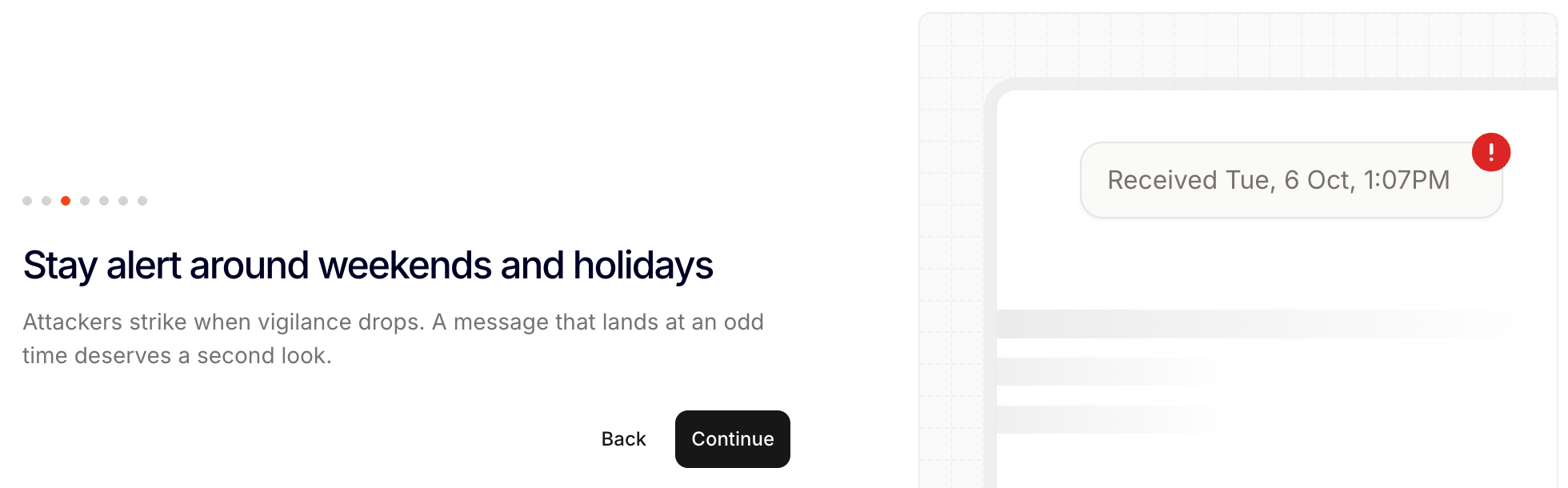
### Notice the time
The lesson can show messages that arrive at an odd time, such as a weekend or a holiday.
{% endstep %}
{% step %}
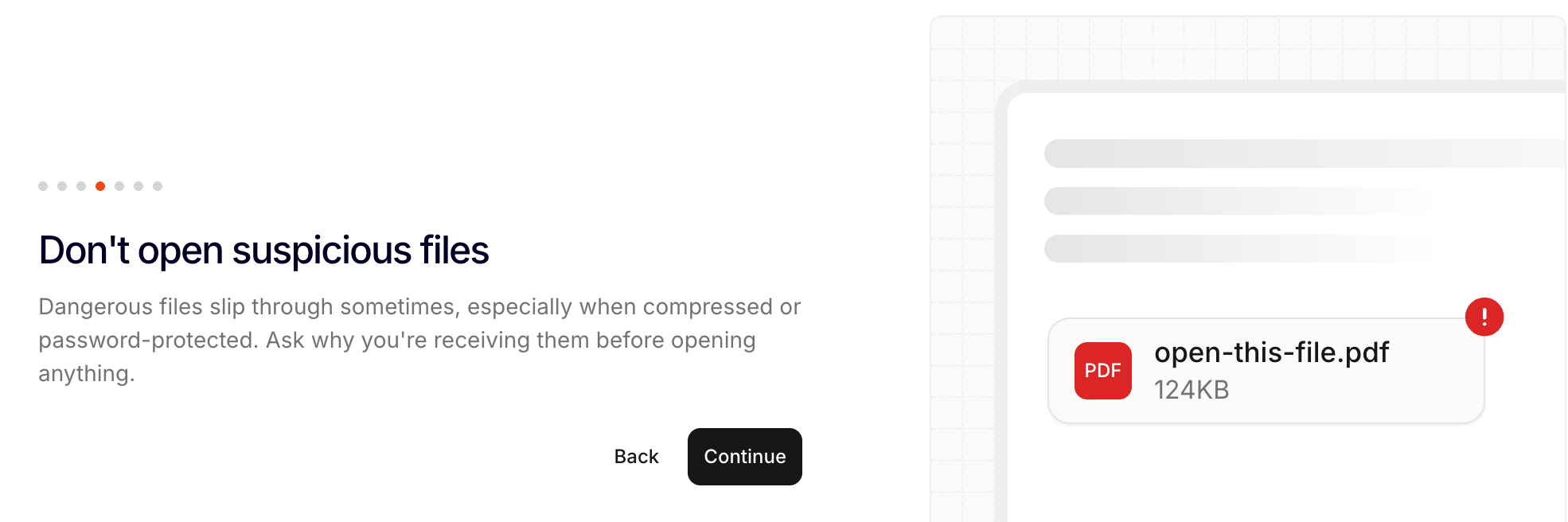
### Look at the file
The lesson can show files the person was asked to open.
{% endstep %}
{% step %}
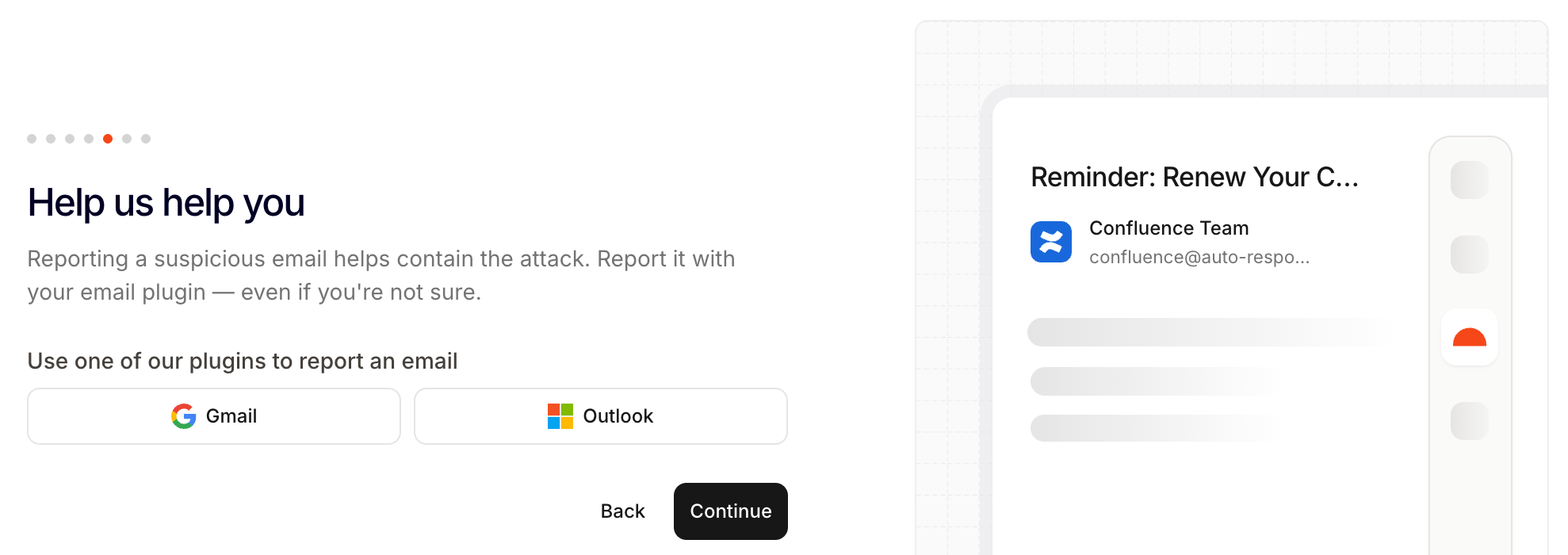
### Report the message
The lesson can show how to report a suspicious message with the report button.
{% endstep %}
{% step %}
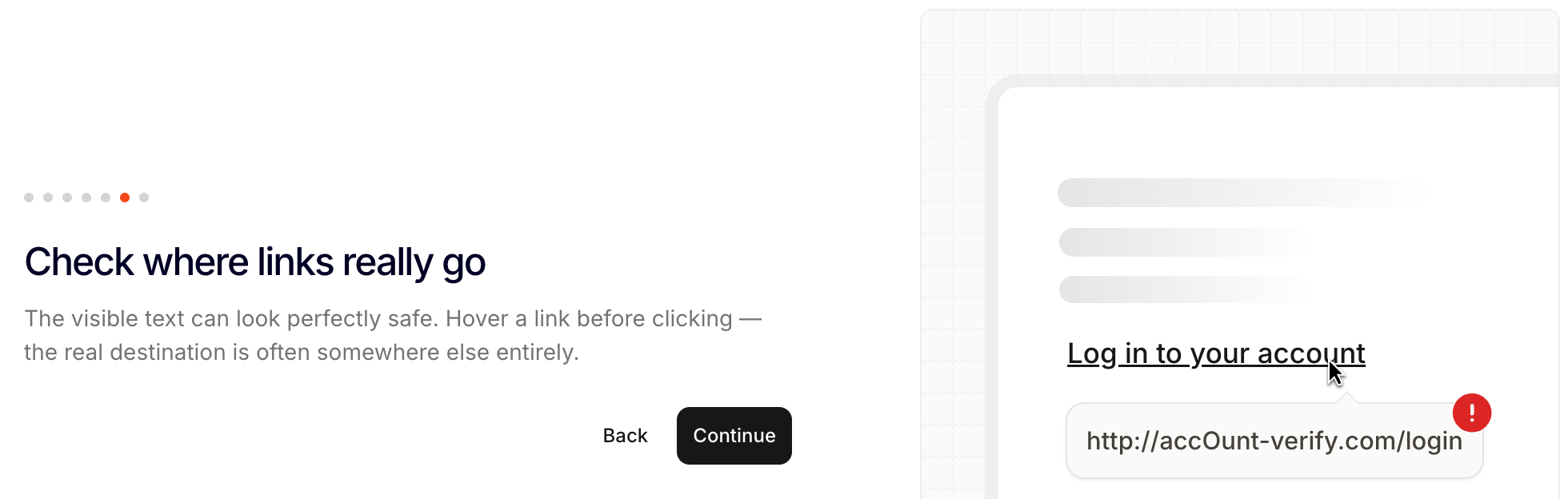
### Check the link
The lesson can show links whose real destination differs from the visible text.
{% endstep %}
{% step %}
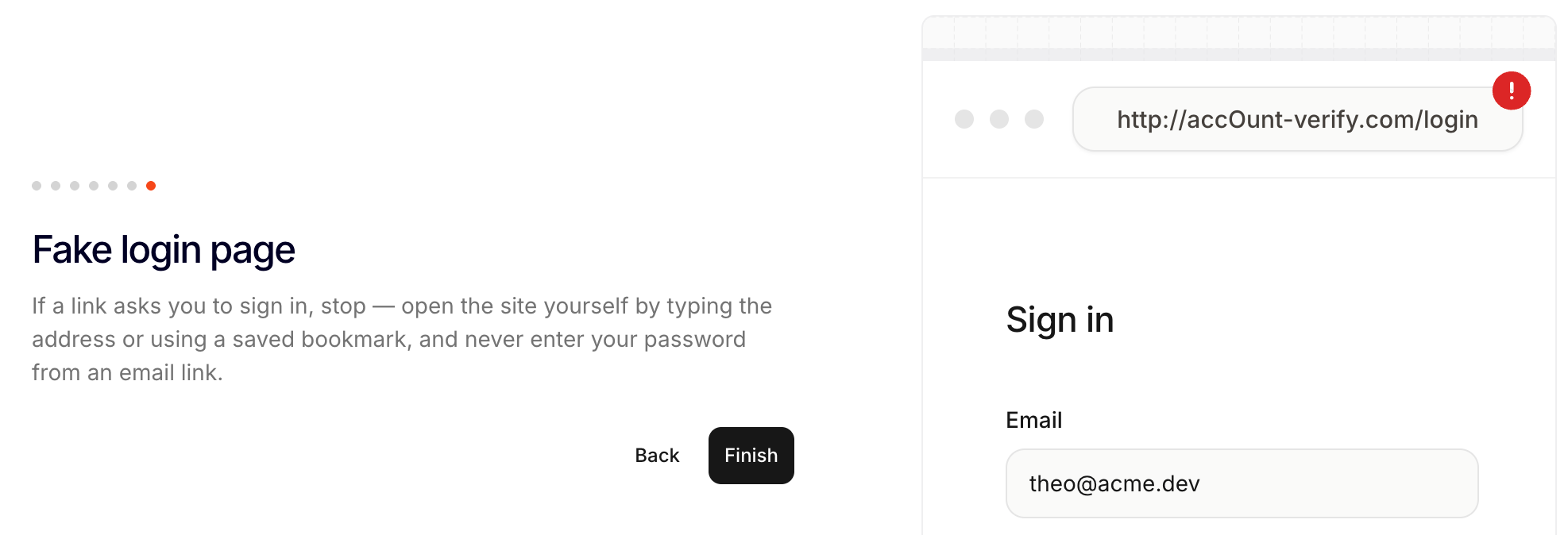
### Check the sign-in page
The lesson can show sign-in pages opened from an email, and why a password should be entered only on a site the person opened themselves.
{% endstep %}
{% endstepper %}
The person clicks **Start course**, then **Continue** through the steps, and **Finish** at the end.
Reporting a simulation uses the same report button as reporting real mail. See [Employee reports](https://help.noon.security/protect/email-protection/employee-reports). A reported simulation shows up on the campaign in [Campaign results](https://help.noon.security/train/phishing-simulations/campaign-results).
This lesson is attached to the simulation. Assigned courses are described in [Courses](https://help.noon.security/train/courses).