# User management
Choose who has access to Noon and what each user can see and change. Configure this in **Settings** → **Users**.
## Permissions
### Admin
An admin has full access to everything.
{% hint style="info" %}
The user who connects the workspace automatically becomes admin.
{% endhint %}
### User
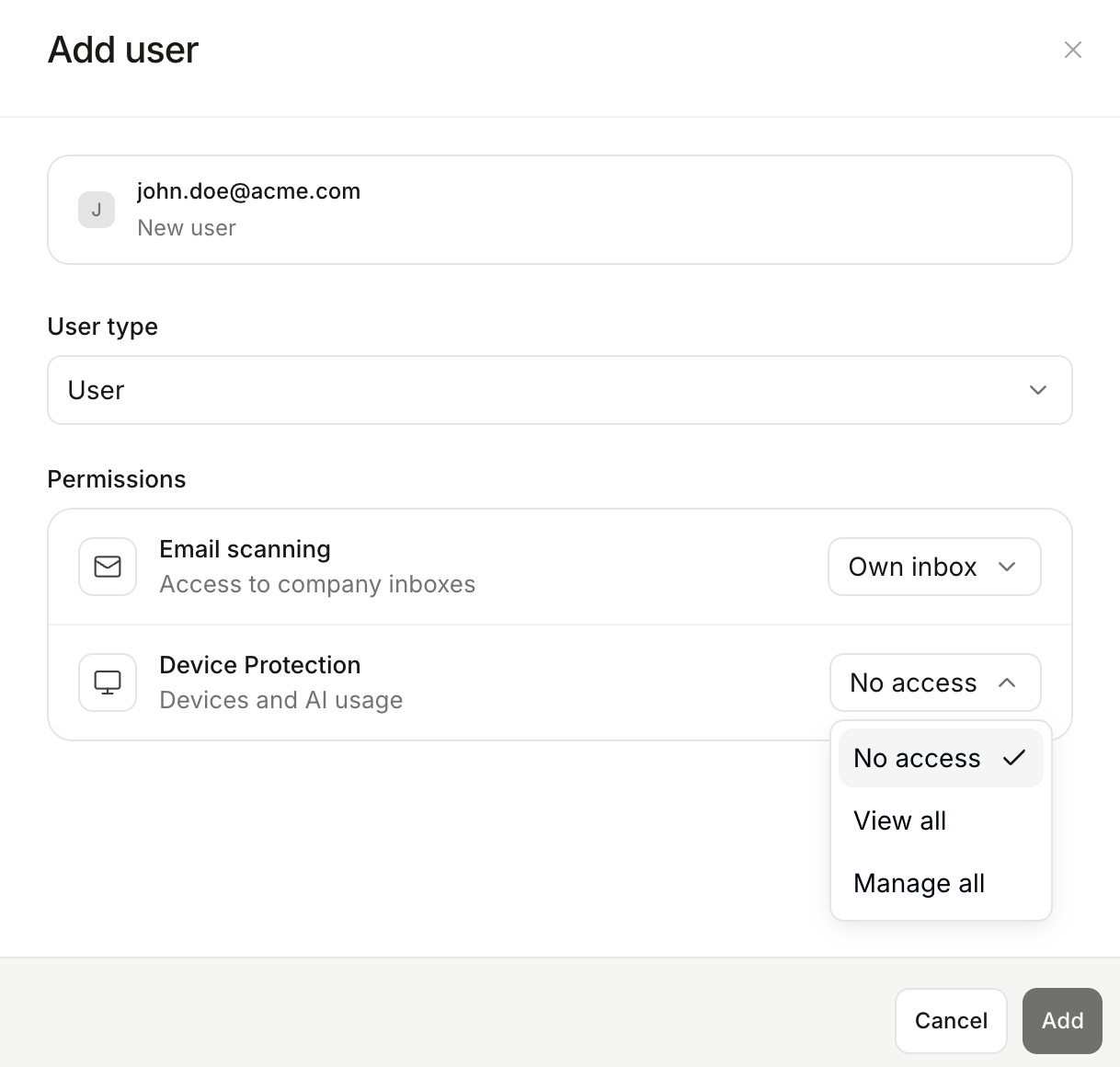
You can set the access of a user to **Emails** and **Device Protection** separately.
For **Emails**:
| Level | What the user can do |
| --- | --- |
| **Manage all** | See all flagged email and act on it |
| **View all** | See all flagged email, change nothing |
| **Own inbox** | See only the malicious mail Noon found in their own inbox |
For **Device Protection**:
| Level | What the user can do |
| --- | --- |
| **Manage all** | See every device and take actions |
| **View all** | See every device, change nothing |
| **No access** | Nothing: the **Devices** tab is hidden |
## Give someone access
Add a workspace member or invite someone new, and set their permissions.
{% tabs %}
{% tab title="Existing user" %}
For someone already listed under **People**:
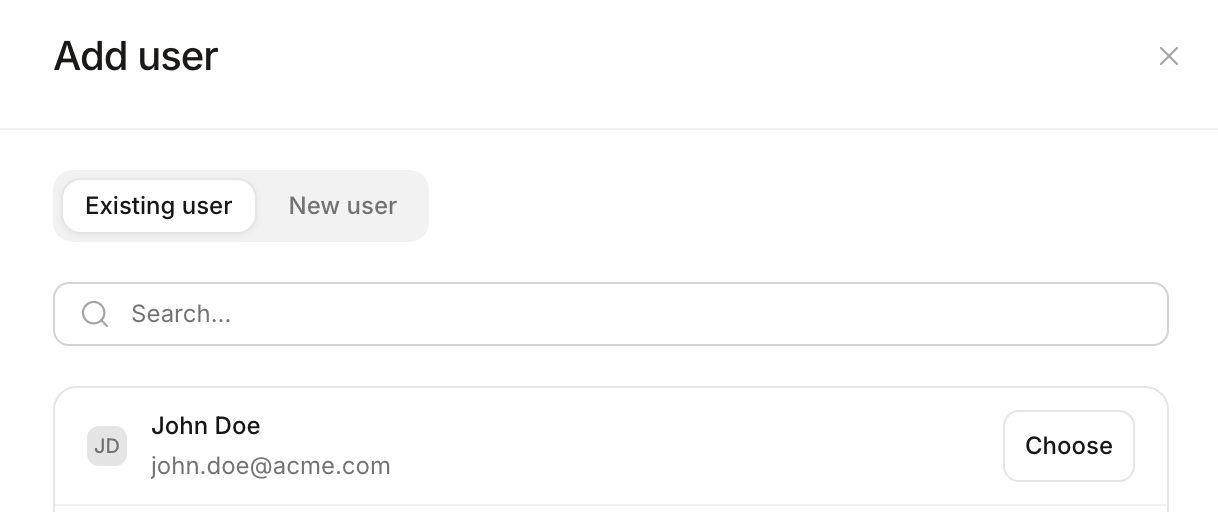
1. Go to **Settings** → **Users** and click **Add user**.
2. Click **Existing user**, search for the person, then click **Choose**.
3. Under **User type**, choose **User** or **Admin**.
4. For a user, choose their access under **Permissions**, then click **Add**.
{% endtab %}
{% tab title="New user" %}
For someone who isn't in the workspace yet:
1. Go to **Settings** → **Users** and click **Add user**.
2. Click **New user** and enter their email.
3. Under **User type**, choose **User** or **Admin**.
4. For a user, choose their access under **Permissions**, then click **Add**.
{% endtab %}
{% endtabs %}
## Manage access
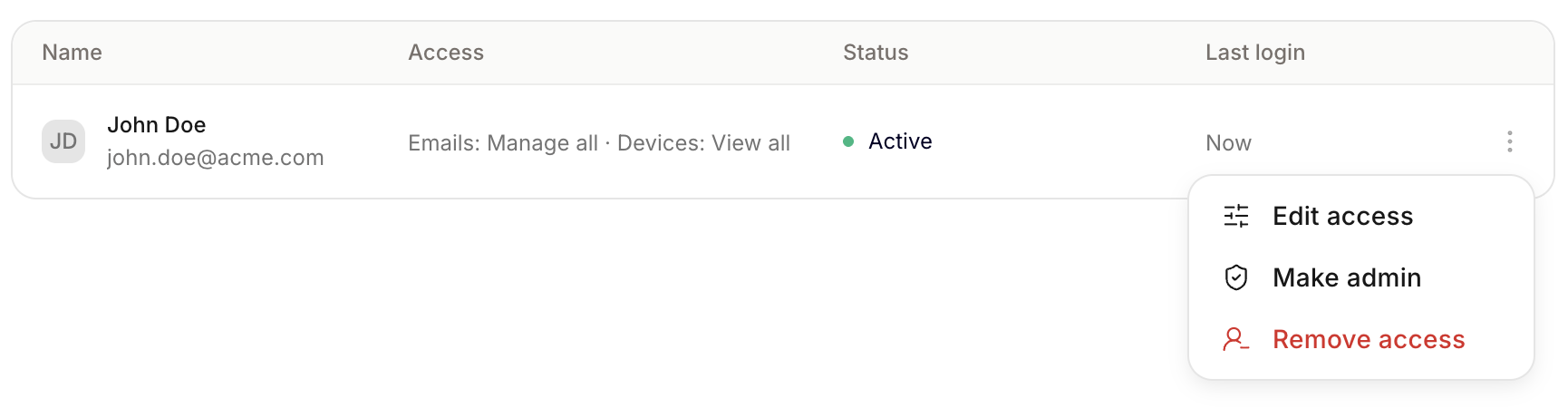
Go to **Settings** → **Users**. The list shows each person's access, status, and last sign-in.
To change someone's access, click **⋯** on their row, then **Edit access**. To give them full access, click **Make admin** instead.
## Remove access when someone leaves
Go to **Settings** → **Users**, click **⋯** on the person's row, then **Remove access**.