# Courses

Courses assign security lessons to people in your workspace and record who finishes them. The employee takes the course from [Courses in the employee portal](https://help.noon.security/employee-portal/my-courses).

## Follow up on who has not finished

Open a course on the **Courses** tab to see who has not finished each lesson. See [Course results](https://help.noon.security/train/courses/course-results). The **Results** tab lists everyone against every course.

The lesson that follows a phishing simulation belongs to that simulation. A course is assigned from **Courses**.

## What the overview shows

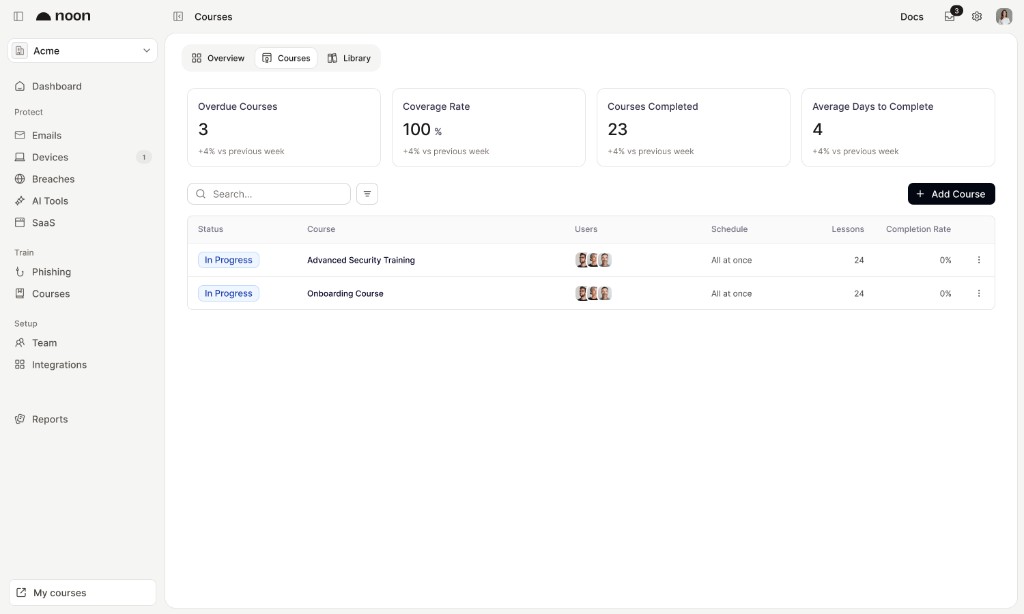
* **Coverage rate**: the share of employees who have been assigned training.
* **Courses completed**: lessons people have finished.
* **Average days to complete**: how long finished lessons took.

Each number is compared with the previous week.

## The course list

The **Courses** tab lists every course in the workspace. Click **Add course** at the top of the page to start a new one.

* **Status**: *Planned*, *In progress*, *Paused*, *Completed*, or *Archived*.
* **Course**: the name.
* **People**: who is enrolled.
* **Schedule**: **All at once**, **Daily**, **Weekly**, or **Monthly**.
* **Lessons**: **All Lessons**, or how many lessons the course includes.
* **Completion rate**: the share of the course that is finished.

Search the table, or filter it by **In progress**, **Paused**, or **Completed**. Open a course to see [who has finished each lesson](https://help.noon.security/train/courses/course-results).

<figure><img src="https://help.noon.security/_assets/275ac1e81364/courses-list.png" alt="Courses tab with coverage, completed, and average days, and 2 courses in progress"><figcaption><p>The Courses tab shows the numbers and every course in the workspace.</p></figcaption></figure>

The **Results** tab shows everyone against each course. The **Library** tab lists the lessons a course can include. See [Course results](https://help.noon.security/train/courses/course-results) and [Lesson library](https://help.noon.security/train/courses/lesson-library).

## Who can be enrolled

Connect [Google Workspace or Microsoft 365](https://help.noon.security/getting-started/connect-your-workspace) so Noon knows who to enroll. People and groups come from that directory. See [People and groups](https://help.noon.security/more/people-and-groups).

<table data-card-size="large" data-view="cards"><thead><tr><th></th><th></th><th data-hidden data-card-cover data-type="files"></th><th data-hidden data-card-target data-type="content-ref"></th></tr></thead><tbody><tr><td><a href="https://help.noon.security/train/courses/launch-a-course"><strong>Launch a course</strong></a></td><td>Create, rename, pause, and delete a course.</td><td></td><td><a href="https://help.noon.security/train/courses/launch-a-course">Launch a course</a></td></tr><tr><td><a href="https://help.noon.security/train/courses/course-results"><strong>Course results</strong></a></td><td>Read who has finished each lesson in a course.</td><td></td><td><a href="https://help.noon.security/train/courses/course-results">Course results</a></td></tr><tr><td><a href="https://help.noon.security/train/courses/lesson-library"><strong>Lesson library</strong></a></td><td>Browse lessons and preview one before you assign it.</td><td></td><td><a href="https://help.noon.security/train/courses/lesson-library">Lesson library</a></td></tr></tbody></table>
