
Noon Desktop
The menu, notification, and event dialog a person sees when Device Protection blocks an install.
Device Protection runs in the background. Most installs finish with no message. When an employee asks why an install failed, the notification and the event dialog are what they saw.
On the device, the window is Noon Device Protection. The installed app is named Aikido Endpoint Protection.
#Open the app
The person clicks the icon in the menu bar on macOS, or the taskbar on Windows, then Open Dashboard.
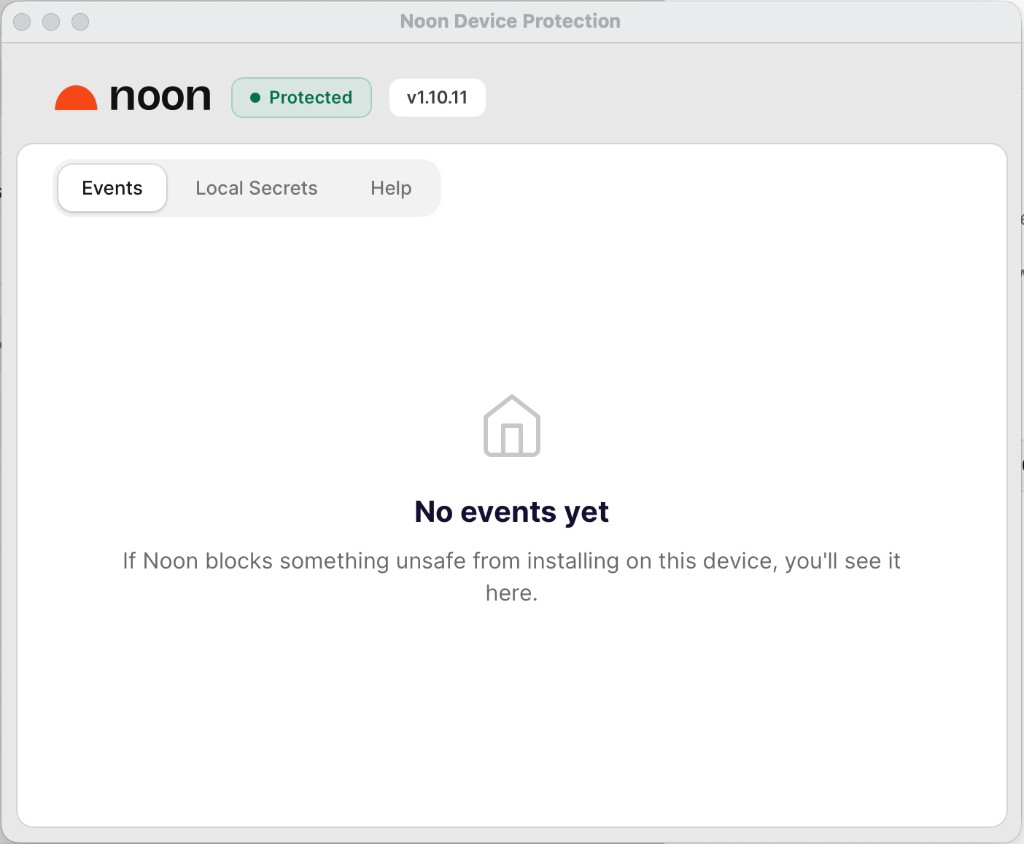
The window has Events, Local Secrets, and Help. The header shows Protected. Local Secrets is covered in Secret scanning.
#Notifications
A blocked install shows a notification titled Install blocked. A blocked update says Update blocked. The notification names the package.
- Dismiss: closes the notification.
- View Details: opens the event in Noon Device Protection.
If nothing was blocked recently, the menu says No recent events.
#Event details
Events lists what was blocked. With nothing to show, it says No events yet, then If Noon blocks something unsafe from installing on this device, you'll see it here.
Click an event. The dialog shows the reason, the time, and Package, including the version. The reason is one of these:
- Malware: the package was flagged as malware. There is no Request Access button.
- Rejected by Policy: the workspace policy blocks this package.
- All Installs Blocked: the workspace policy blocks every install.
- Needs Admin Approval: an admin has to approve the package before it can install. Request Access sends that request.
- Published too Recently: the package is newer than the minimum age. The dialog shows Availability.
Close leaves the dialog.
After Request Access, the event shows one of these:
- Request Sent: the request is waiting on an admin.
- Request Approved: the person can install or update the package.
- Request Rejected: an admin rejected the request.