# Employee reports

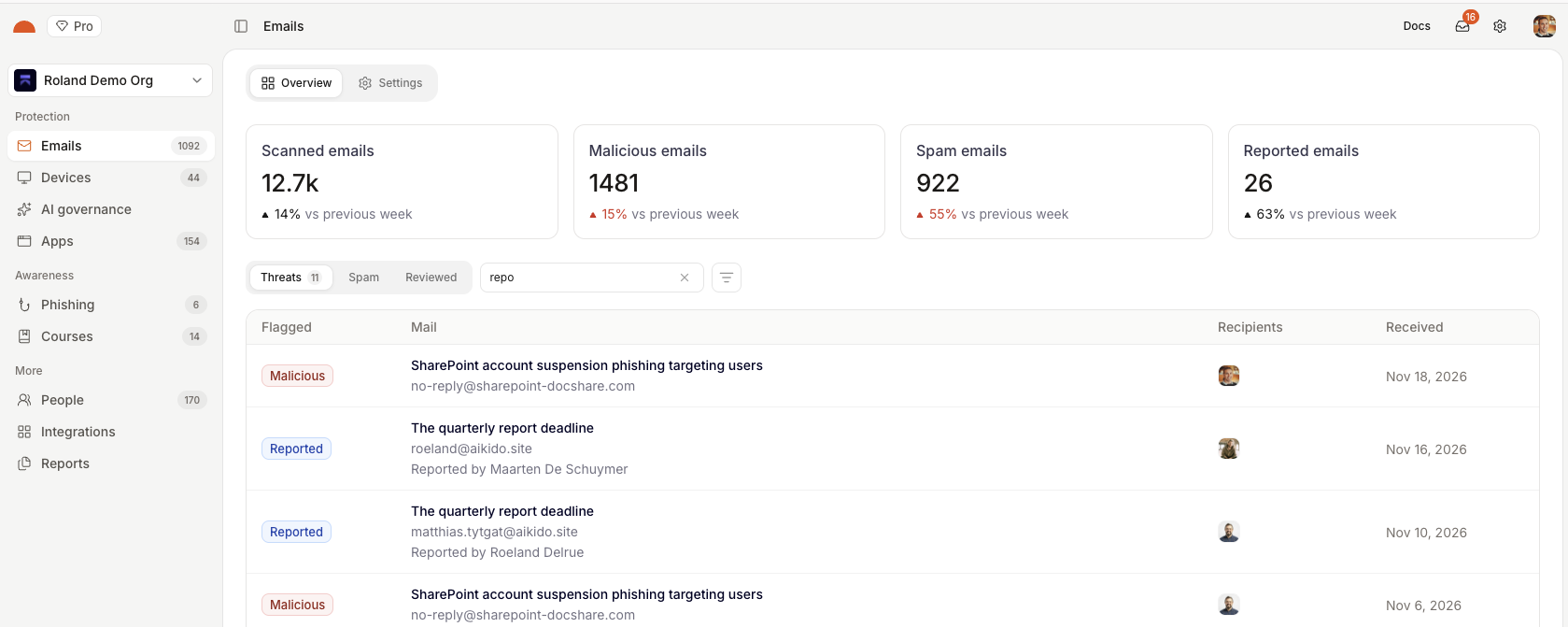
Employees can report a suspicious message from the warning banner in Gmail, with the report button in Gmail or Outlook, or by forwarding it to a flag address. Noon scans a reported message like all other mail and marks it **Reported**.

<table data-card-size="large" data-view="cards">
    <thead>
        <tr>
            <th></th>
            <th></th>
            <th data-hidden data-card-cover data-type="files"></th>
            <th data-hidden data-card-target data-type="content-ref"></th>
        </tr>
    </thead>
    <tbody>
        <tr>
            <td><a href="https://help.noon.security/protect/email-protection/employee-reports/warning-banner"><strong>Warning banner</strong></a></td>
            <td>Noon adds a banner to dangerous Gmail messages, with one click to report or mark safe.</td>
            <td></td>
            <td><a href="https://help.noon.security/protect/email-protection/employee-reports/warning-banner">Warning banner</a></td>
        </tr>
        <tr>
            <td><a href="https://help.noon.security/protect/email-protection/employee-reports/report-plugin"><strong>Report plugin</strong></a></td>
            <td>Install the Noon button in Gmail or Outlook.</td>
            <td></td>
            <td><a href="https://help.noon.security/protect/email-protection/employee-reports/report-plugin">Report plugin</a></td>
        </tr>
        <tr>
            <td><a href="https://help.noon.security/protect/email-protection/employee-reports/report-by-forwarding"><strong>Report by forwarding</strong></a></td>
            <td>Let employees forward a suspicious message to a flag address.</td>
            <td></td>
            <td><a href="https://help.noon.security/protect/email-protection/employee-reports/report-by-forwarding">Report by forwarding</a></td>
        </tr>
    </tbody>
</table>

## Set up the ways to report

The [warning banner](https://help.noon.security/protect/email-protection/employee-reports/warning-banner) needs no setup. Set up the [report button](https://help.noon.security/protect/email-protection/employee-reports/report-plugin) and the [flag address](https://help.noon.security/protect/email-protection/employee-reports/report-by-forwarding) in **Emails** → **Settings**, under **Manual reporting**.

## What happens after a report

Whichever way an employee reports, the message shows up in Noon as **Reported**. Noon shows who reported it, and the **Reported emails** counter on the **Emails** page goes up. Noon doesn't send a notification, so check **Emails** for new reports. Then review the message like other flagged mail. See [Review flagged email](https://help.noon.security/protect/email-protection/review-flagged-email).

<figure><img src="https://help.noon.security/_assets/c1fd575f4afd/emails-overview-reported.png" alt="Emails page with the Reported emails counter, and reported messages in the Threats list tagged Reported with the name of the person who reported them"></figure>
