# Email Protection

Email Protection scans connected mailboxes for phishing, business email compromise, fake sign-in pages, and malware. Flagged messages show up in Noon, where you can review them and, with permission to manage mail, move them in the recipient's mailbox.

{% hint style="info" %}
Connecting Google Workspace gives Noon permission to read and move mail. Microsoft 365 starts read-only, and Noon asks for permission to change mail when you move a message. See [Review flagged email](https://help.noon.security/protect/email-protection/review-flagged-email).

{% endhint %}

## How protection works

1. Connect a mailbox or your whole workspace. See [Connect your workspace](https://help.noon.security/getting-started/connect-your-workspace).
2. Noon scans the most recent messages, then keeps watching for new mail.
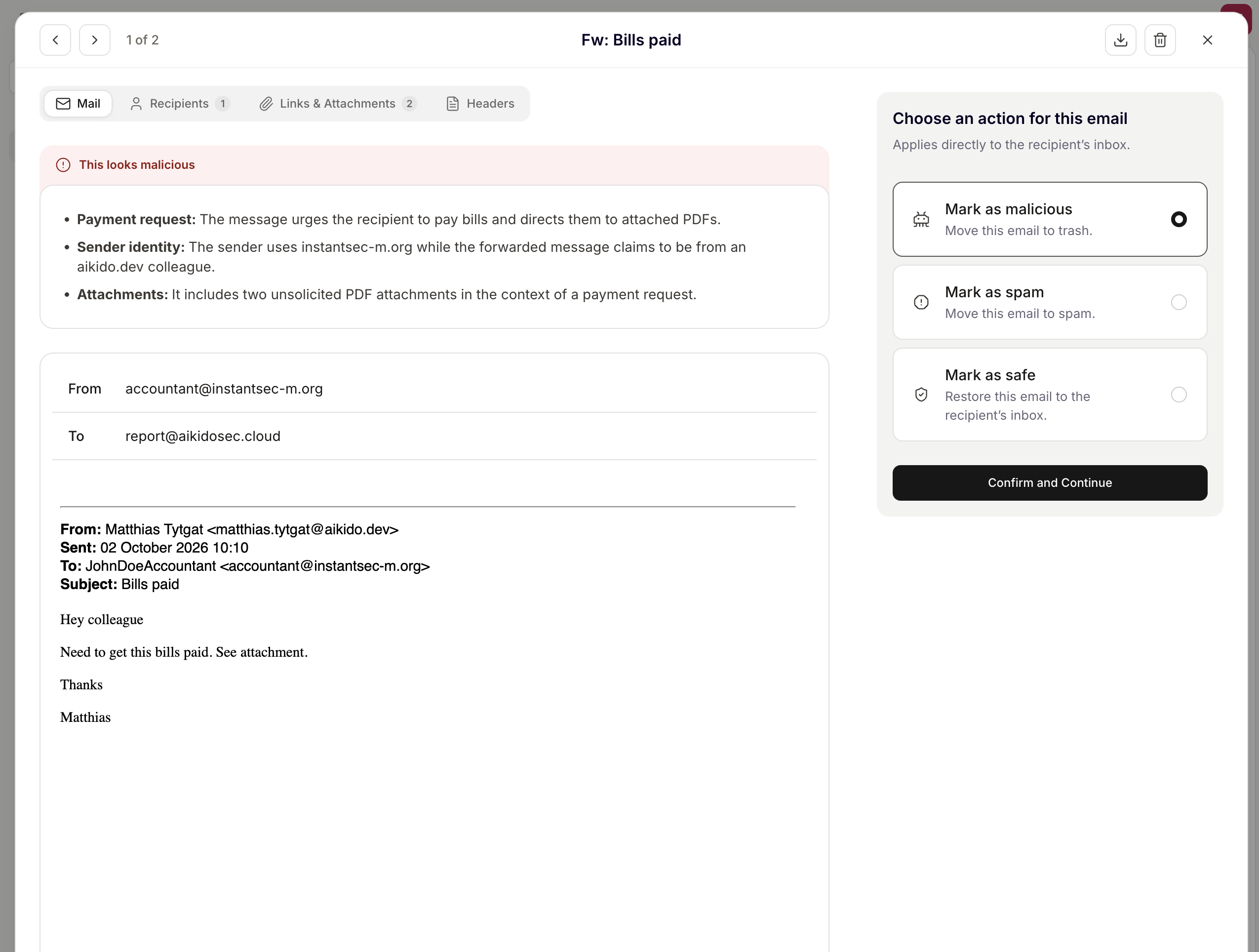
3. Malicious mail lands in **Threats**. Suspicious mail lands in **Spam**.
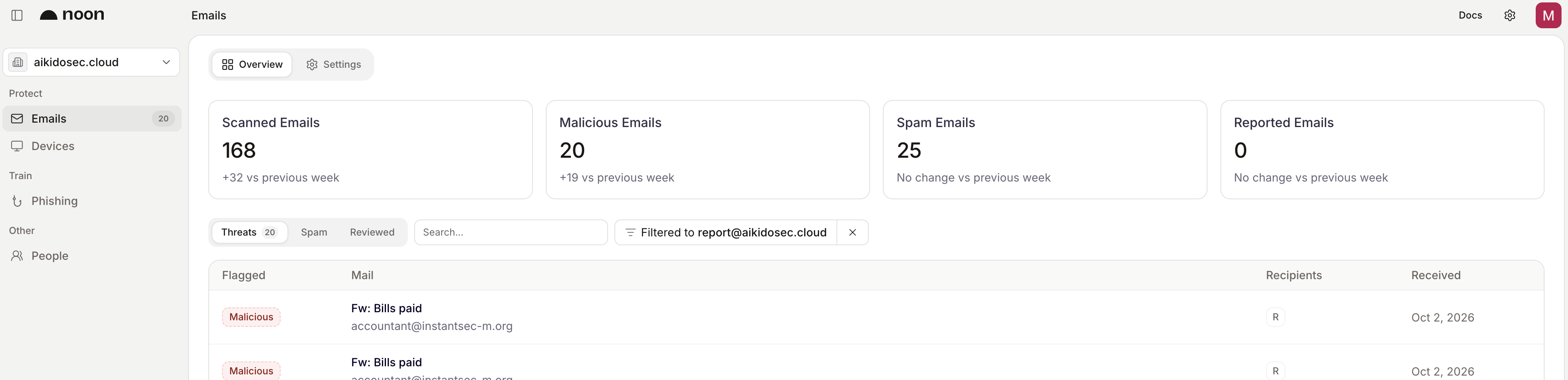
4. Open a message, read why Noon flagged it, and choose what to do with it. See [Review flagged email](https://help.noon.security/protect/email-protection/review-flagged-email).

## Review what the scan found

The Emails page opens while the first scan is running. Results appear as messages finish. Malicious mail is in **Threats**. Suspicious mail is in **Spam**. Open a message and decide what happens to it. See [Review flagged email](https://help.noon.security/protect/email-protection/review-flagged-email).

<figure><img src="https://help.noon.security/_assets/66154252ab95/emails-overview.png" alt="Emails page with scanned, malicious, spam, and reported counts, and the Threats queue"><figcaption><p>Flagged mail is grouped into Threats and Spam.</p></figcaption></figure>

## What the scan covers

The first scan covers the most recent messages: up to 1,000 per mailbox and 10,000 per connection. The limit is a count of messages, so the oldest message in that set can be any age. The scan stops early once it has found 20 threats.

When that pass finishes, Noon keeps watching the mailbox. New mail is picked up as it arrives, for both Gmail and Microsoft 365.

The Emails page opens while the first scan is running. Results appear as messages finish.

## What Noon stores

Messages that still need a decision stay available so you can review the explanation, the preview, the headers, and the links and attachments.

<figure><img src="https://help.noon.security/_assets/d1d1788b838c/email-opened-message.png" alt="Opened message with the verdict, preview, and action panel"><figcaption><p>Open a message to read why Noon flagged it.</p></figcaption></figure>

Noon keeps malicious mail so you can see why it was flagged. Safe mail is not saved. The verdict and the overview counts remain. Safe mail does not appear in the Threats, Spam, or Reviewed queues.

What Noon reads, and what you see, is in [What data Noon can see](https://help.noon.security/trust-and-support/what-data-noon-can-see).

<table data-card-size="large" data-view="cards"><thead><tr><th></th><th></th><th data-hidden data-card-cover data-type="files"></th><th data-hidden data-card-target data-type="content-ref"></th></tr></thead><tbody><tr><td><a href="https://help.noon.security/protect/email-protection/how-noon-detects-threats"><strong>How Noon detects threats</strong></a></td><td>See the threats Noon looks for, and the signals behind a verdict.</td><td></td><td><a href="https://help.noon.security/protect/email-protection/how-noon-detects-threats">How Noon detects threats</a></td></tr><tr><td><a href="https://help.noon.security/protect/email-protection/review-flagged-email"><strong>Review flagged email</strong></a></td><td>Review flagged email and decide what happens to it.</td><td></td><td><a href="https://help.noon.security/protect/email-protection/review-flagged-email">Review flagged email</a></td></tr><tr><td><a href="https://help.noon.security/protect/email-protection/automated-email-management"><strong>Automated email management</strong></a></td><td>Let Noon handle malicious and spam mail on its own, and undo it.</td><td></td><td><a href="https://help.noon.security/protect/email-protection/automated-email-management">Automated email management</a></td></tr><tr><td><a href="https://help.noon.security/protect/email-protection/employee-reports"><strong>Employee reports</strong></a></td><td>Let employees report a suspicious message from the warning banner, the report button, or by forwarding it.</td><td></td><td><a href="https://help.noon.security/protect/email-protection/employee-reports">Employee reports</a></td></tr><tr><td><a href="https://help.noon.security/protect/email-protection/email-protection-faq"><strong>Email Protection FAQ</strong></a></td><td>Get answers on when Noon scans mail, shared mailboxes, scan limits, and what Noon stores.</td><td></td><td><a href="https://help.noon.security/protect/email-protection/email-protection-faq">Email Protection FAQ</a></td></tr></tbody></table>