
Review flagged email
Review flagged email and manage it directly inside the recipient's mailbox.
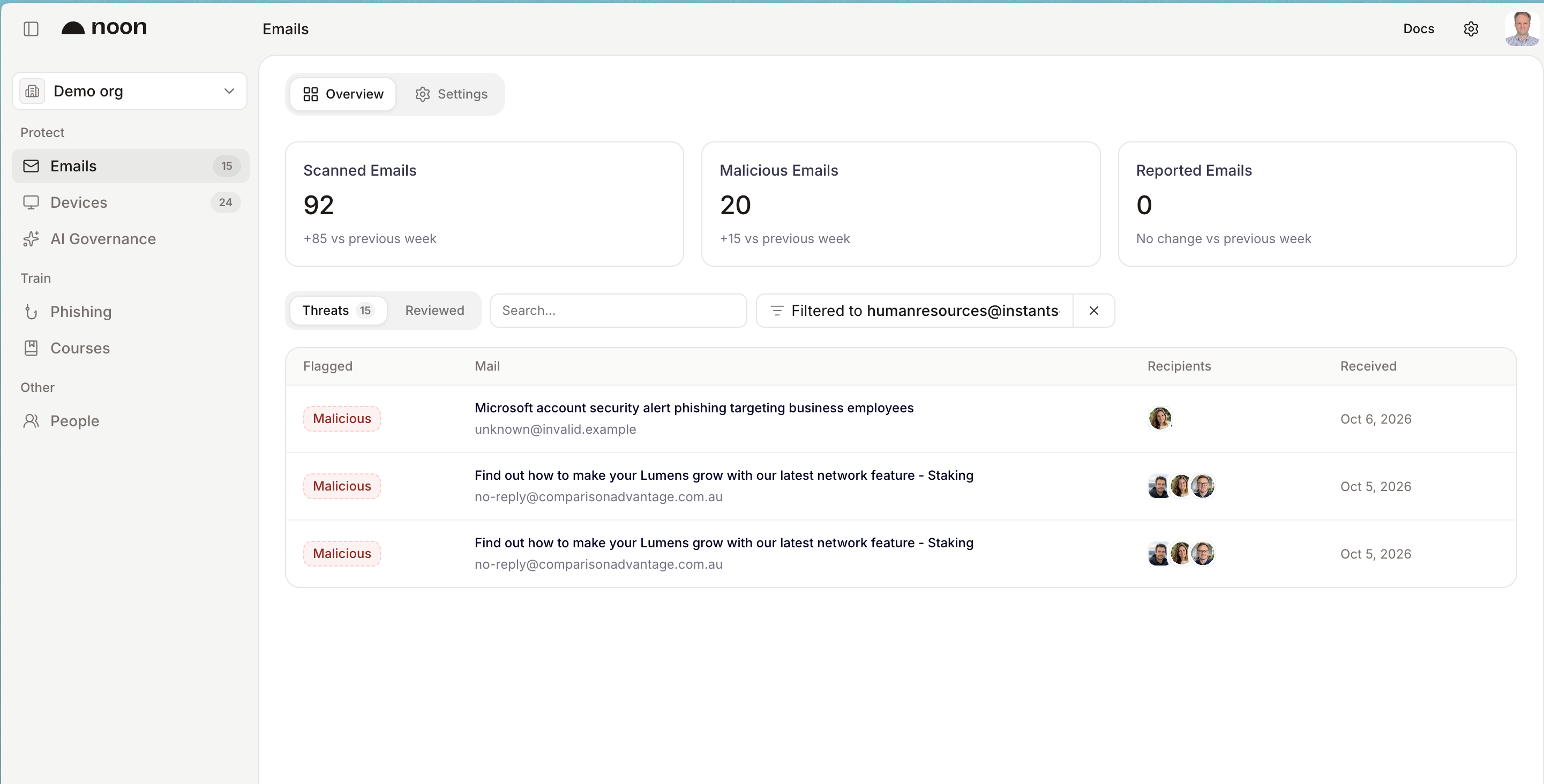
When Noon puts a message in Threats, you decide what happens to it in the recipient's mailbox. Open Emails to work through flagged mail.
Moving mail needs permission to manage mail. A Google Workspace connection includes it. For Microsoft 365, Noon asks the first time you need it.
#Email feed
-
Threats: malicious mail that nobody has reviewed yet.
-
Reviewed: mail already marked malicious or spam, by you or by auto protection.
-
Spam: suspicious mail that nobody has reviewed yet.
The Spam queue is behind a feature flag and may not be available in your account. Contact your Noon representative to have it enabled.
Noon also adds a banner inside an email it thinks is phishing, so employees see the warning in the message itself. The banner reads This email is likely phishing and has Looks safe and Report email buttons. Employees can report the message from the banner with Report email. See Report a phishing email.
Use the search box to find a message, and Filter to narrow the list by recipient, or to mail that Contains a malicious attachment or a malicious calendar invite.
#Email details
The panel shows why Noon flagged the message, a preview, and the headers, recipients, and links. The Mail, Headers, Recipients, and Links & attachments tabs hold the details. Noon blocks remote images in the preview so senders can't track the reader. Click Show hidden images to load them.
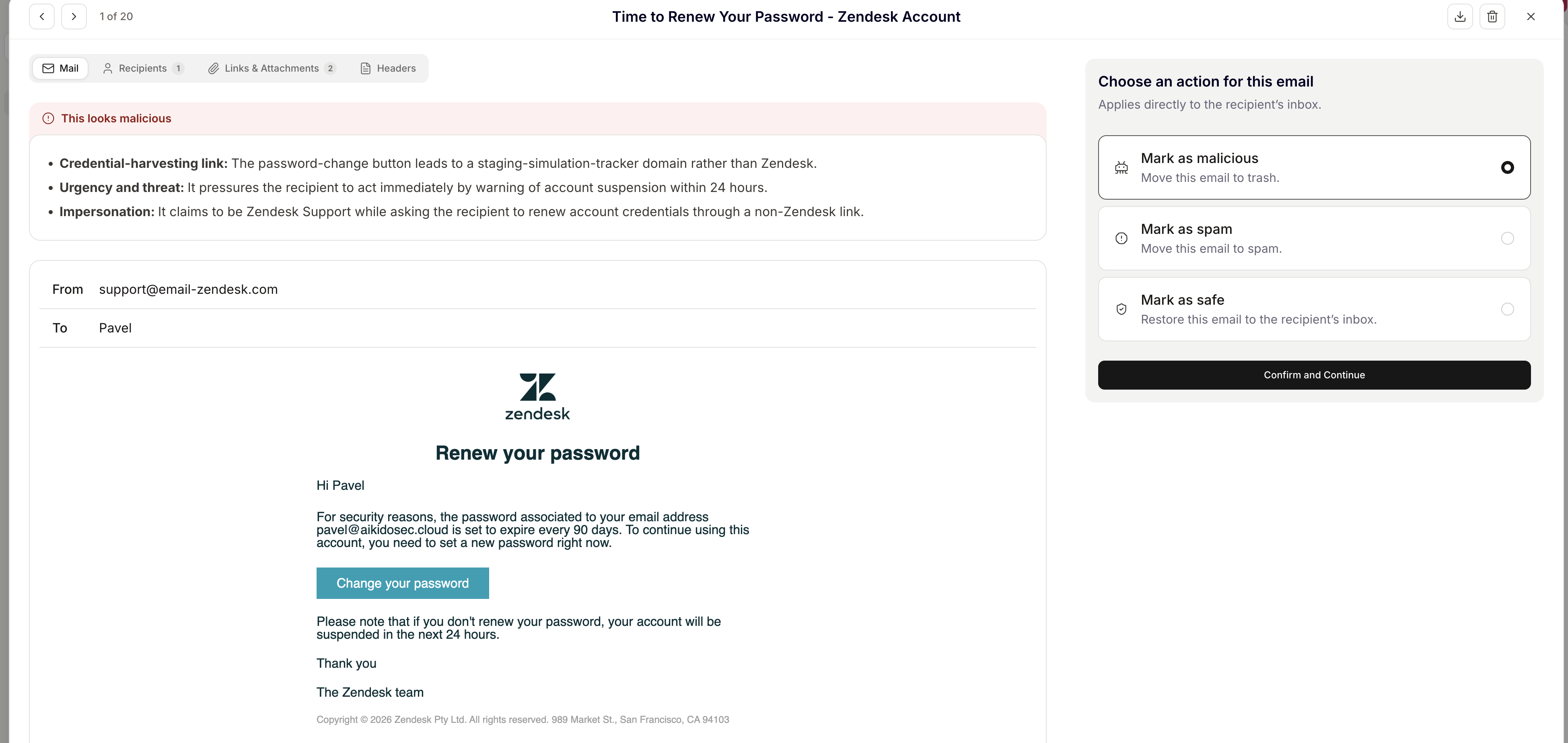
Unsafe links are marked on the links list.
#Decide what happens to the message
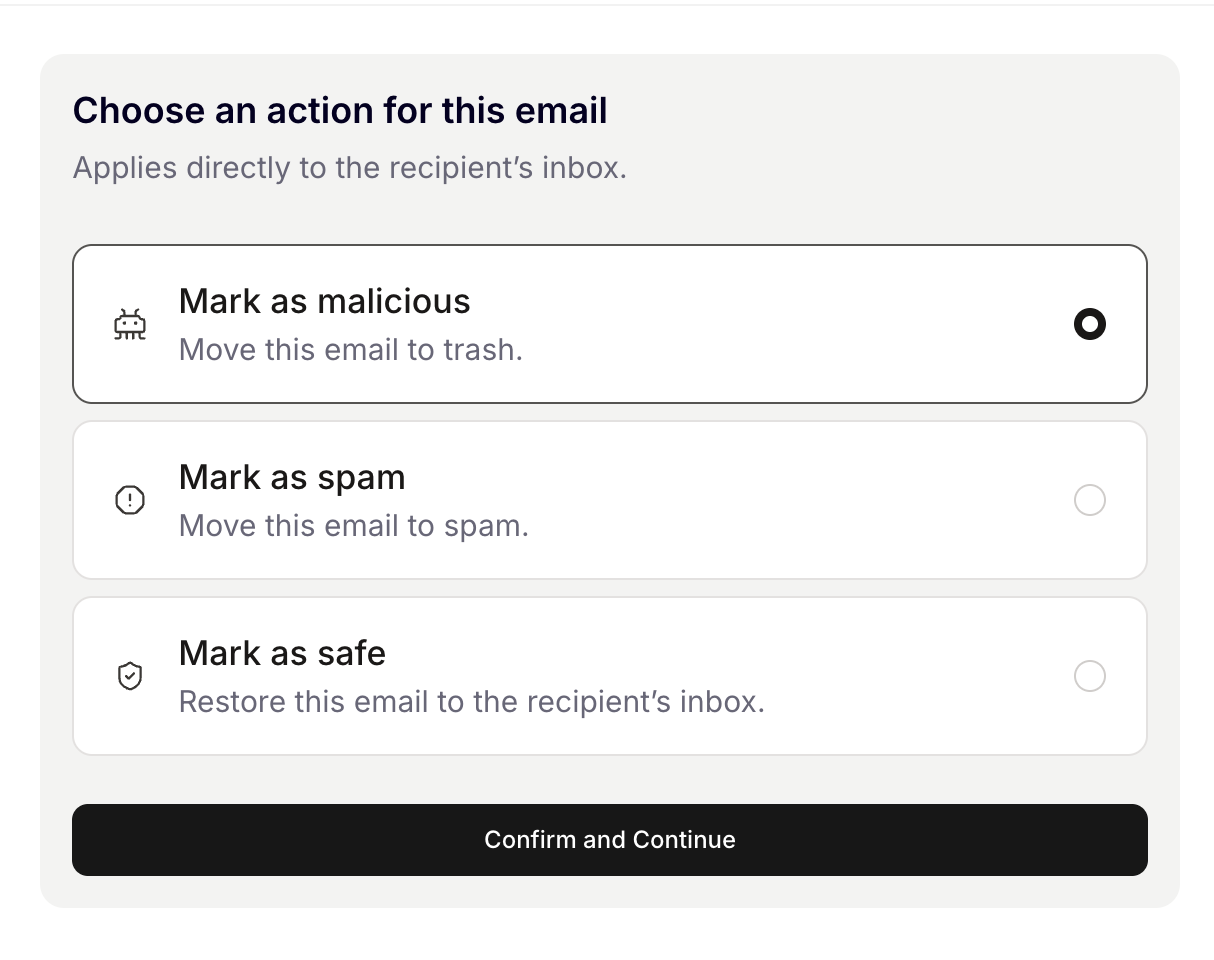
The action panel writes the decision into the recipient's mailbox.
- Mark as malicious: the message moves to trash.
- Mark as spam: the message moves to spam or junk.
- Mark as safe: the message returns to the inbox if Noon moved it earlier. Mail Noon never moved stays where it is.
To change a decision, open the message under Reviewed and click Undo. Noon can restore a message only while it is still in the mailbox's Trash, Deleted Items, or Spam folder.
With only a personal inbox, Noon can scan mail but cannot move it.
#Download or delete a message in Noon
Click Download email to save a copy of the message. Noon blocks the download when the message contains secrets that it hides in the dashboard.
Click Delete email to remove the message and its attachments from Noon. The recipient's mailbox doesn't change, and the scan counts still include the message.
#Who can review mail
Admins can see and review all mail. Other people need email access that an admin gives them in the Noon dashboard: View all to see company mail, or Manage all to act on it. Someone with neither sees only their own inbox.
#Permission to manage mail
When Noon doesn't have permission to change mail in the recipient's inbox, the email detail shows Remove threats in one click.

Click Allow write access on the email detail. Noon asks for this only when you need to move mail.
A workspace connected with domain-wide delegation includes permission to modify Gmail, so this prompt doesn't appear. See Google permissions.
A Global Administrator approves Noon again. This grant includes permission to change mail (Mail.ReadWrite). After approval, Microsoft returns you to Noon.