
Automated email management
Let Noon handle malicious and spam mail on its own, and undo what it did.
Automated email management lets Noon handle malicious mail and spam for you, so you don't triage and delete messages by hand. When Noon isn't confident enough to act, it sends the message back to you for review.
Needs permission to manage mail. Mail in personal inboxes can't be handled automatically, because Noon can't move or delete it. See Review flagged email. Automated email management is behind a feature flag and may not be available in your account. Contact your Noon representative to have it enabled.
#How it works
Noon handles malicious mail and spam separately. For each type, you choose 3 things:
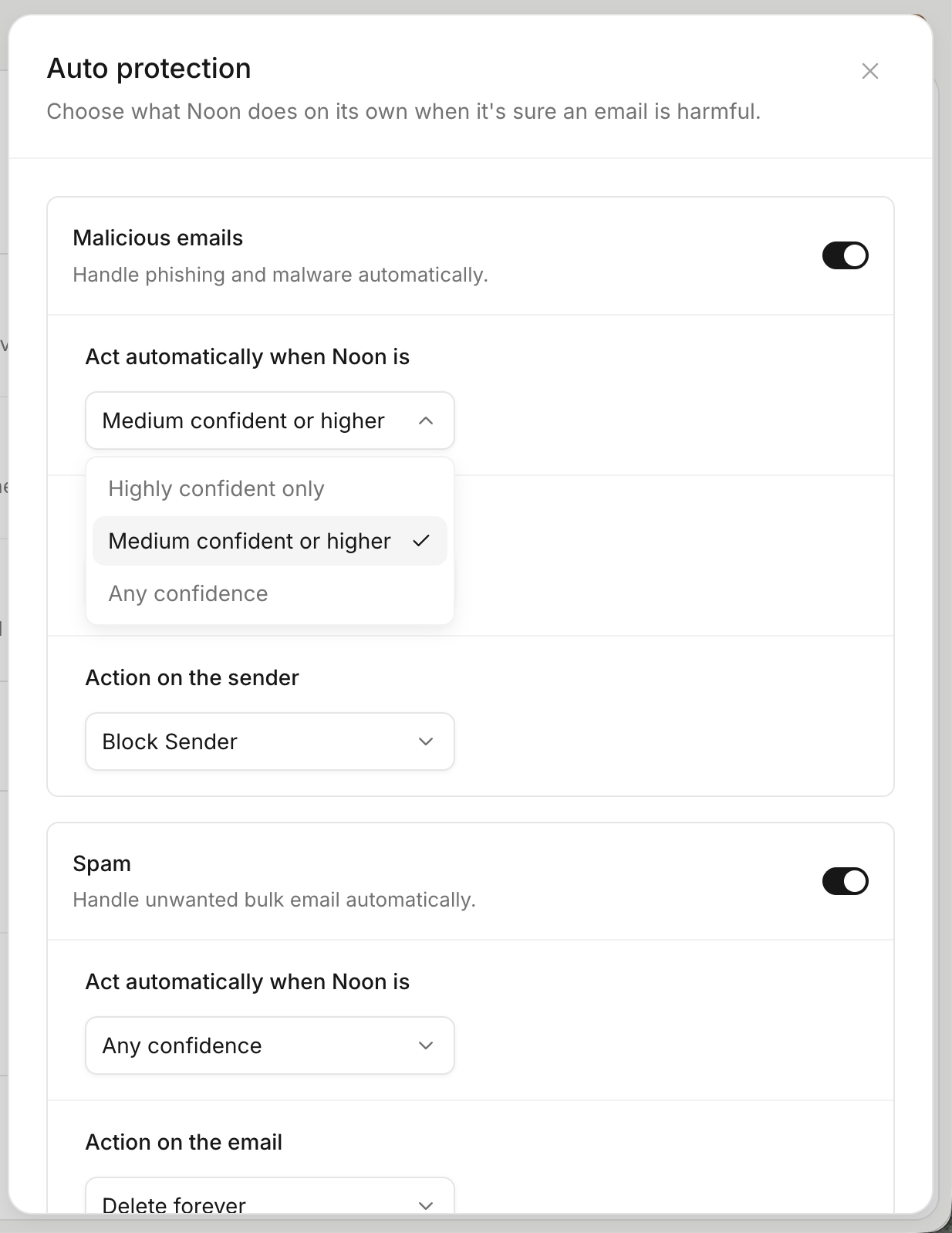
- Act automatically when Noon is: how sure Noon must be before it acts. Highly confident only or Medium confident or higher.
- Action on the email: what Noon does with the message. Delete forever or Move to spam.
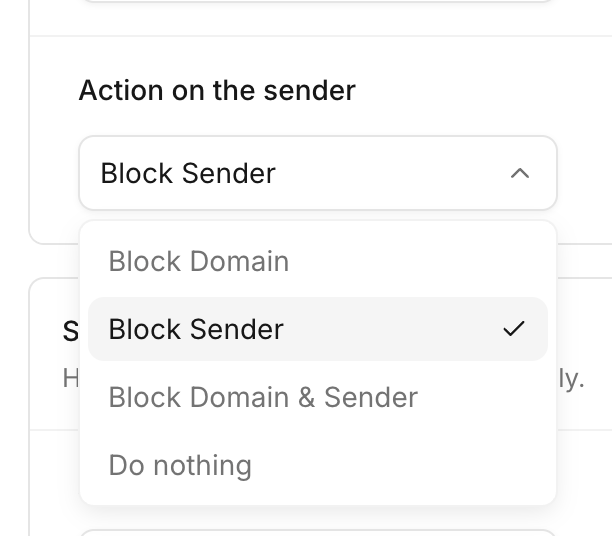
- Action on the sender: what Noon does with who sent it. Block domain, Block sender, Block domain & sender, or Do nothing. A domain is everything after the @ in an address.
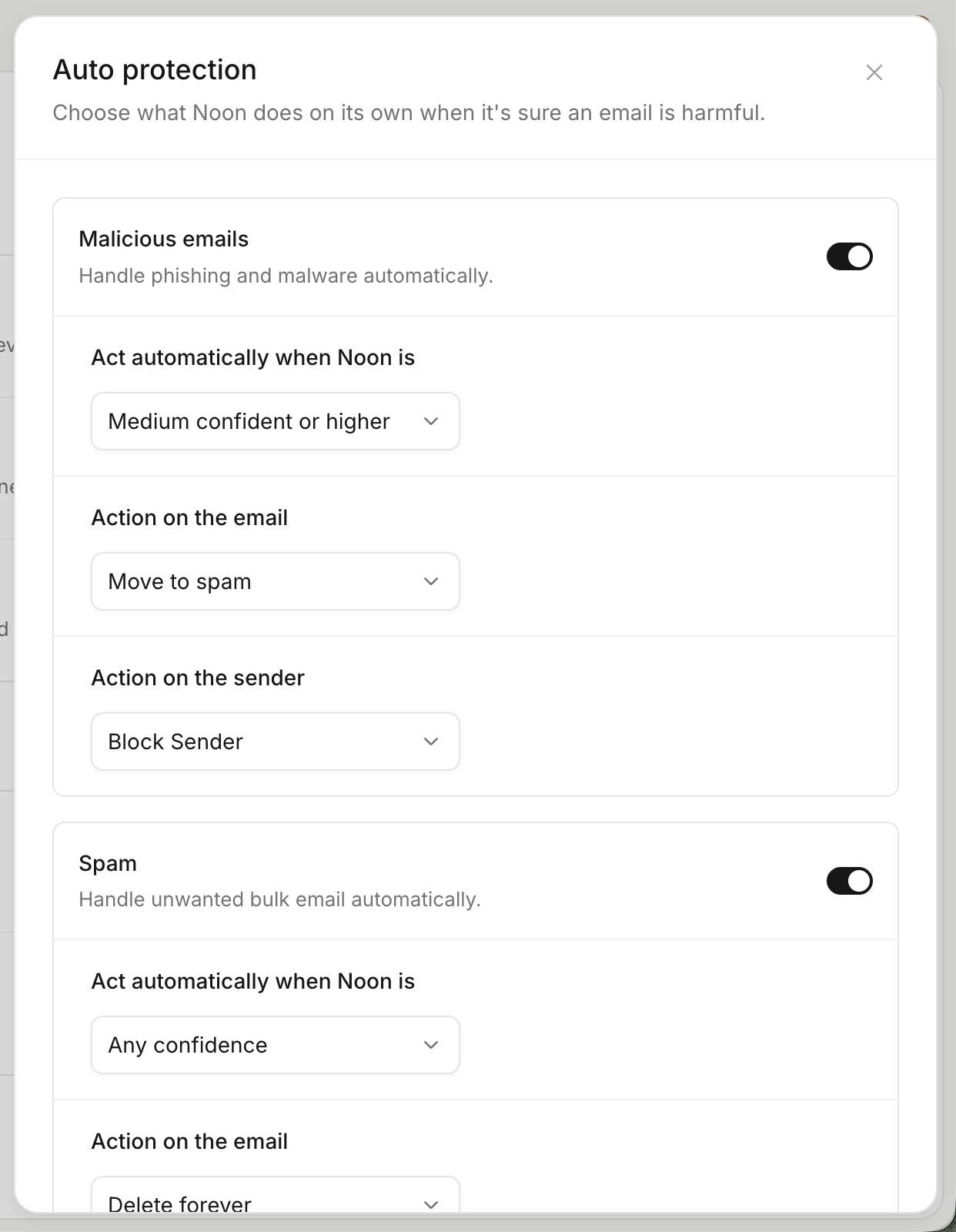
When Noon's confidence is below the level you chose, it takes no action. The message stays in the recipient's inbox and waits in Threats until you decide. When the setting is off, Noon takes no action on that type at all.
A lower level means fewer messages for you to review, and a higher chance that Noon acts on a message that turns out to be safe. You can undo an action while the message is still in the mailbox, so start with Medium confident or higher and adjust.
#Turn on automatic handling
Do this when reviewing flagged mail takes more of your time than you want to spend.
#Open Auto protection
Go to Emails → Settings and click Auto protection.
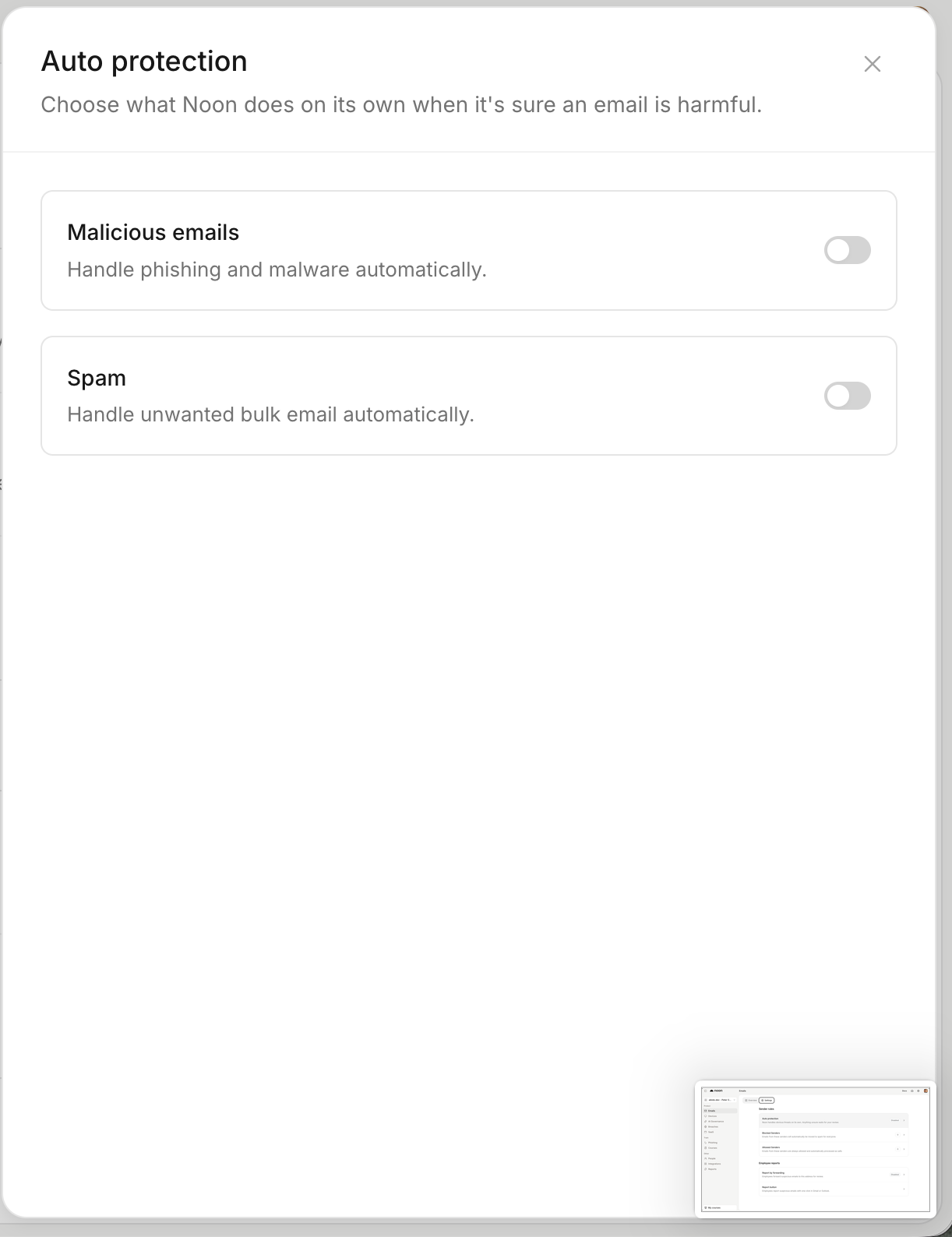
#Turn on a type
Switch on Malicious emails for phishing and malware, Spam for unwanted bulk email, or both.
#Choose what happens to the email
Under Action on the email, choose what Noon does with the message.
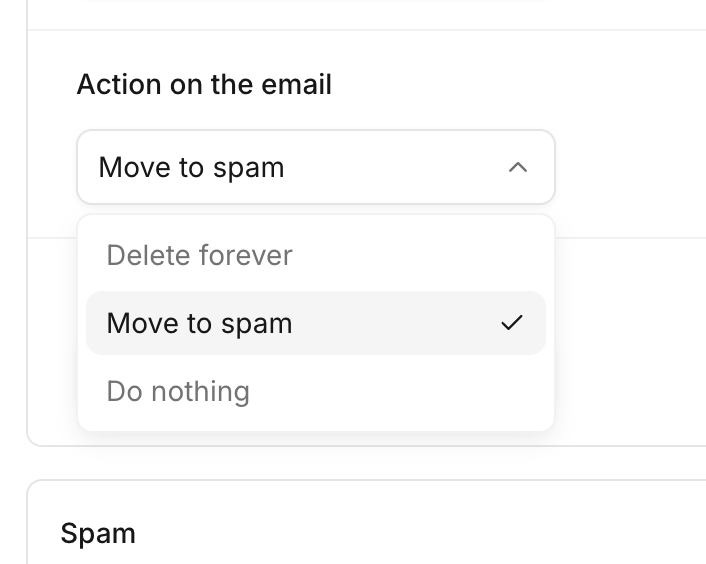
Delete forever moves the message to Trash in Gmail or Deleted Items in Outlook. Noon can restore it only while it is still there. Once the mailbox empties that folder, the message is gone.
#Undo an automated action
Do this when Noon acted on a message that was safe. Automated actions are listed in Reviewed, with the mail you decided on yourself.
- Go to Emails and open Reviewed.
- Open the message and click Undo.
- Choose Mark as safe to return the message to the inbox.
Noon can move the message back only while it is still in the mailbox's Trash, Deleted Items, or Spam folder. If the recipient or the mailbox already removed it, Noon saves your decision but can't restore the message. A sender or domain block that Noon added stays on the list. Remove it under Blocked Senders.