
Microsoft 365
Choose which Microsoft 365 mailboxes Noon syncs and protects, and which groups to include or leave out.
The Microsoft 365 integration is where you choose which mailboxes Noon syncs and protects. Use it after onboarding to protect only some of your organization, or to leave one group out.
#Protect only some of your organization
When you don't want to bring in the complete company, sync only the groups you choose. Noon syncs and protects only the mailboxes in those groups. See Choose which mailboxes Noon protects.
#Leave a group out
When one group should stay out of Noon, sync everyone except that group. A person in an excluded group is never synced, even if they belong to other groups. See Choose which mailboxes Noon protects.
#Choose which mailboxes Noon protects
#Open the Microsoft 365 integration
Go to Integrations and click Microsoft 365. If the page shows Connect instead, your organization isn't connected yet. See Microsoft 365 onboarding.
#Choose who Noon syncs
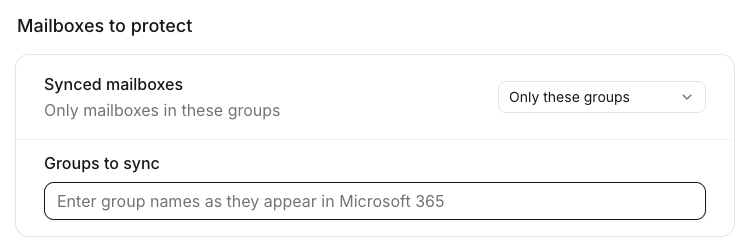
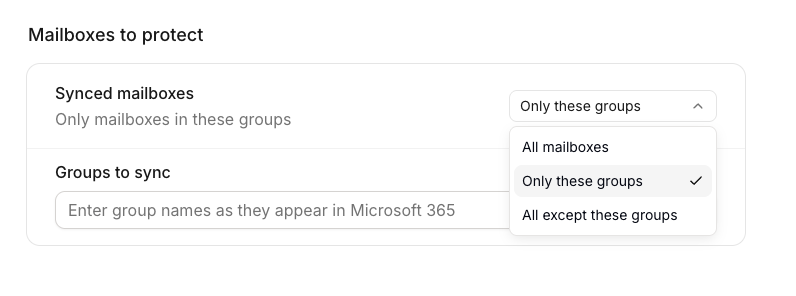
Under Mailboxes to protect, open the Synced mailboxes menu and choose one of these:
- All mailboxes: Noon syncs every mailbox and group in your organization.
- Only these groups: Noon syncs only the mailboxes in the groups you add.
- All except these groups: Noon syncs every mailbox except those in the groups you add.
#Add the groups
For the 2 group options, click the field under Groups to sync (or Groups to exclude) and start typing. Noon suggests the groups it finds in Microsoft 365. Pick one, or type a name and press Enter. A group you created recently may not appear in the suggestions, but you can still type its name.
#Save the change
Click Save. Each name must match a group in Microsoft 365. If one doesn't, Noon shows an error and doesn't save.
#Check that it works
After you save, Noon shows Mailboxes to protect updated.