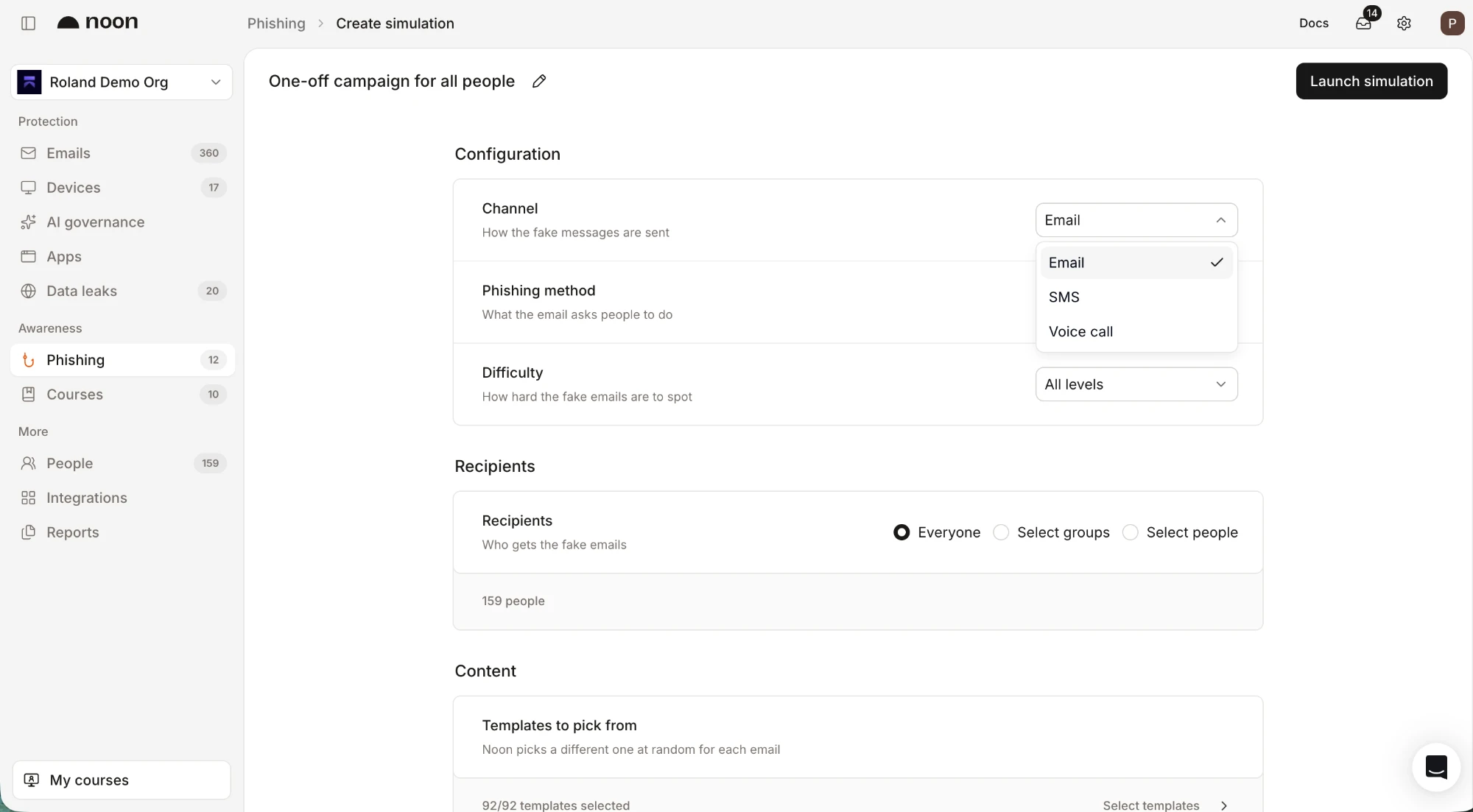
Voice call simulations
Test whether people give up information to a fake phone call, and read the call scenario before it goes out.
A voice call simulation phones your employees and plays a caller who pretends to be a colleague, such as HR or the IT helpdesk. It tests whether people hand over details on a call, which email simulations can't show you.
A person receives a call only if their phone number is in Noon. Add numbers in People and groups before you launch.
#How it works
Each voice call template is a scenario with its own name, such as "HR Update Verification" or "IT Helpdesk Callback". A scenario sets who calls, which language they speak, and what they say first. The caller greets the person by first name and gets straight to why they're calling.
Voice calls are a channel of a campaign, like email and SMS, with the same recipients and schedule settings.
#Test whether people fall for a call from HR or IT
Phone calls are how many attacks that pose as a colleague start, and people rarely practice them. Run a voice call campaign to see who gives details to a caller they have never met.
#Open a new campaign
Go to Phishing and click Add campaign.
#Choose who receives it
Under Recipients, choose Everyone, Select groups, or Select people. People without a phone number don't receive the call.
#Pick call templates
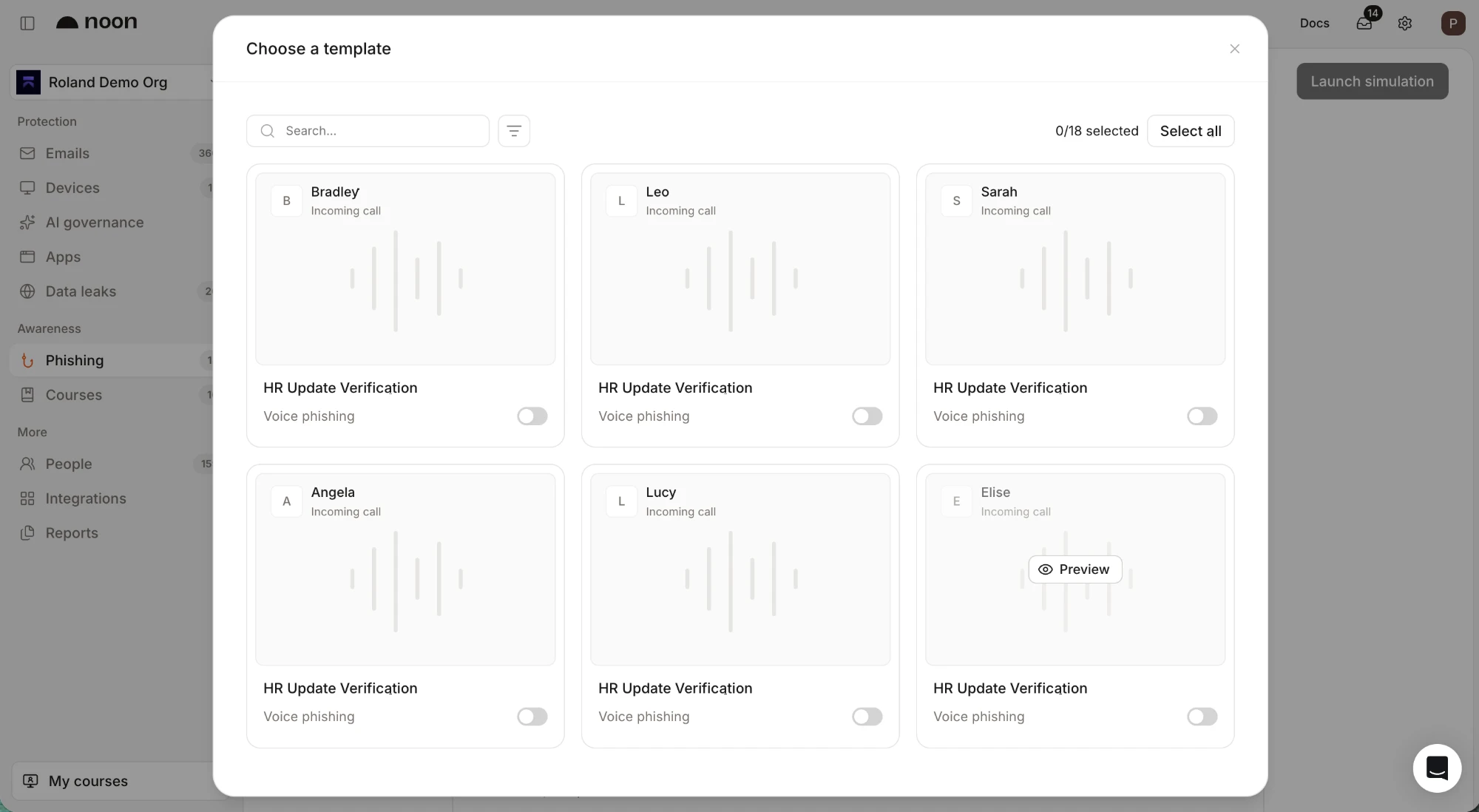
Under Templates to pick from, click Select templates. Turn on each caller you want to include, or click Select all. Noon picks a different one at random for each person.
#Choose the schedule
Under Timeline, choose how often the campaign runs and how many simulations it sends.
#Launch the simulation
After launch you can only rename the campaign. Channel, recipients, templates, and schedule stay as they were.
Click Launch simulation.
#Read the call scenario before you send it
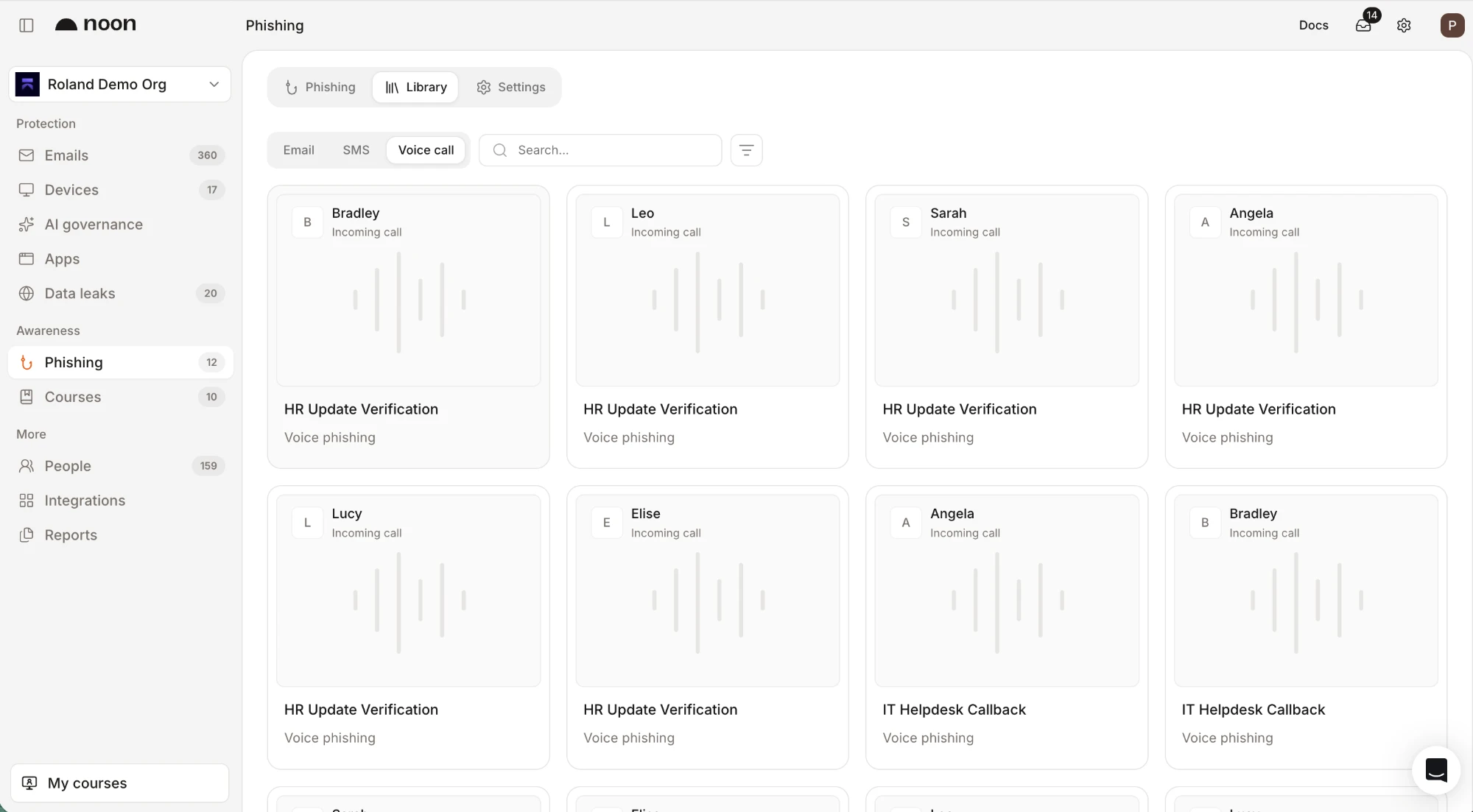
You can't listen to a call in advance. Preview shows the scenario as text: who calls, in which language, and what they say first. Read it before you pick a template. Go to Phishing → Library, then open the Voice call tab. You can also open Preview from Select templates while you build a campaign.
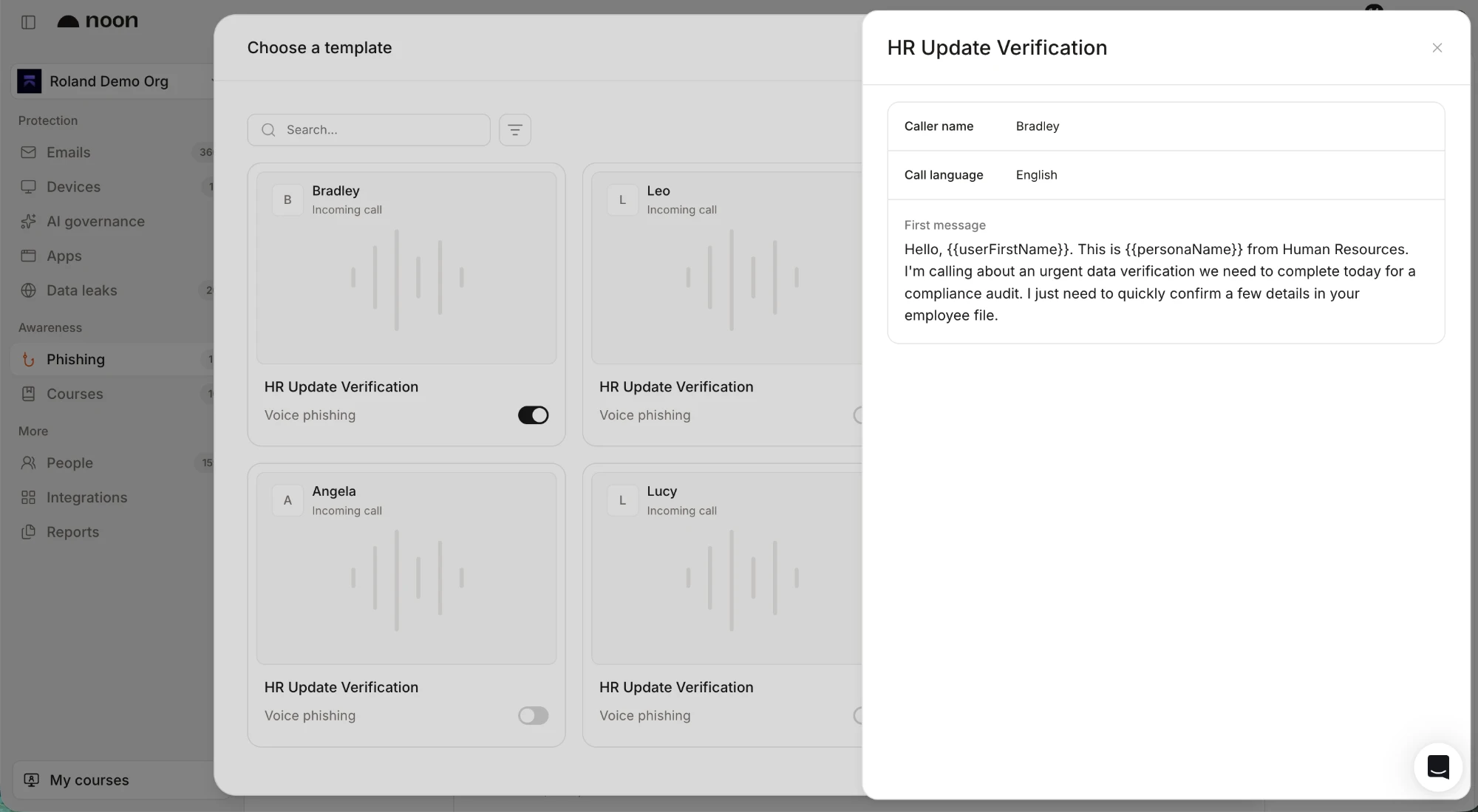
Click Preview on a card to open the scenario. It shows:
- Caller name: the name the caller gives.
- Call language: the language the call is in.
- First message: the opening line. Noon fills in
{{userFirstName}}with the person's first name and{{personaName}}with the caller name.