Install the Outlook add-in
Deploy the Noon report button to Outlook from the Microsoft 365 admin center.
Noon gives you a setup file. You upload it in the Microsoft 365 admin center, and the Noon button appears in Outlook for the people you choose. Using Gmail? See Install the Gmail add-on.
#Prerequisites
- An admin in the Microsoft 365 admin center. An Exchange admin can deploy the add-in too.
#Deploy the add-in
#Download the setup file
Go to Emails → Settings and open Report button. Next to Manual Outlook installation, click Open. That downloads the setup file.
#Open Integrated apps
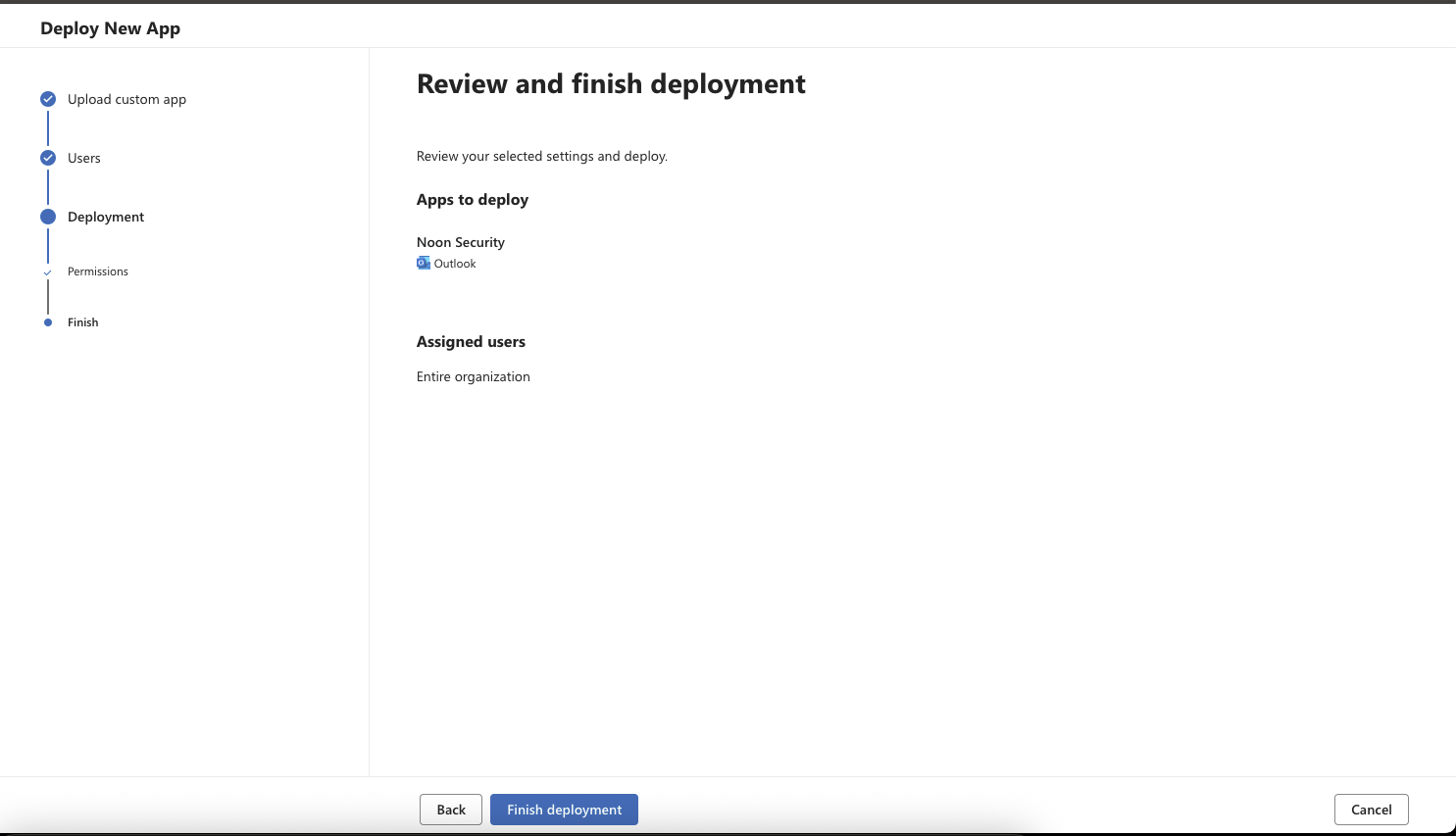
Go to the Microsoft 365 admin center and sign in. Go to Settings → Integrated apps, then click Upload custom apps.
If Integrated apps is not there, go to Settings → Services & add-ins → Add-ins and click Deploy Add-in.
#Upload the setup file
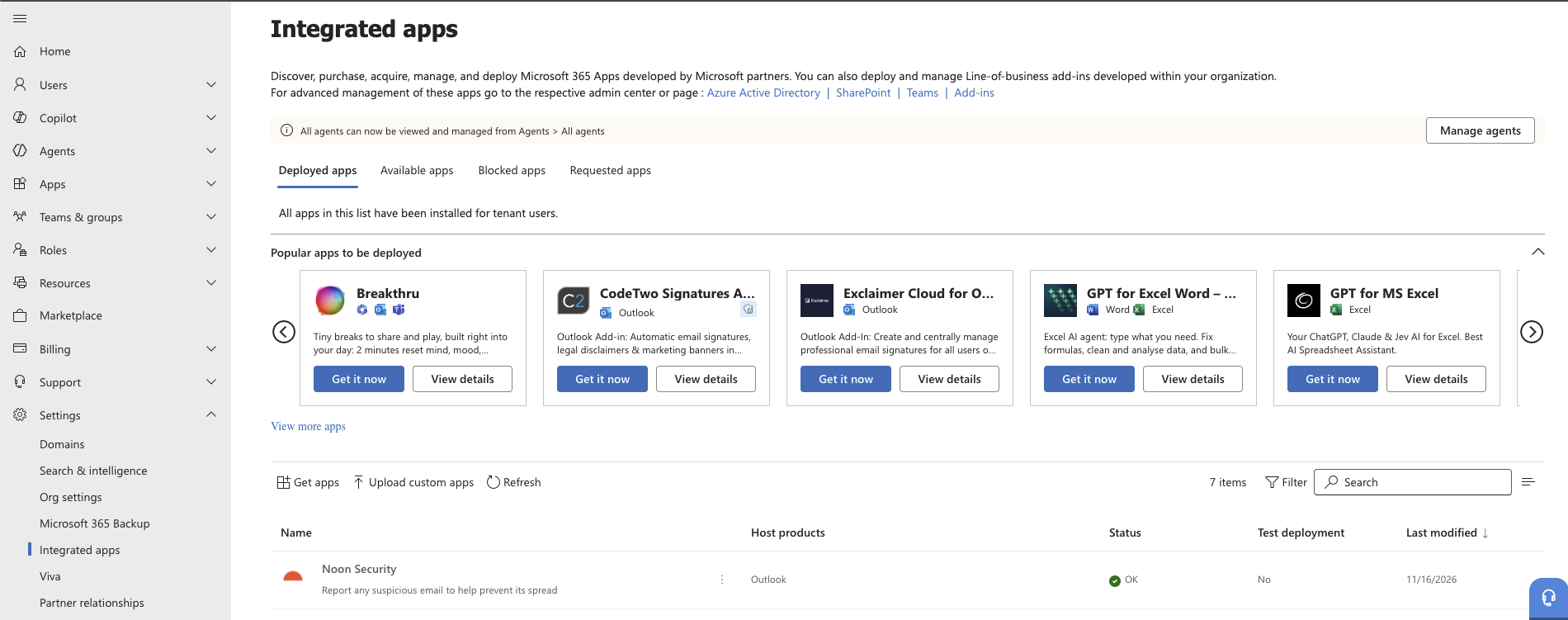
Under App type, choose Office Add-in. Choose Upload manifest file (.xml) from device, click Choose File, and select the setup file from Noon. When Manifest file validated appears, click Next.
#Choose who gets the add-in
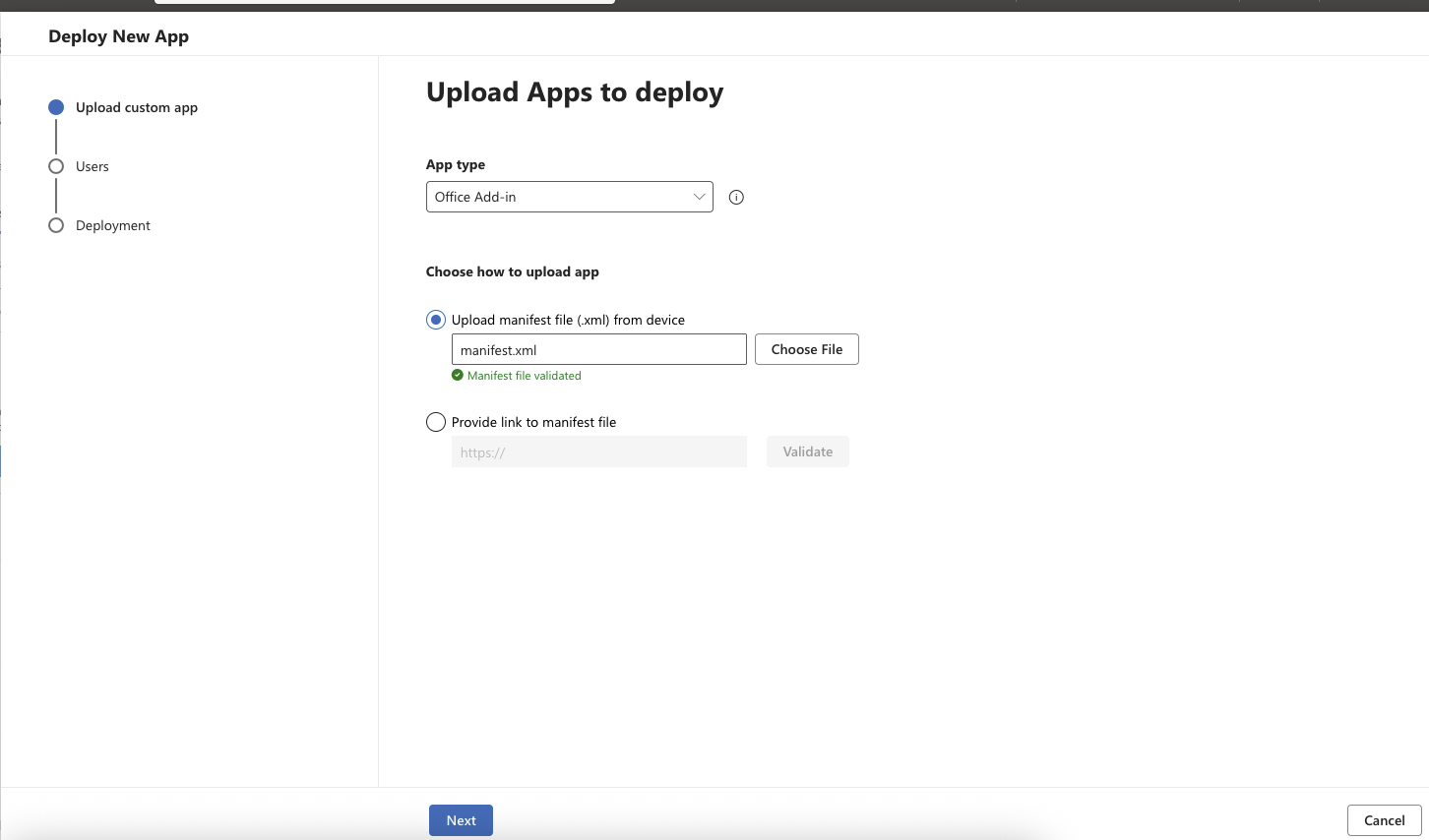
Under Assign users, choose one option:
- Just me: the add-in installs only for the admin who is signed in.
- All users: the add-in installs for the whole organization.
- Specific users or groups: search for the people or groups.
Click Next.
#Accept the permissions
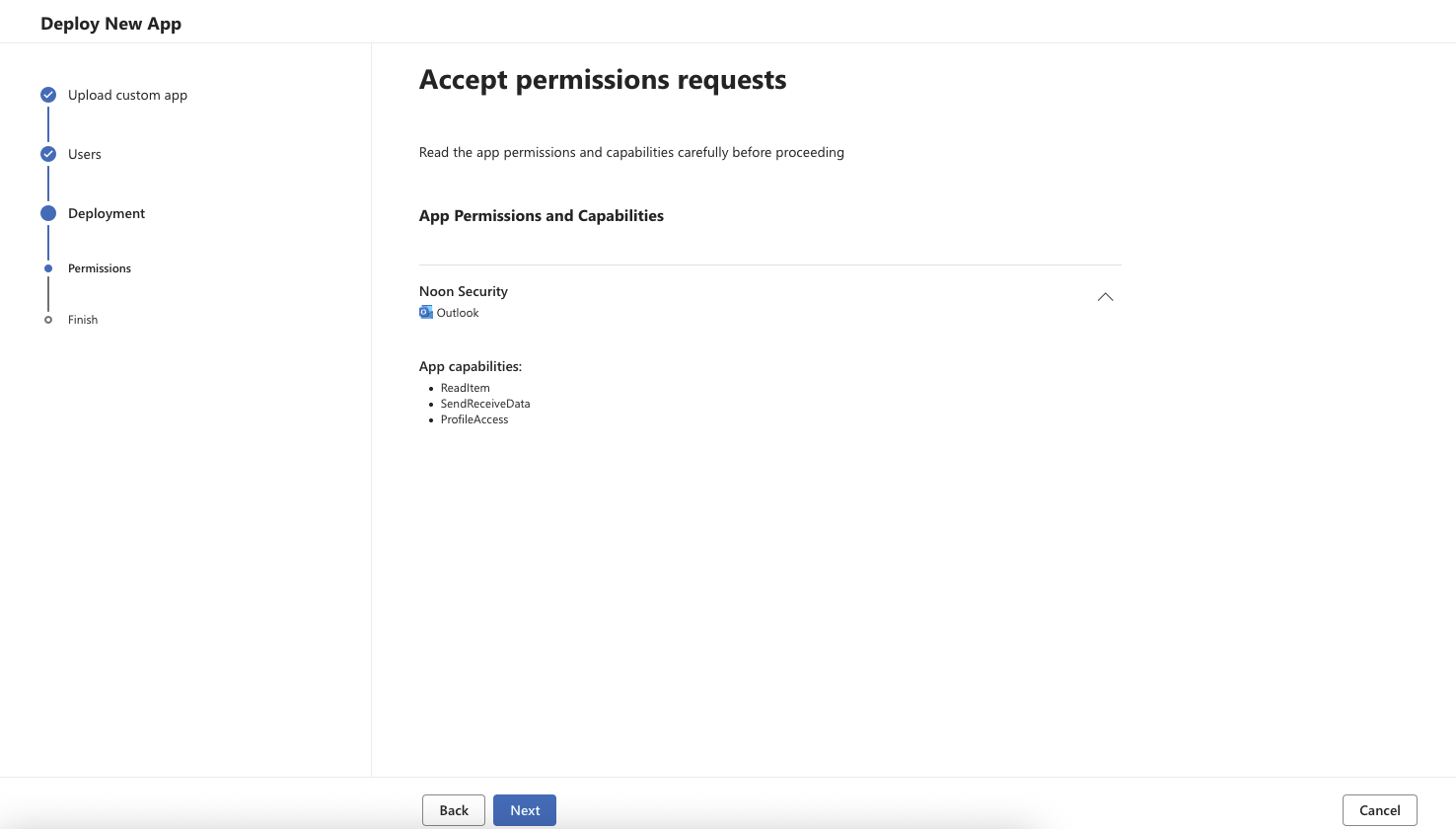
The Accept permissions requests step lists what the add-in can do: ReadItem, SendReceiveData, and ProfileAccess. Click Next.
The add-in can read the open message: the sender, the recipients, the addresses, the body, and the attachments. It may send that information to Noon. Other mail in the mailbox stays unread and unchanged.
#Wait for the deployment
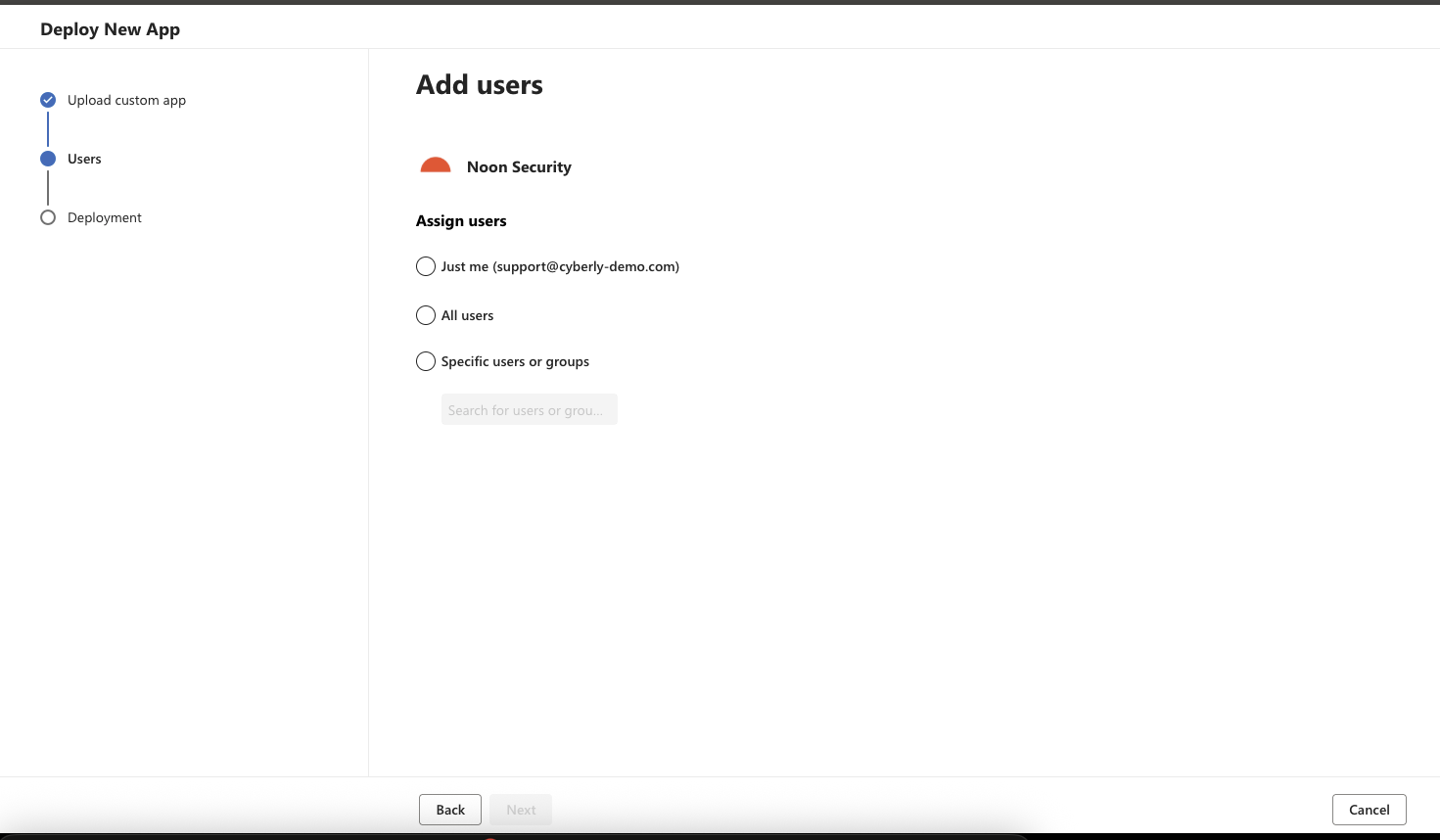
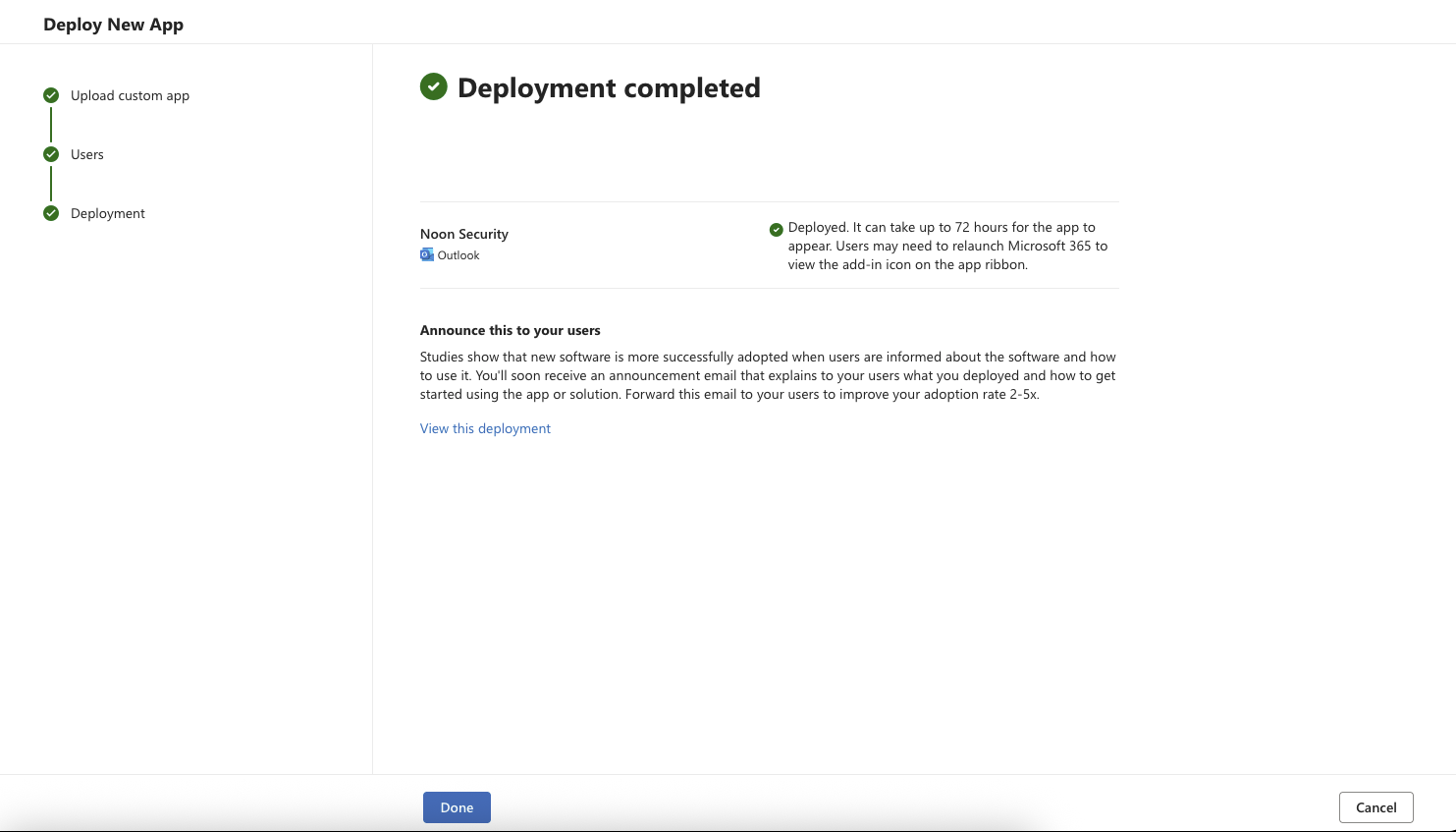
When Deployment completed appears, click Done.
The button can take up to 72 hours to show in Outlook. It often appears sooner.
#Check that it works
Restart Outlook. Go to Home → Get Add-ins. Noon Security is listed under My Add-ins. An employee uses the Noon button to report a message.