
What employees see
What employees see when Device Protection blocks an install, and how they ask for access.
Device Protection runs quietly in the background. Most installs go through as normal. An employee only sees a notification when something is blocked.
#Notifications
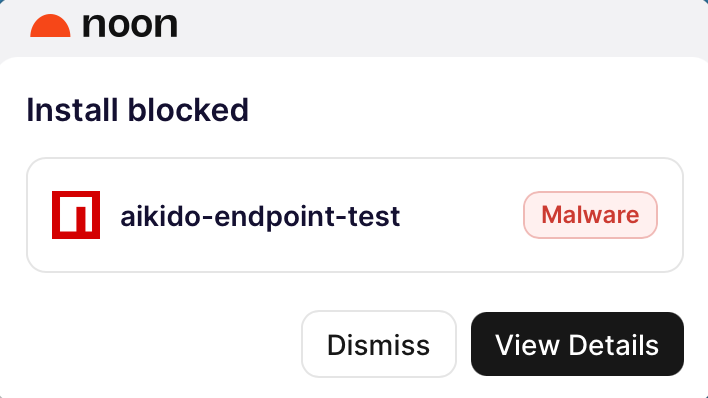
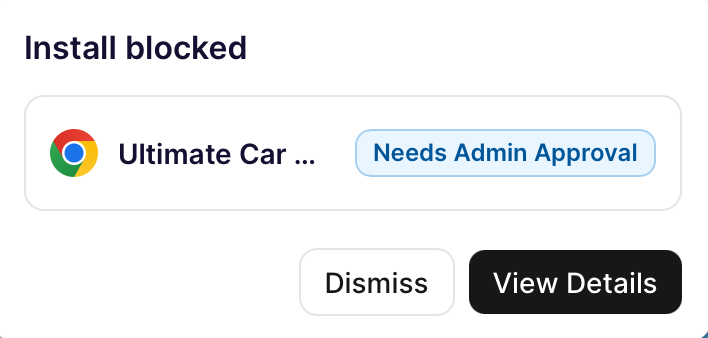
An Install blocked notification appears when a package contains malware or needs approval from an admin.
- Malware: the package is flagged as malicious. The block is final and cannot be appealed.
- Needs Admin Approval: your policy requires an admin to approve this package first.
The employee can click Dismiss, or View Details to see the event.
#Event details
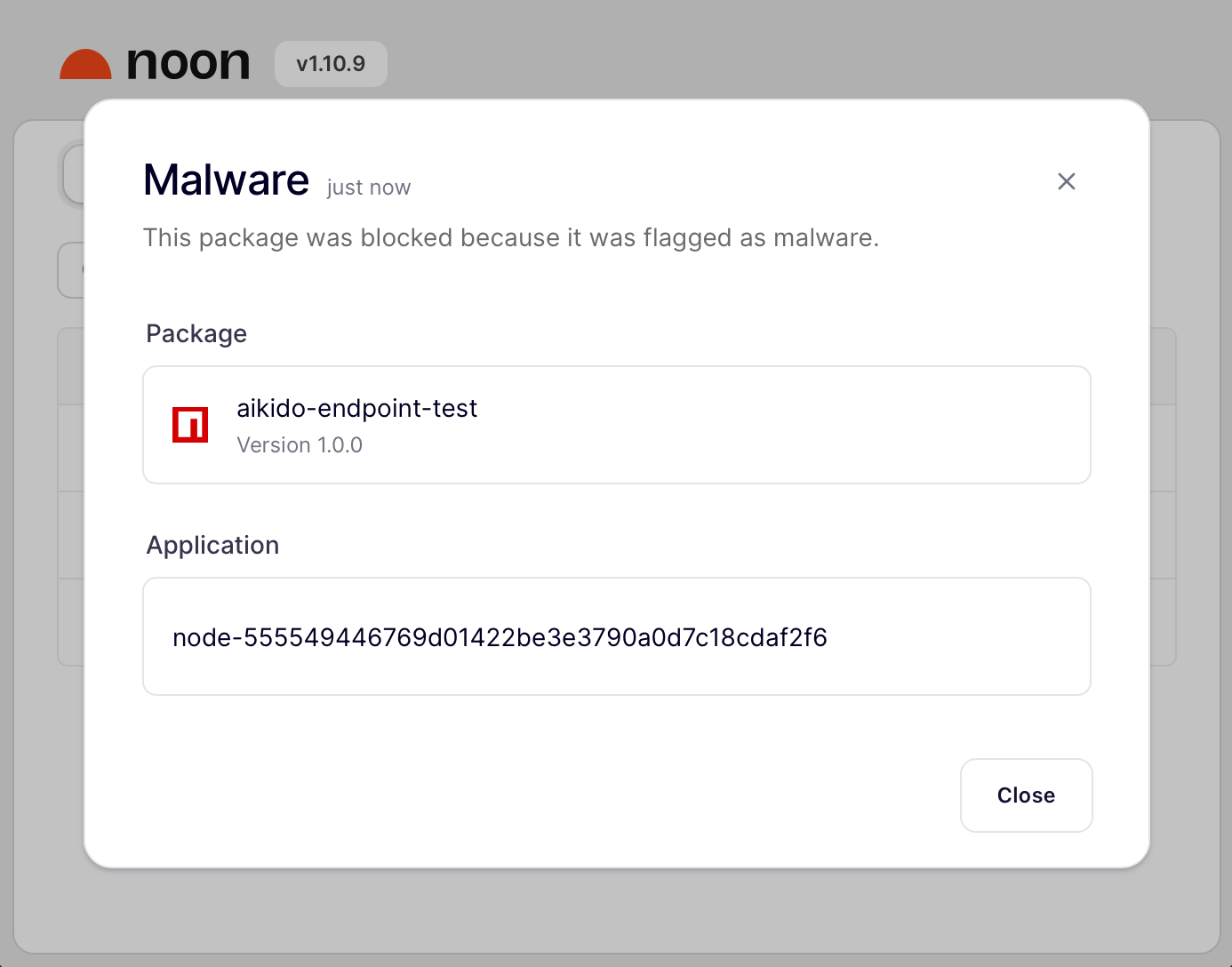
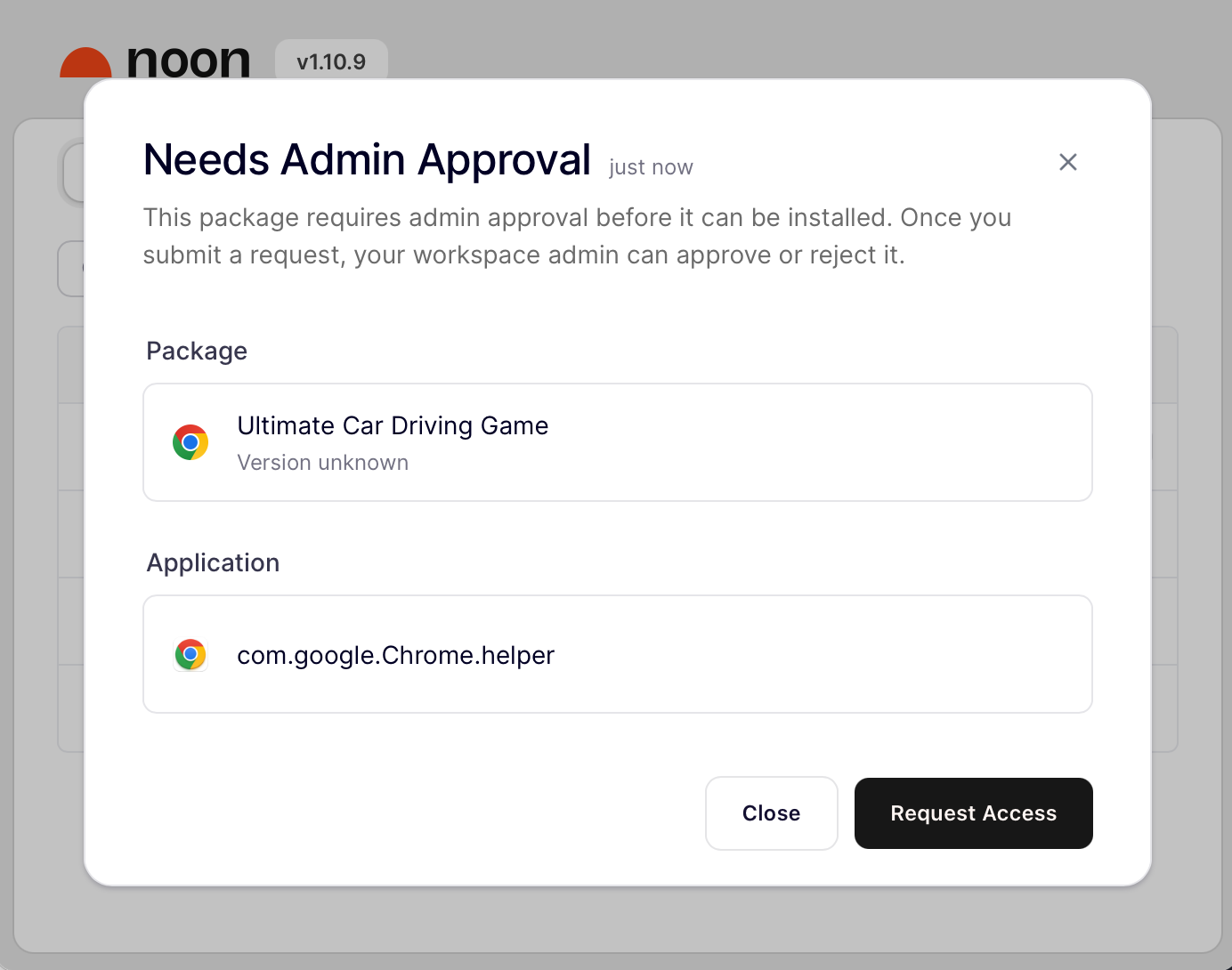
View Details shows the package, its version, and the application that tried to install it.
For a malware block, the employee can only click Close.
#Request access
For a package that needs admin approval, the employee can click Request Access. This sends a request to your workspace admins, who approve or reject it. Once an admin decides, the employee sees the result in the Device Protection dashboard.
#Desktop dashboard
To open the dashboard, the employee clicks the Device Protection icon in the menu bar on macOS, or the taskbar on Windows, then Open Dashboard. The header shows whether the device is Protected and which version is installed.
- Events lists recent blocks with their time and status. A new version that is still in its cooldown period shows as Versions Suppressed.
- Local Secrets lists secrets found on the device. See Secret scanning.
- Help is where the employee sends a report to support. See Send diagnostics to support.