
Plan and billing
Upgrade from Free or a Pro trial, see when your plan renews, and open invoices in the billing portal.
Plan & billing is where an admin upgrades Noon, sees when the plan renews, and opens invoices. Go to Settings → General. Only admins can open it. For what each plan includes and costs, see the pricing and features page.
#Keep Pro features after your trial
When the 7-day Pro trial ends, the workspace moves to the Free plan. Noon keeps your data and settings, and you lose the Pro features. Upgrade before the trial ends to keep them. See Upgrade to Pro.
#Get an invoice for finance
When someone in finance asks for an invoice, open it from the billing portal. Noon doesn't email invoices. See Open the billing portal.
#Cancel your subscription
When you stop using Pro, cancel in the billing portal. The plan stays active until the end of the period you paid for. See Open the billing portal.
#How it works
A workspace is on the Free plan, a Pro trial, or the Pro plan. The badge at the top of the sidebar shows which one. Plan & billing shows it too, and under it:
- During a trial: when the trial ends.
- After you upgrade: when the plan renews.
- After you cancel: when the plan stops. It stays active until then.
On the Free plan and during a trial, Settings also shows a Protect your whole company with Pro banner. View pricing opens the pricing page, and Upgrade to Pro opens the upgrade dialog.
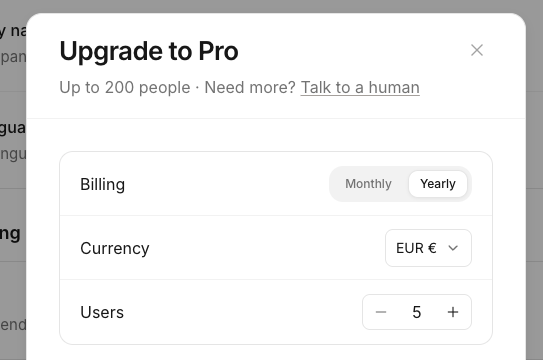
You pay by card. You can buy Pro online for up to 200 people. For more, click Talk to a human in the upgrade dialog.
If Noon manages your plan, Contact us replaces View invoices.
#Upgrade to Pro
#Choose how you pay
In the Upgrade to Pro dialog, choose Monthly or Yearly under Billing, then a Currency, USD or EUR. Under Users, choose how many people to pay for. You can't choose fewer users than your workspace has. Total shows the price.
#Pay by card
Click Upgrade plan, then enter your card details on the checkout page.
#Check that it works
Noon takes you back to Settings and shows "Your workspace is now on the Pro plan." If it says "Payment received. Your plan will update shortly" and still shows the old plan after a while, contact support.

#Open the billing portal
#Open Plan & billing
Go to Settings → General. In Plan & billing, click View invoices. It appears after you upgrade.

#Use the billing portal
Noon opens Manage Subscriptions, the billing portal. Choose what you need:
- Billing History: download invoices.
- Payment Methods: update your card.
- Account Information and Billing & Shipping Addresses: change the company name, address, and VAT number on your invoices.
- Exit: go back to Noon.
You can also cancel the subscription here. The plan stays active until the end of the period you paid for, and Plan & billing then shows when it stops.
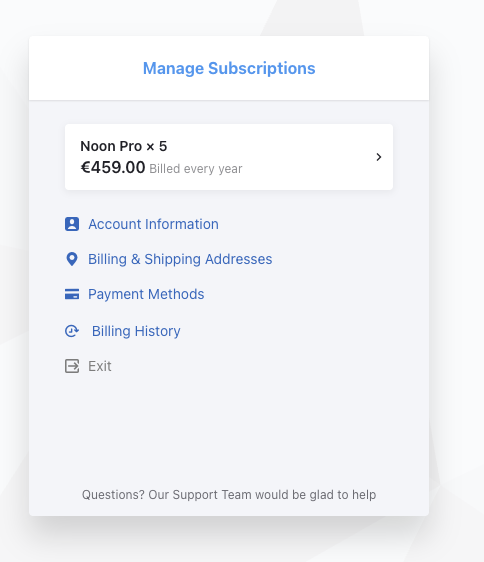
You can't change the number of users in the billing portal.
The billing portal doesn't open
If Noon says the billing account is shared with another Noon product, it can't open the portal here. Contact support for your invoices.