
People and groups
See who is in your Noon workspace, who is protected, who keeps failing simulations, and which groups you can assign.
People lists everyone Noon knows about in your organization. Groups lists the groups you can assign a simulation or a course to. An admin can also be invited by email. See User management.
People and groups come from your connected Google Workspace or Microsoft 365 directory. Noon doesn't see changes there until you click Sync on the Google or Microsoft 365 page under Integrations. To change a synced group, edit it in your directory, then click Sync.
#See who is not protected yet
On the people list, a mail icon with a red dot means Noon is not protecting that person's inbox yet.
Search by name or email. If anyone is deactivated, click Show deactivated users at the bottom of the list to see them.
#Check who keeps failing simulations
Failed simulations is how many phishing simulations this person failed. A person who failed at least one shows the number in red. People who have not failed one, or have not received one yet, show 0. Click the column header to sort by it.
Filter the list by Failed simulations (Never or At least once), or by Phone number (Added or Missing).
Click a person to open their details.
- Overview: department, language, country, and when they were added, as far as your directory provides them. You can also add a phone number.
- Groups: the groups this person belongs to.
- Emails: suspicious emails Noon flagged for this person, with their status. Click one to open it in Review flagged email.
#Add a group in Noon
When you need a group that your directory doesn't have, click Add group on the Groups tab. Enter a name, choose the people, and click Add group.
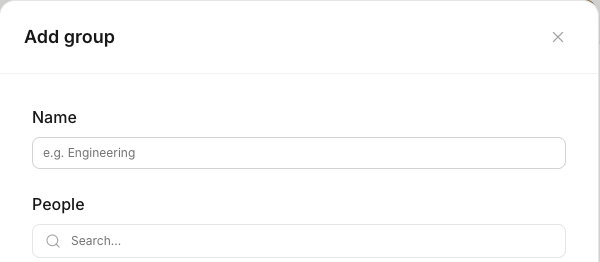
To change or delete a group you added, click the row menu on its row, then Edit or Delete. Deleting a group keeps its people in the organization. Groups synced from your directory have no row menu.
#Assign a simulation or a course
The Groups tab lists the groups synced from your directory and the groups you add. Click a group to see its members.
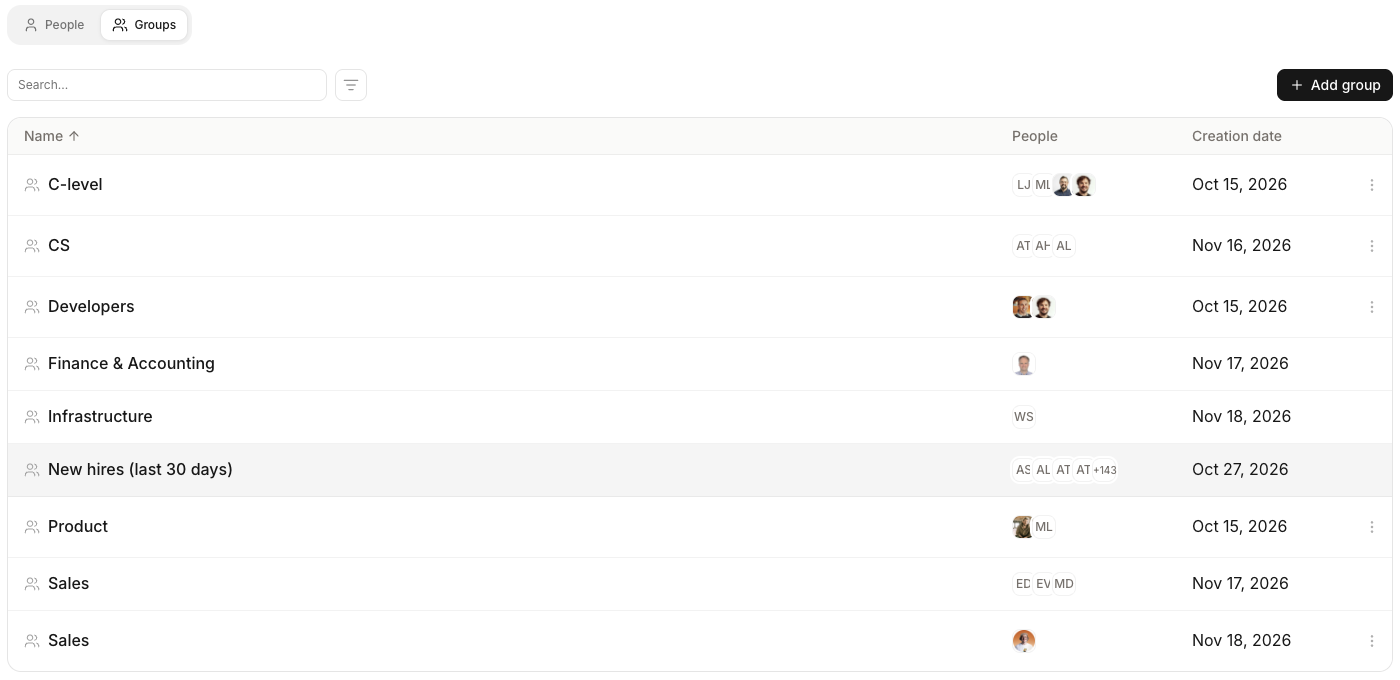
Use a group to pick who receives a simulation. See Phishing simulations. Use a group for a course too. See Launch a course.
#FAQ
What kinds of groups does Noon have?
Noon has 3 kinds of groups. They look alike, but each one is used and changed in a different place.
| Group | Comes from | Used for | Change it in |
|---|---|---|---|
| Workspace groups | Synced from Google Workspace or Microsoft 365 | Phishing simulations and courses | Integrations |
| Noon groups | You add them in Noon | Phishing simulations and courses | People → Groups |
| Device Protection groups | You add them for Device Protection | Rolling out Device Protection, and allowing, blocking, or monitoring what people install | Devices → Settings |
For Device Protection groups, see User Groups for Device Protection.
Why can't I edit a group?
Workspace groups come from your directory, so they have no row menu in Noon. Change the members in Google Workspace or Microsoft 365, then click Sync. To choose which groups Noon syncs, go to Integrations. You can edit and delete Noon groups.
A change in my directory isn't showing in Noon
Noon doesn't see changes in Google Workspace or Microsoft 365 until you click Sync on the Google or Microsoft 365 page under Integrations.
What happens to the people when I delete a group?
Deleting a Noon group removes the group and keeps its people in the organization. You can't undo it.