
Send diagnostics to support
How to send a Device Protection diagnostic report from the app, from a command, or as a zip file.
When Device Protection doesn't work as expected on your device, send a diagnostic report. It shows Noon support what happened on the device, so they can fix the problem faster.
Admins: when support asks for diagnostics, send this page to the employee whose device has the problem.
On the device, Device Protection appears as Aikido Endpoint Protection.
#Report a problem from the app
- Click the Device Protection icon in the menu bar on macOS, or the taskbar on Windows, then Open Dashboard.
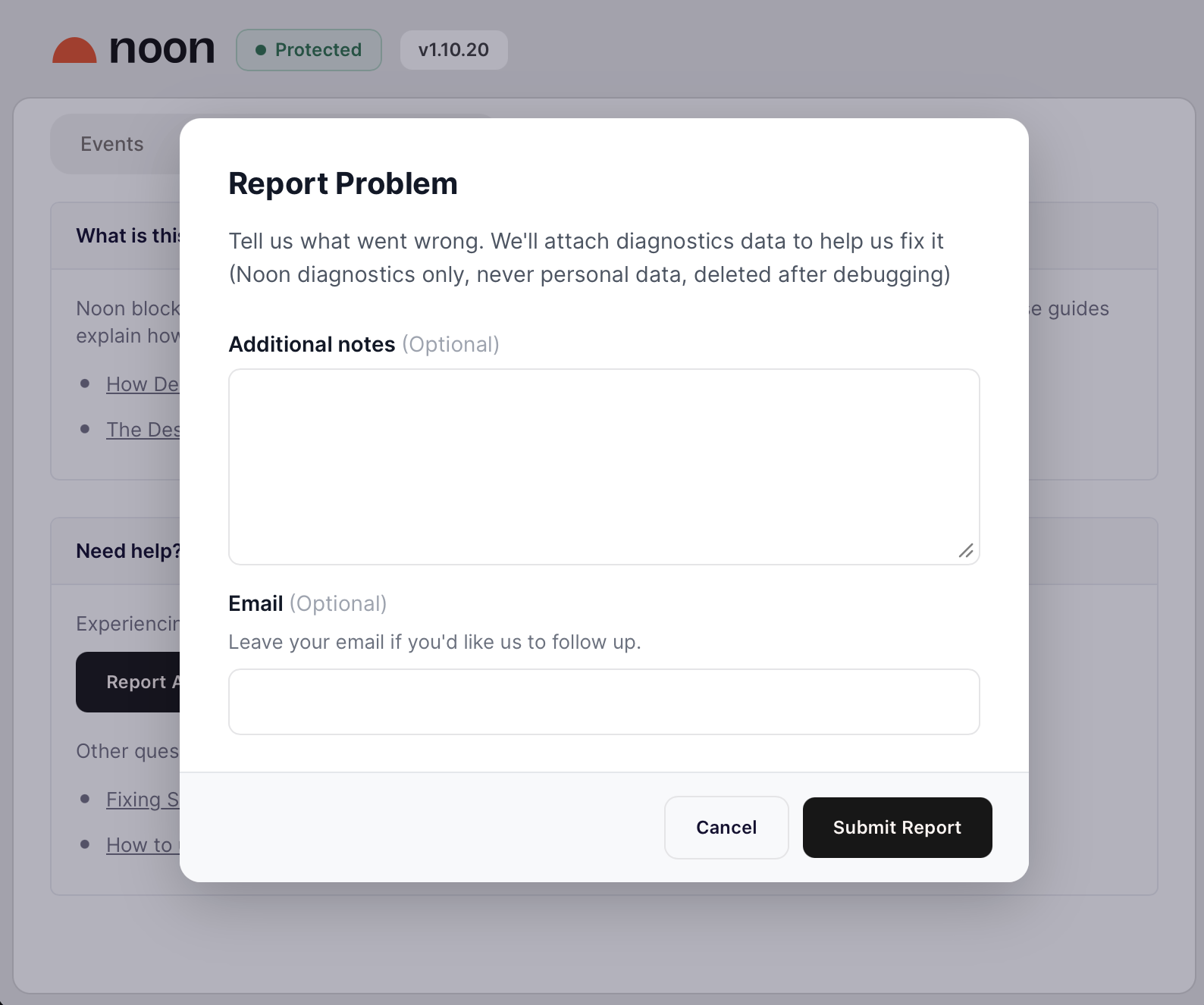
- Click Help, then Report A Problem.
- Describe the problem under Additional notes, and add your Email if you want support to reply. Both are optional.
- Click Submit Report.
The report holds diagnostics from Device Protection only, never personal data. Noon deletes it once the problem is fixed.
#Run the diagnostics command
If the app doesn't open, run the command for your system. It collects the same diagnostics and uploads them to support.
Run this command in Terminal:
sudo "/Applications/Aikido Endpoint Protection.app/Contents/Resources/scripts/submit_diagnostics"Run this command in PowerShell as an admin:
& "C:\Program Files\AikidoSecurity\EndpointProtection\scripts\SubmitDiagnostics.ps1"Run this command in a terminal:
sudo aikidoctl diagnostics#Find the diagnostics zip
If the report or the command can't reach support, the diagnostics zip is still saved on your device. Email it to support@noon.security.
| System | Location |
|---|---|
| macOS | /Library/Logs/AikidoSecurity/EndpointProtection/aikido-endpoint-protection-logs-<timestamp>.zip |
| Windows | C:\ProgramData\AikidoSecurity\EndpointProtection\logs\aikido-endpoint-protection-logs-<timestamp>.zip |
| Linux | /var/log/aikidosecurity/endpoint-protection/aikido-endpoint-protection-logs-<timestamp>.zip |