Install the Gmail add-on
Add the Noon report button to Gmail from Google Workspace Marketplace.
The Noon button shows in the Gmail sidebar. Employees use it to report a message they think is suspicious. Using Outlook? See Install the Outlook add-in.
#Prerequisites
- A Google Workspace admin.
#Install the add-on
#Open the listing
Go to Emails → Settings and open Report button. Next to Gmail, click Open. That link opens the report button in Google Workspace Marketplace. Sign in to the Google Admin Console if Google asks you to.
You can also open the listing from the Google Admin Console under Apps → Marketplace.
#Install the add-on
- Review the add-on and click Install.
- Choose everyone in the organization, or one organizational unit.
- Click Continue and accept the permissions.
#Find the Noon button
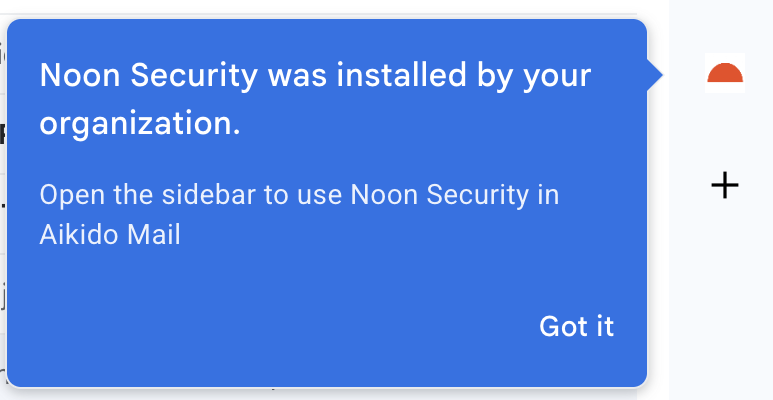
The Noon button shows in the Gmail sidebar for the people you included. The first time they open Gmail, it tells them Noon was installed by their organization.
#Check that it works
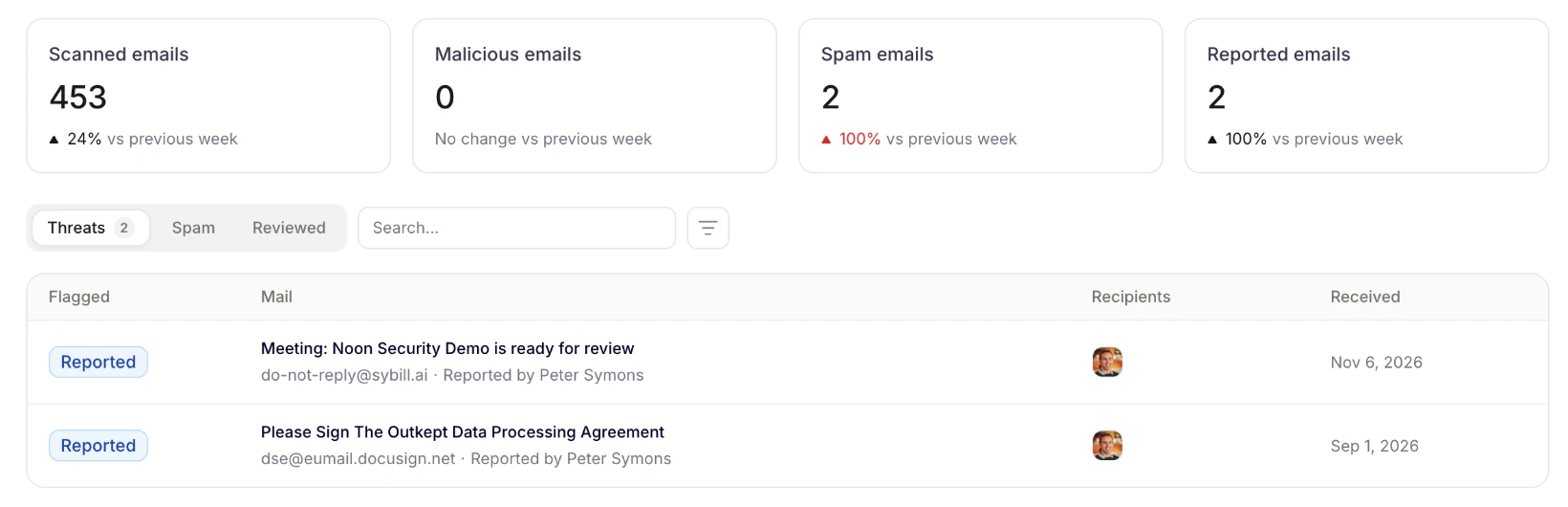
Report a message from Gmail, the way an employee does. The steps are in Report a phishing email. Then go to Emails. The message is in Threats, flagged Reported, with the name of the person who reported it. The Reported emails count goes up.