
Slack
Get Slack alerts about devices, email, and phishing simulations, and choose where they go.
Connect Slack to get a message in a channel, or a direct message, when something happens in Noon that you want to know about. Noon sends the alert. You act on it in Noon. Only admins can manage Slack.
#Get alerts where your admins already look
Some things in Noon need an admin: a package request waits for approval, malware turns up on a device, or someone fails a phishing simulation. A Slack alert tells your admins without waiting for someone to open Noon. See Set up Slack alerts.
#How it works
Noon sends one message for each event. Choose the event with the Alert type when you add an alert:
- Package install request: someone requests to install a package.
- Malware detected: Device Protection detects malware on a device.
- Blocked installation: Device Protection blocks a package from installing on a device.
- New device detected: a new device appears in Device Protection.
- Malicious email: Noon finds a malicious email in a mailbox.
- Phishing simulation failed: someone fails a phishing simulation, for example by clicking a link or entering a password.
Each message says what happened and has a button that opens it in Noon. Slack is one-way. You can't approve, reject, or review from Slack.
You can add each alert type once for each channel.
#Set up Slack alerts
#Open the Slack integration
Go to Integrations and click Slack.
#Add a Slack channel
Click Add Slack channel. Slack opens and asks you to allow Noon Bot.
#Choose where alerts go
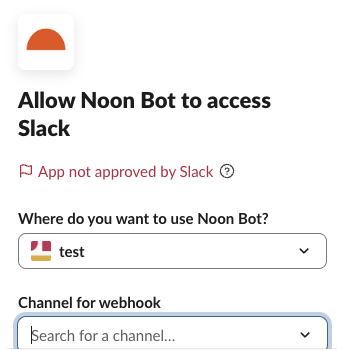
In Slack, under Where do you want to use Noon Bot?, choose your Slack workspace. Under Channel for webhook, choose a channel or a person, then click Allow.
#Add the alert
Noon opens the Add alert dialog. Choose the Alert type and the Channel, then click Add alert. To send alerts to another channel, choose Add new channel in the Channel list. Add one alert for each type you want.
#Check that it works
Each alert appears in the list with its Alert type and Channel. Noon posts the first message the next time that event happens.
#Remove an alert or disconnect Slack
To remove one alert, click ⋯ on its row, then Remove alert. To remove Slack, click ⋯ next to Add alert, then Disconnect. Disconnecting removes all Slack channels and alerts. You can connect Slack again later.