
Reports
See your results over time, download the data, or get reports by email on a schedule.
Reports show your results as charts over time, for example your phishing results or the threats Noon found. Go to Reports. Only admins can open it. Each report has a category, such as Phishing or Threats.
Need a report that isn't here, or report data in the API? Click the chat button at the bottom right of this help center or the Noon dashboard to talk directly with a Noon team member. The team evaluates each request. The main goal is to work with your data through the Public REST API.
#See how your results trend
When you want an overview of your phishing campaigns and their results, open a report. Each one is a chart over a period, so you see the trend instead of one campaign at a time. For a single campaign, see Campaign results. See Open a report.
#Get the data without opening Noon
When you want your own graphs, download a report as a CSV file. When you don't want to come to Noon at all, schedule the report and it lands in your inbox. See Open a report and Schedule a report.
#Open a report
#Choose a report
Go to Reports and click a report. To find one faster, search by name, or filter by Category or Type.

#Choose the period
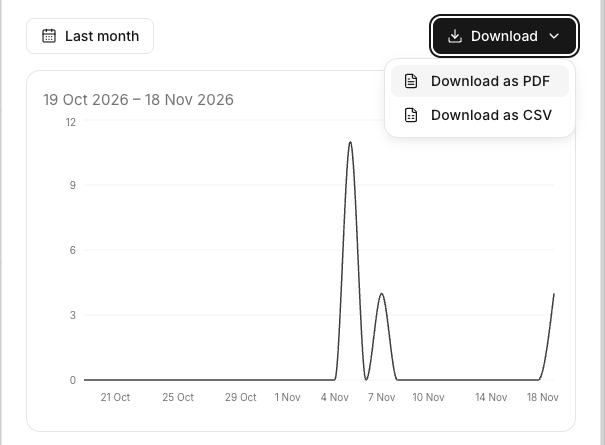
Click the period button, which reads Last month at first, and choose Last month, Last 3 months, Last 6 months, or Last year.
#Download the data
Click Download, then Download as PDF or Download as CSV. Use the CSV to make your own graphs.
#Schedule a report
#Open the schedule form
Go to Reports → Scheduled and click Schedule report.
#Choose who gets it
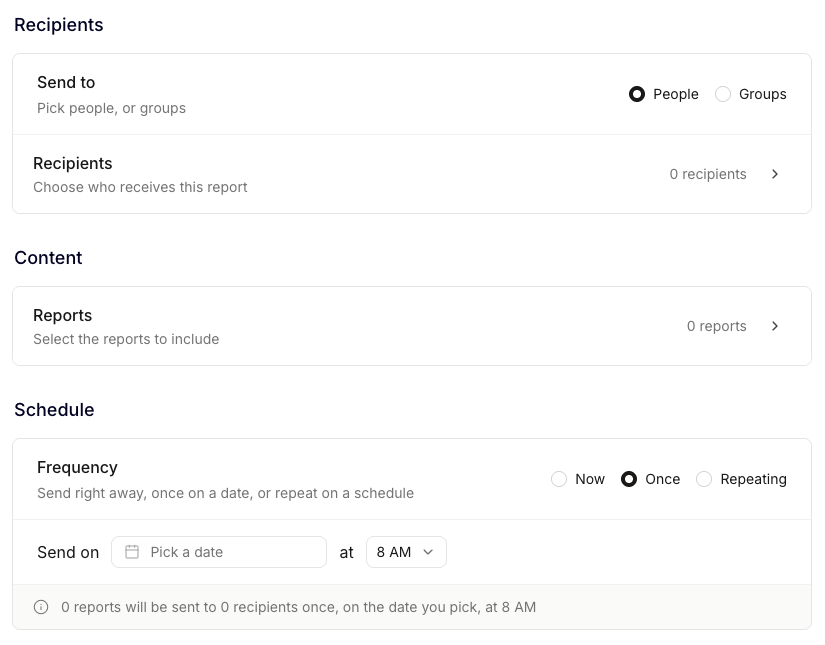
Under Recipients, choose People or Groups next to Send to. Then click Recipients and choose who receives the report.
#Choose the reports
Under Content, click Reports and select at least one report.
#Choose when it goes out
Under Schedule, choose a Frequency:
- Now: Noon sends the report right away.
- Once: pick a date and an hour.
- Repeating: send every day, week, or month at the hour you pick.
A line at the bottom of the form sums up what Noon will send, to whom, and when.
#Save the schedule
Click Schedule report. Noon shows Report scheduled.
Each report arrives by email as a PDF attachment. A report covers a fixed period, counted in UTC days:
- Now and Once: the last 30 days.
- Daily: the previous day.
- Weekly: the previous 7 days.
- Monthly: the previous calendar month. It goes out on the 1st.
The Scheduled tab lists your schedules. Use the row menu to Edit or Delete one. Deleting a schedule stops its reports.