
Email simulations
Test whether people click, sign in, or open a file in a fake email, and read the emails before they go out.
An email simulation sends your employees a fake email that looks like it comes from a company they use, such as Microsoft or DocuSign, or from a colleague. It tests whether people stop and check before they click a link, sign in, or open a file.
Noon delivers the email through your connected workspace. Connect Google Workspace or Microsoft 365 before you launch. See Connect your workspace.
#How it works
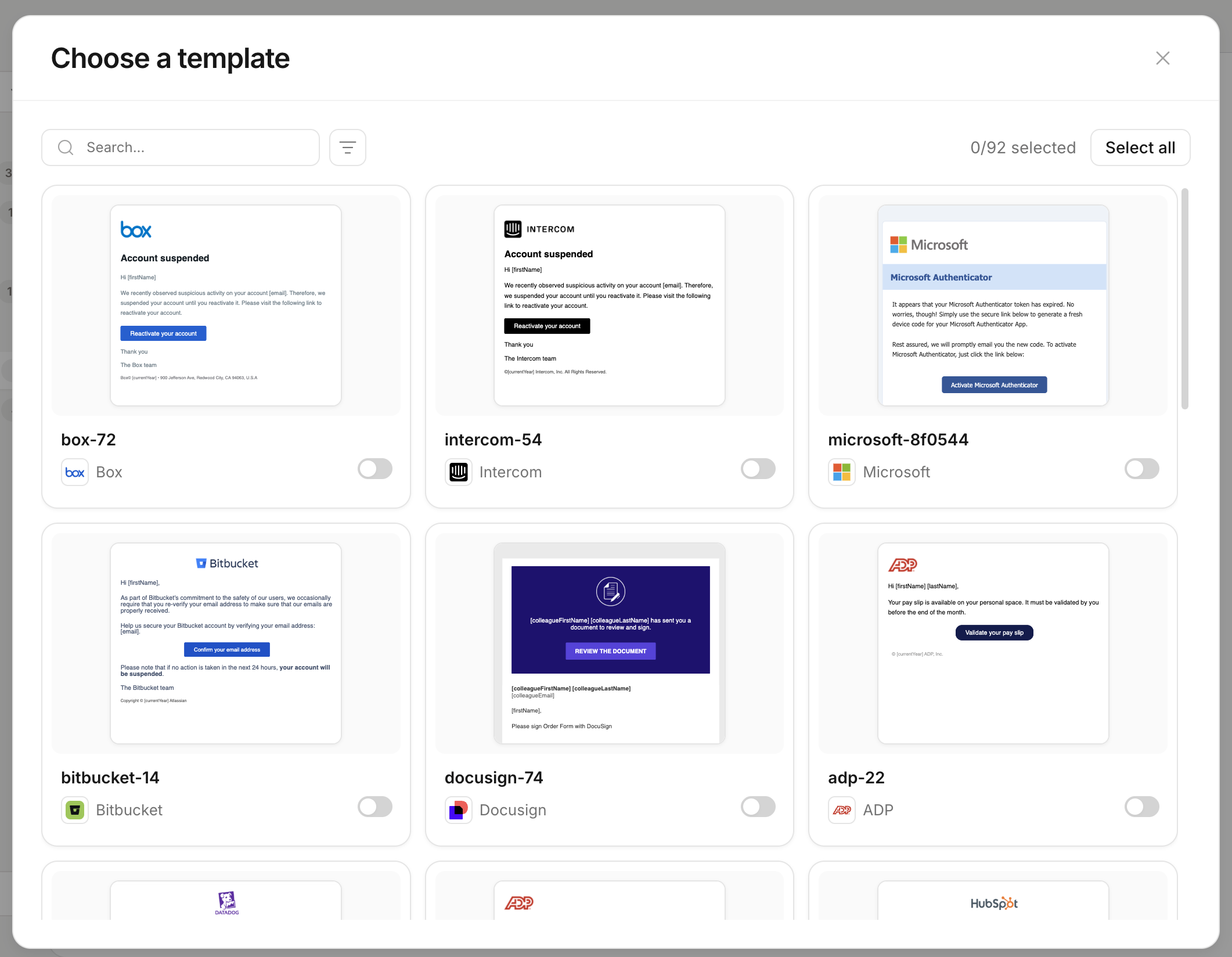
Each email template is a short fake message, such as "Account suspended" or "Validate your pay slip". It greets the person by first name and asks them to act.
You choose what the email asks for (Phishing method) and how many red flags it has (Difficulty). Noon sends a matching template to each person. Anyone who falls for it gets a short lesson. See What employees see.
#Test whether people sign in on a fake page
Emails that ask for a password are a common way into a company. Run an email campaign to see who signs in, and who reports the email instead.
#Open a new campaign
Go to Phishing and click Add campaign.
#Choose what the email asks for
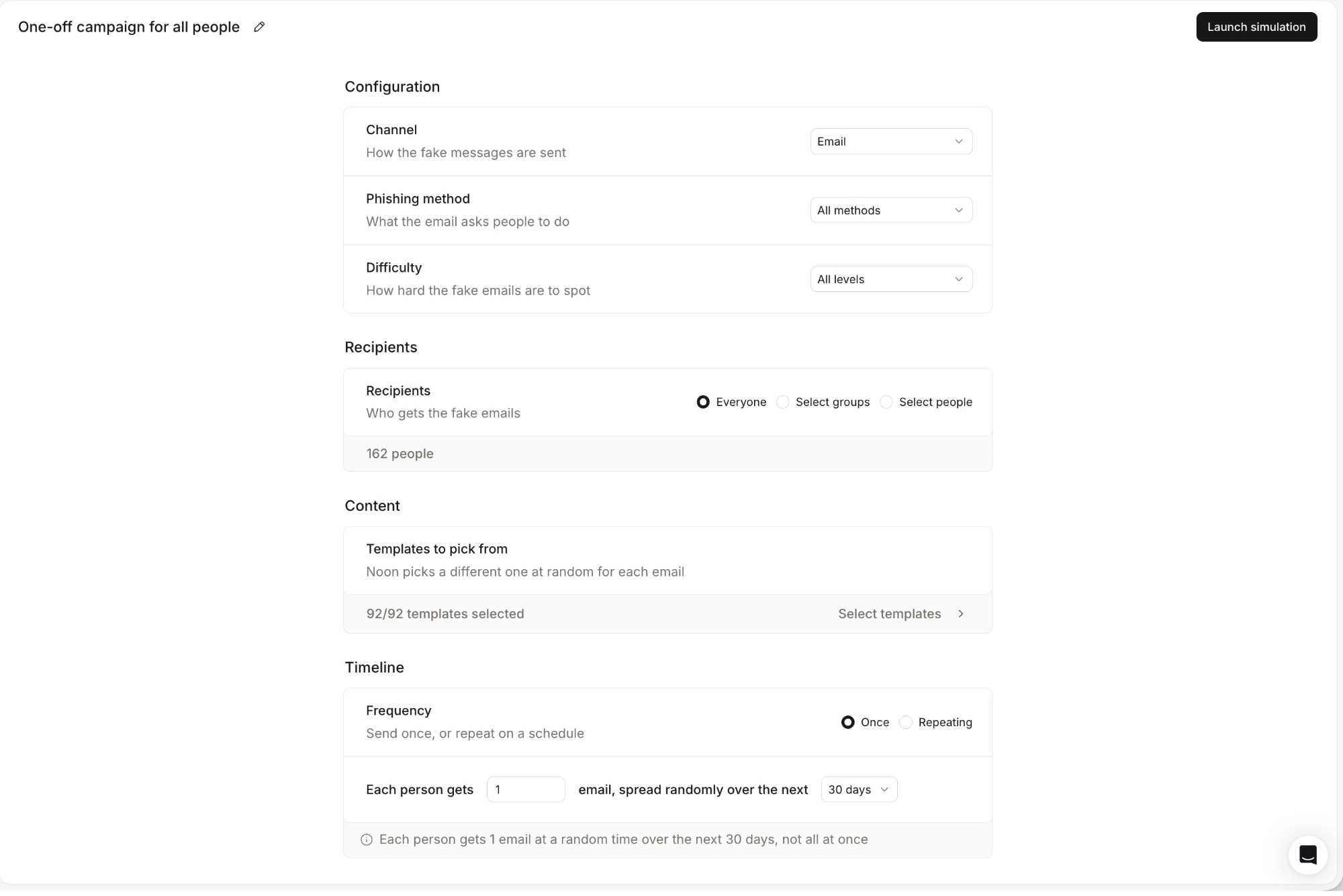
Under Phishing method, choose the methods to include, or leave All methods. Your choice changes which templates are available.
- Fake login pages: sign in on a fake page.
- Malicious attachments: open a file.
- App access requests: give an app access.
- Impersonation: pose as a colleague.
- Fake invoices: pay a bill.
- QR code phishing: scan a QR code.
Then choose a Difficulty: Easy, Medium, Hard, or All levels for a mix.
#Choose who receives it
Under Recipients, choose Everyone, Select groups, or Select people.
#Pick email templates
Under Templates to pick from, click Select templates. Turn on the emails you want to send, or click Select all. Click Save. To send an email you generated yourself, see Create a custom email template.
#Choose the schedule
Under Timeline, choose Once or Repeating. Then set how many emails each person gets and over how long. Noon sends them at random times in that period, not all at once.
#Launch the simulation
After launch you can only rename the campaign. Channel, methods, recipients, templates, and schedule stay as they were.
Click Launch simulation.
#Read the emails before you send them
Go to Phishing → Library and open a template to see the email, the fake page its link opens, and the lesson. Remove any template that doesn't fit your workspace, for example a payroll email from a vendor your company doesn't use. Click Send to me to get a copy in your own inbox. See Phishing library.
Emails contain placeholders that Noon fills in for each person, such as [firstName], the person's first name.
To control which companies and names the emails use, see Campaign settings. To see who clicked, signed in, or reported, see Campaign results.