
Manage devices
View, organize, and manage the devices connected to Device Protection.
A device is any computer connected to Device Protection through an installed agent. Once connected, Noon automatically detects and monitors the packages installed on that device.
#Connecting a device
- Go to Device Protection.
- Click Connect device in the top right.
- Follow the setup instructions to install the agent on the device.
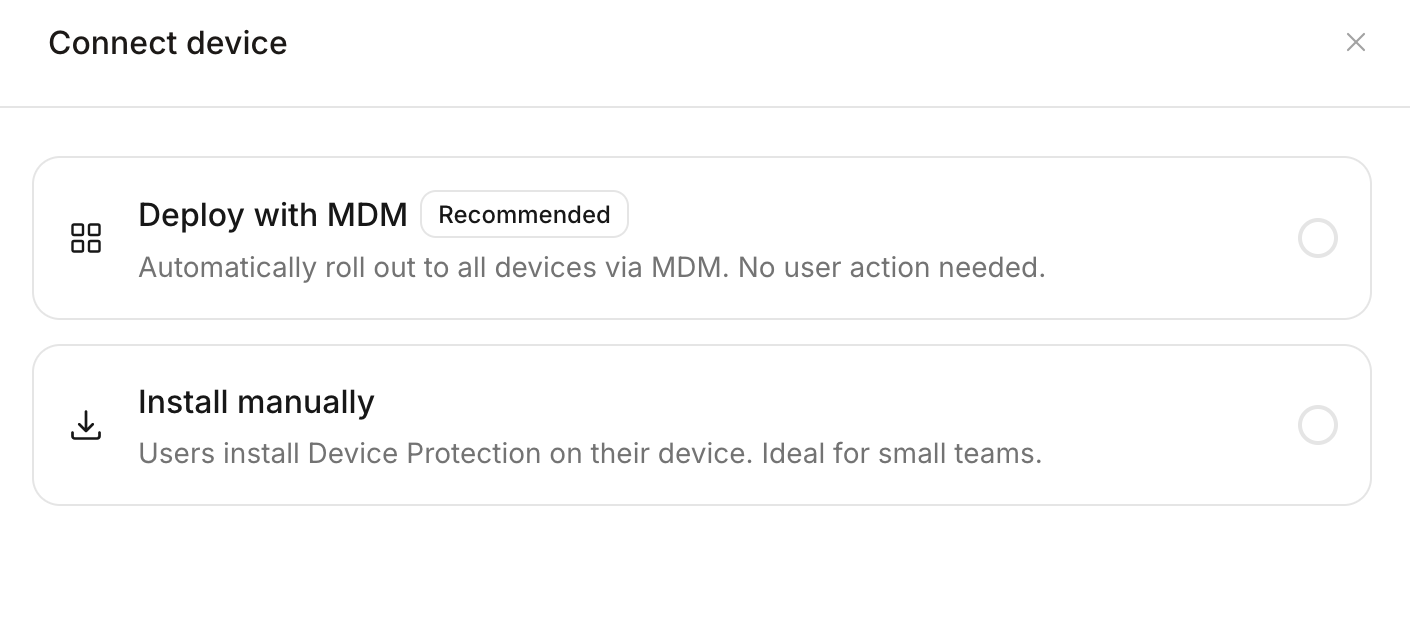
Once the agent is installed, the device will appear in your device list with an Active status.
#Device list
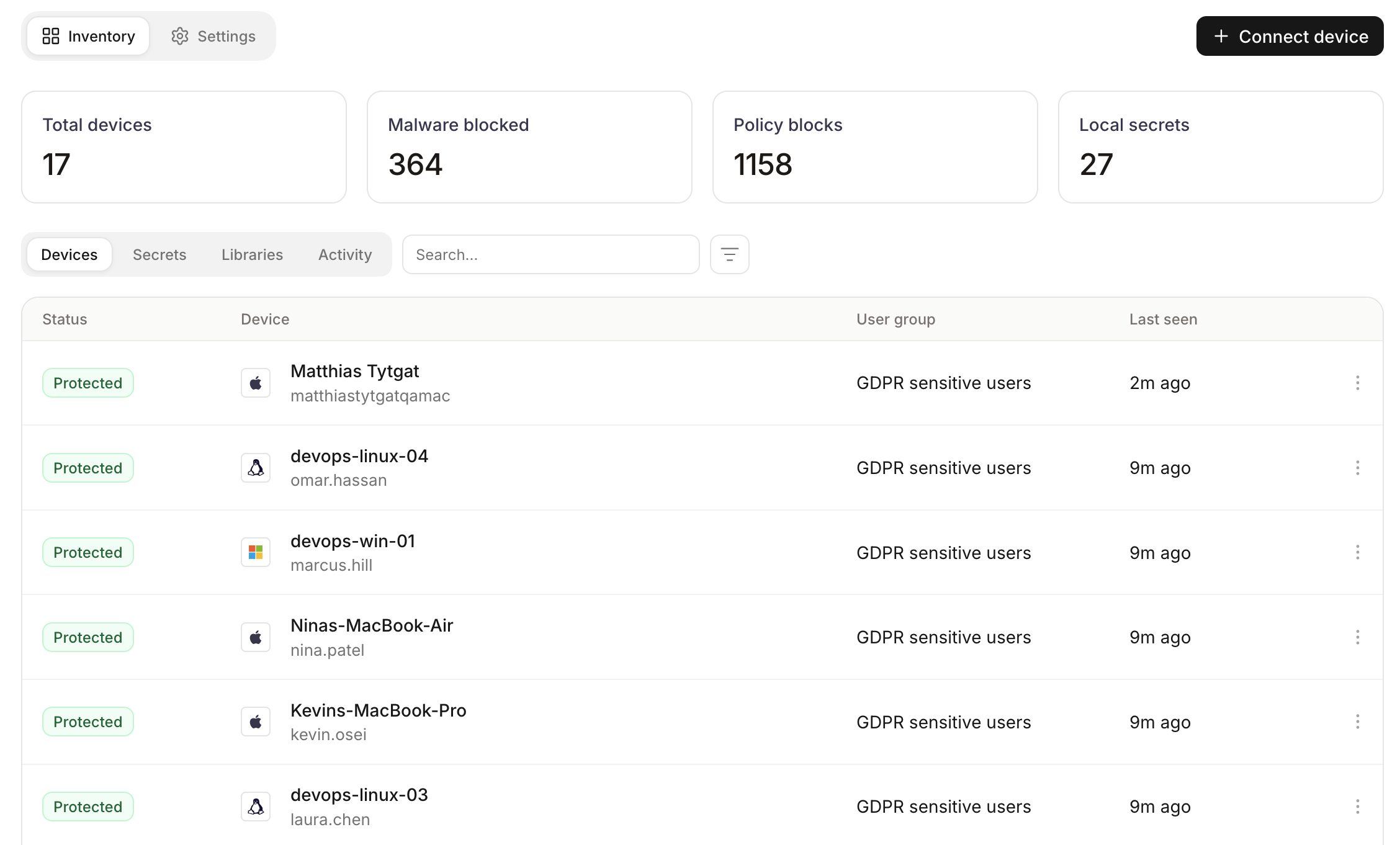
The device list shows every connected device. Each row shows:
- OS: Type of operating system
- Name: The device name and owner (e.g. "Kate Davis' Windows PC")
- User: The name of the account on the device
- User Group: Which group the device belongs to (e.g. Marketing, Product, Sales)
- Last seen: How recently the device checked in
- Agent Status: Whether the agent is currently active or offline and if Device Protection is up to date
#Device status
Noon sets a device's status based on how long it has been since the agent's last heartbeat. The agent sends a heartbeat every 10 minutes.
| Status | Rule |
|---|---|
| Archived | No heartbeat for 30 days or more. |
| Offline | No heartbeat for more than 60 minutes. |
| Not protected / Update / Protected | Heartbeat within the last 60 minutes. Which one shows depends on whether setup is complete and the agent version is current. A device shows Update when a newer agent version is available (see Auto-update). |
#Auto-update
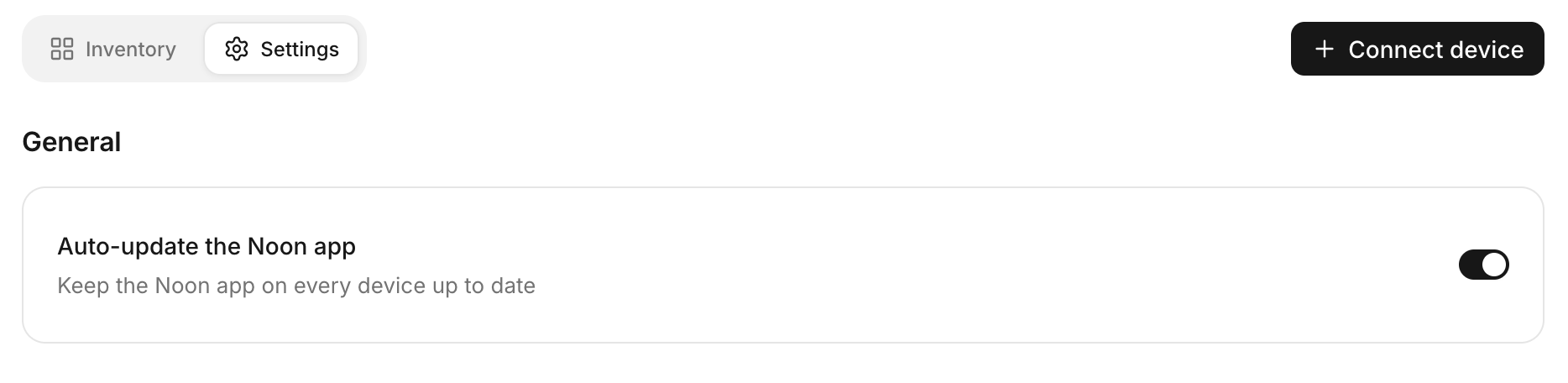
Auto-update keeps the agent on your devices up to date without redeploying it. The policy applies to every device in your workspace.
- Default: Auto-update to latest version: devices update to each new agent release.
- Off: devices stay on their installed version. They show the Update status until you update them yourself.
Keep auto-update on so devices get bug fixes and new features as soon as they ship. Noon tests every version end to end and runs it internally first, then rolls it out gradually and rolls it back automatically if needed.
To change the policy:
- Go to the Devices Settings page.
- Click toggle to change the auto update policy
#User groups
User Groups for Device Protection#Device actions
Click the ⋮ menu next to a device to view device actions.
#Pausing protection on a device
Pause Protection temporarily turns off Device Protection on a specific device, without uninstalling the agent. The device stays connected, and you turn protection back on from the same menu when you're done.
Reasons to pause protection:
- Troubleshooting an issue that might be caused by Device Protection itself
- Urgently installing software that's blocked by a policy, while you set up a longer-term rule
- IT or support walking a user through a fix that requires protection to be off temporarily
- Checking whether Device Protection is conflicting with another security or monitoring tool on the device
Only pause protection together with Noon support, while you work through an issue with them. Contact support@noon.security before you pause a device.
While paused, the device isn't protected against unauthorized or malicious package installs. Turn protection back on as soon as you're done.
#Removing a device
Remove Device disconnects the device from Device Protection and takes it off your device list. This does not uninstall the agent from the device itself.
Remove a device when:
- It's been decommissioned, wiped, or replaced
- An employee has offboarded and the device no longer needs to be monitored
- It was connected by mistake or for testing and doesn't need to be tracked
Removing a device only removes it from Noon. To fully stop Device Protection from running, uninstall the agent from the device.