
Data leaks
How Noon matches a leaked password to a person in your workspace, and how you ask them to change it.
A leaked work password lets someone sign in as that person. The person may still be using that password.
#How it works
Noon checks leaked passwords for your organization's domain and keeps an incident when the email belongs to an active person. Only an admin can open data leaks.
Until you connect your workspace, an admin sees only their own incidents. A banner, You're only seeing your own leaks, has a Connect workspace button. After you connect, Date leaks covers everyone in your workspace.
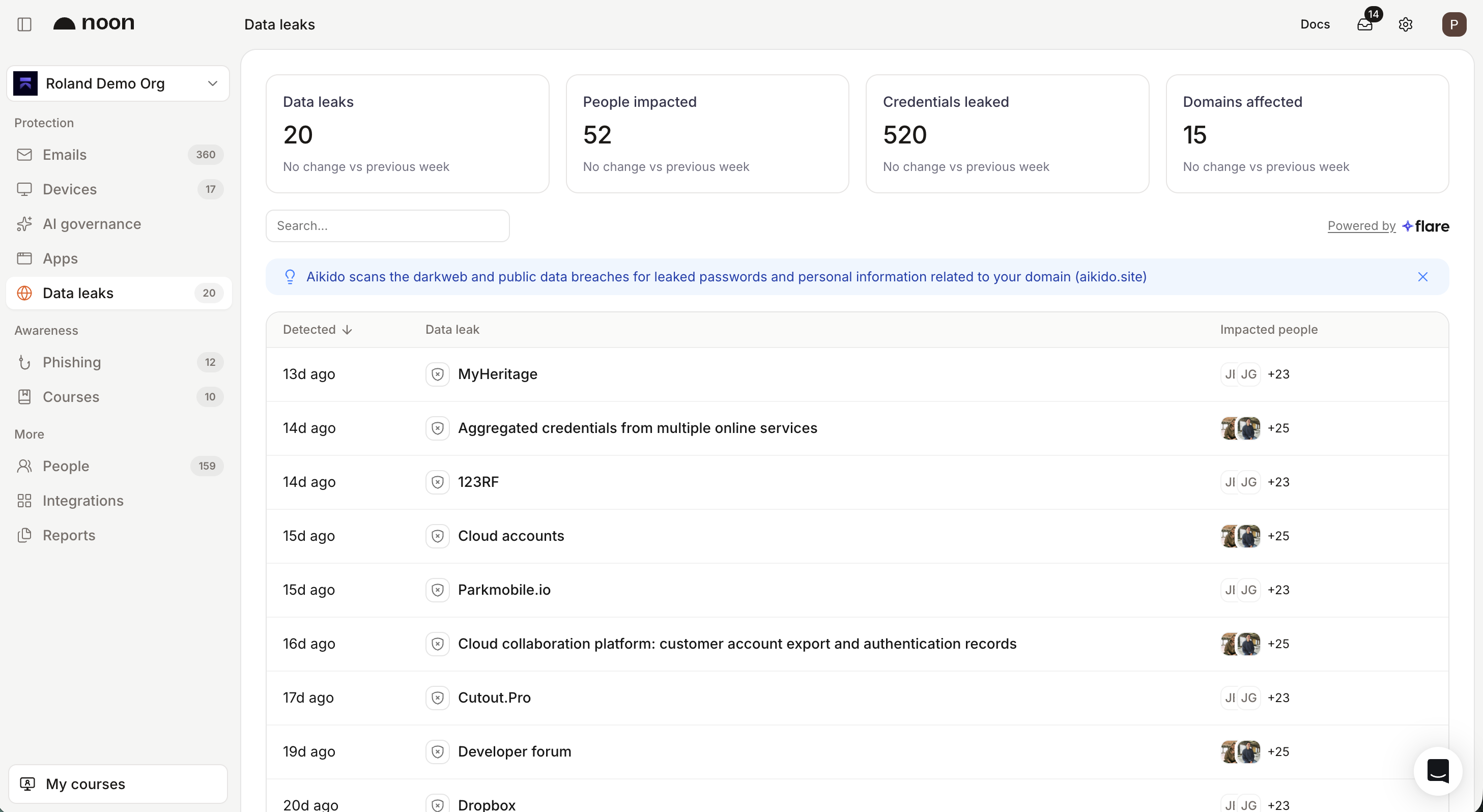
Incident data comes from Flare, which monitors the open web and the dark web for leaked passwords.
The people affected are the active people whose email matched. Impacted people lists them. People impacted shows each person, their email, and part of the password. Noon does not show the full password.
People impacted counts people. Credentials leaked counts leaked passwords, so one person can add more than one password.
Detected is when Noon first recorded the incident for your workspace.
Domains affected counts the different sites a leaked password was used to sign in to. Noon counts each site once. A password with no site attached is left out.
#Ask affected people to change their password
When a person's work email shows up in an incident, they may still be using that password.
- Go to Data leaks.
- Click the incident.
- Ask the people under People impacted to change their password.
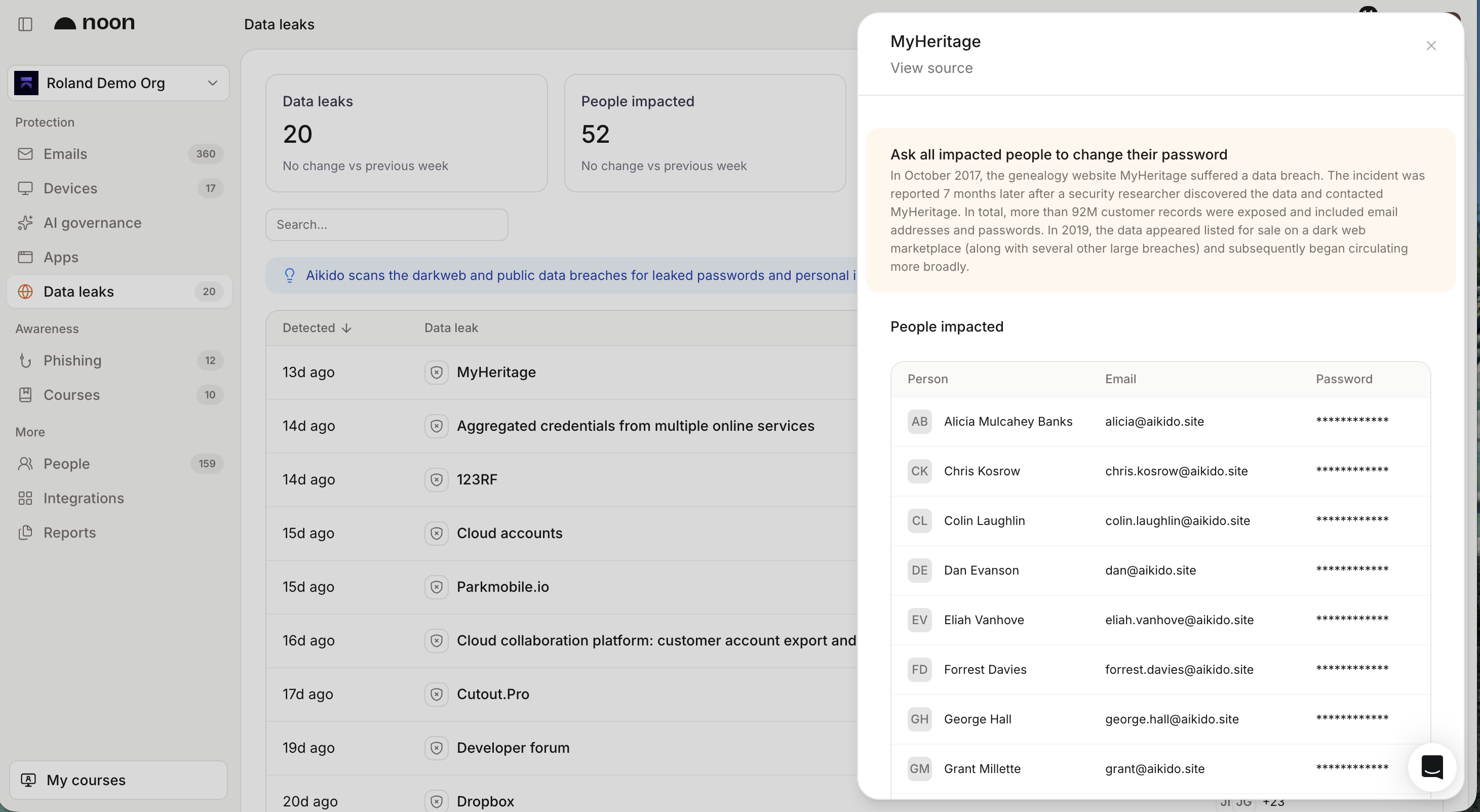
When the incident includes a description, the drawer leads with Ask all impacted people to change their password. That line is a reminder for you. When the incident has a source link, View source under the title opens it.
The person hears about it only if you tell them. Noon leaves the password as it is and keeps no record of a change.